
What Is the Show Windows Key on Chromebook & How to Use It Effectively?
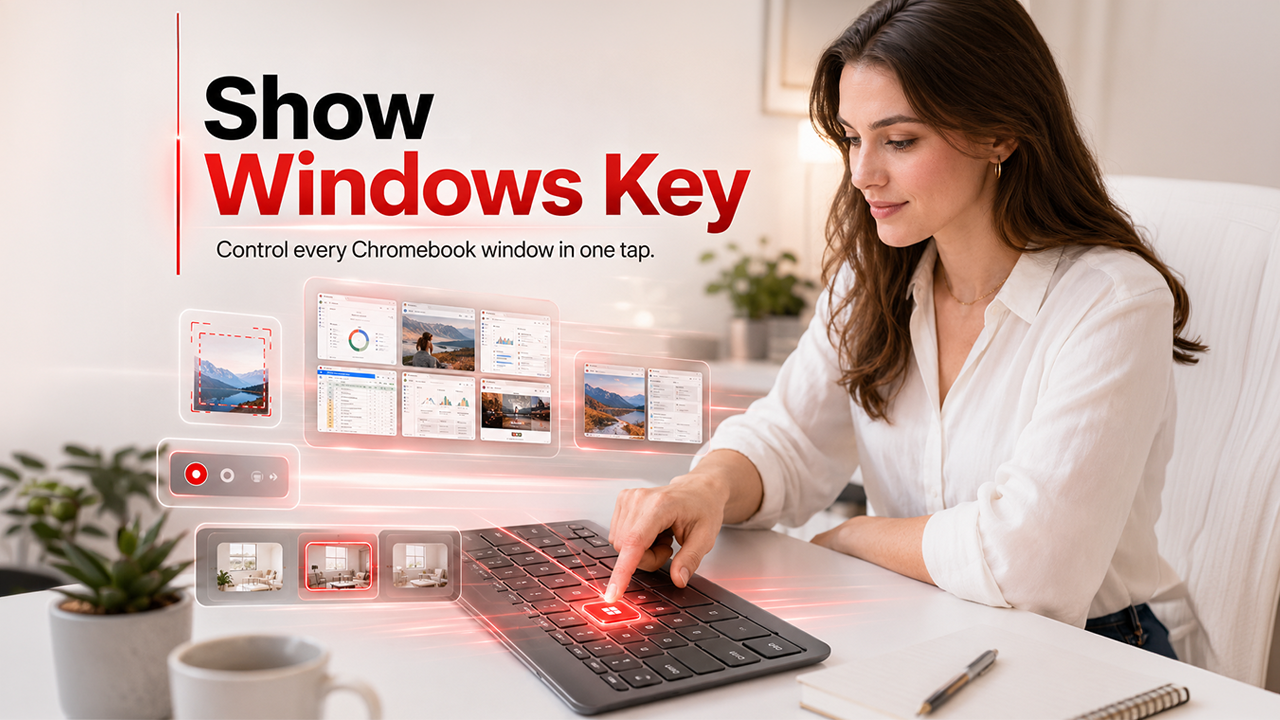
The show windows key on Chromebook handles virtual desks, opens overview mode, captures screenshots, and allows split-screen — all utilizing one keyboard button.
The show windows key on Chromebook is a special keyword button that shows all the windows and open apps at once. Located at the top between the brightness keys and full screen, this rectangular icon with two vertical lines works as your window management center. Numerous Chromebook users ignore this effective feature, missing out on productivity gains and quicker multitasking. Comprehending the show windows key on Chromebook enables you to quickly transition between apps, handle virtual desktops, and efficiently capture screenshots.
In this guide, you will understand everything about utilizing the show windows key on Chromebook, from basic navigation to sophisticated shortcuts.
How to Utilize the Show Windows Key on Chromebook?
In Chromebook, the show windows key provides numerous ways to boost productivity and control your workspace-
1. Open the Overview Screen-
Select the “Windows” key on the “Chromebook” once to display all active windows. The screen changes into a grid view showing thumbnails of every browser tab and open tab. This is an overview model that displays all your workspaces at a glance.
You can press this key again to exit the view and return to your present window. The transition instantly happens without any lag.
2. Transitioning Between Apps-
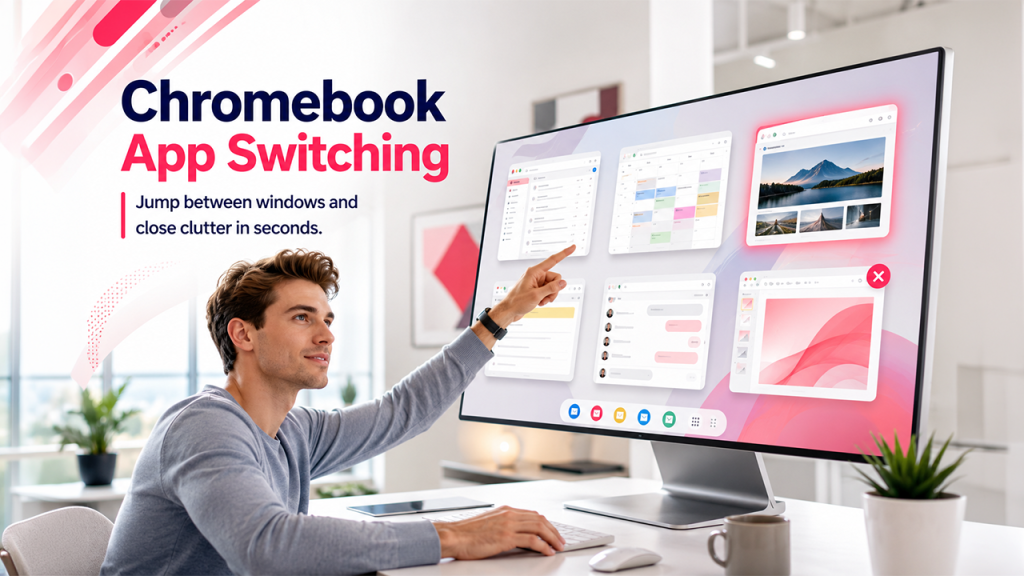
Select any thumbnail in the overview screen to directly jump to that application. This method proves to be faster than utilizing “Alt+Tab” continuously when you have so many windows open.
You can also directly close apps from this view. You can move your cursor over any Window thumbnail and select the “X” button that becomes visible at the corner. You can remove unwanted apps without opening them first.
3. Utilizing Touchpad Gestures:
There are also alternative methods you can use if the show windows key on the Chromebook is not responding. You can place three fingers on your touchpad and swipe upward. This gesture creates the same overview screen that you get once you press the physical key.
If you want to close the “Overview,” swipe down with three fingers and return to your work. A lot of users find touchpad gestures quicker than utilizing keyboard shortcuts for daily navigation.
4. Taking Screenshots:
In Chromebook, the show windows key also works as a tool for taking screenshots. Press Ctrl+Show windows to capture your entire screen. The image automatically gets saved to your “Downloads” folder.
For partial screenshots, you can use the keys “Ctrl+Shift+Show Windows.” The cursor gets changed to a crosshair, enabling you to drag and choose any select area. This will start the screen capture menu with additional options for recording the screen.
5. Managing Virtual Desks:
Virtual desks streamline your workflow across different workspaces. Press the key “Show Windows” on Chromebook to find all your desks at the top of the overview screen. Select the “plus” icon to create a new desk for separating personal browsing, work tasks, or study materials.
You can drag any window from one desk to another by holding it and moving it to the preferred thumbnail. Keyboard shortcuts make management of virtual desks even quicker than just using the mouse.
Troubleshooting Major Issues
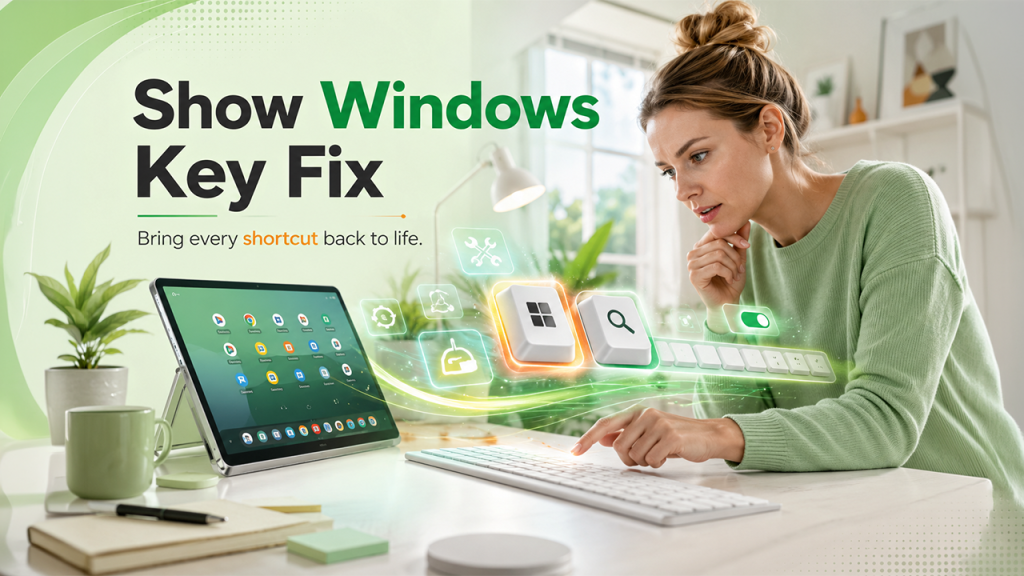
Sometimes you will find that the Show Windows key stops functioning if your device treats the top row keys as non-function keys. Open “Settings,” go to “Device”, and then select “Keyboard.” Then, turn off the option “Top Row Keys as Function Keys” to restore normal functionality.
If you want to keep the function keys as enabled, you can hold the “Search Key” while also pressing “Show Windows.” This combination ensures the same result without changing the keyboard settings. The Screen + Search Windows combination is quite effective for screenshots as well.
Check software updates by choosing Settings and selecting “About ChromeOS.” An outdated system version can cause keyboard shortcuts to malfunction. You can restart your Chrome once the updates are complete.
Sometimes, clearing the cached data on the browser also fixes keyboard shortcut conflicts on Chrome. If shortcuts such as “Ctrl+Show Windows” do not respond after a session, clearing the stored browser data can help restore normal functionality. Refer to our guide on fixing “ERR_Cache_Miss: 7 Methods to Fix Chrome Cache Error in 2026.”
Utilizing Split-screen Windows
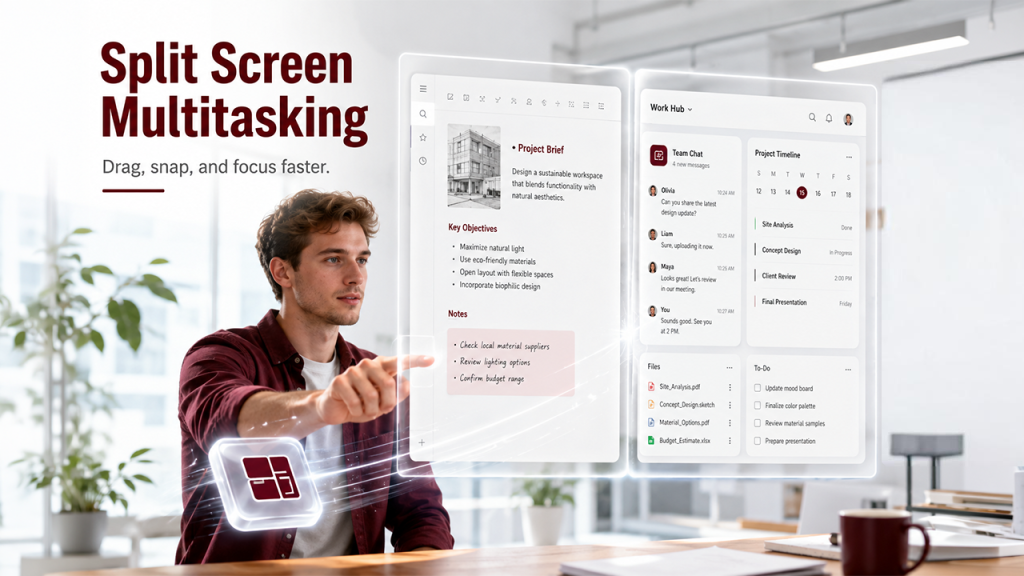
The overview screen allows for quick split-screen setup. Press the key “Show Windows” on Chromebook, then drag any window to the left or right of the screen. You can release it once you see the highlighted zone appearing on the screen. The window then snaps to fill half of the display.
You can choose another window from the remaining thumbnails to fill the other half of the screen. This feature of window management enhances multitasking by allowing you to view two applications simultaneously.
Keyboard Shortcuts That Work With the Show Windows Key on Chromebook
Related walkthrough
How to Connect Claude MCP with Adobe After Effects & Premiere Pro | Higgsfield AI Full Setup Guide

Combining the “show windows key” with other keys gives you quicker controls across your complete “Chromebook” experience. Such combinations minimize the time you spend while navigating the menus-
| Shortcut | Triggers the active to the right or left half of the screen |
|---|---|
| Show Windows | Launches overview screen |
| Ctrl + Show Windows | Captures complete screenshots |
| Ctrl + Shift + Show Windows | Opens screen recorder or partial screenshot |
| Search + Show Windows | Activates overview when you enable the function keys |
| Alt + [ or ] | Triggers the active to right or left half of the screen |
Adjusting Display Settings Via Overview Mode
The overview screen does a lot more than just showing open windows. Once you are inside the overview, you can right-click on any desktop thumbnail to provide you with the options to reorder, rename, or remove virtual desks without causing any interruptions in your active sessions.
For Chromebooks that are connected to external monitors, the show windows key showcases open windows simultaneously across both screens. This makes the management of multiple monitors more controlled and noticeable when compared to manually switching between displays.
Users who run ChromeOS 108 or later also get access to the “Partial Screen Recording” option directly via the “Ctrl+Shift+Show” Windows menu, removing the need for third-party platforms.
Conclusion
The show windows key on Chromebook is an effective tool that changes how you handle desktops, apps, and screenshots. From transitioning between open windows to setting up virtual desks and split screens, this single key efficiently manages numerous workflow tasks. Touchpad gestures provide a convenient alternative when the keyboard becomes unresponsive. Regular software updates ensure that the shortcuts remain functioning properly. Once you begin consistently using this key, multitasking on your Chromebook becomes more organized and further noticeable.
FAQs About the Show Windows Key on Chromebook
Q. Where is the show windows key on my Chromebook?
A- The show windows key appears in the top row of the keyboard and appears like a rectangle with two vertical lines on its right side.
Q. What does the key “Ctrl+Alt+Z” do on a Chromebook?
A- As you are logged into Chromebook, using “Ctrl+Alt+Z” will toggle the ChromeVox on or off.
Q. What does the key “F8” do on a Chromebook?
A- The “F8” is a mute button on Chromebook.
Q. Can I use the Show Windows key without pressing it?
A- Yes, you can swipe up with three fingers on your touchpad to launch the overview screen. On a Chromebook with a touchscreen, you can swipe up from the bottom and then hold for a seconds. These are alternative ways you can use when the physical key is not functioning.
Article rating
Was this article useful?
0.0 out of 5 from 0 ratings