
When the Shot Is Already Approved: An Image-to-Video Workflow for Marketing Teams
Learn how to turn approved marketing images into videos with an image-to-video workflow that protects brand details, preserves key visuals, and simplifies review.
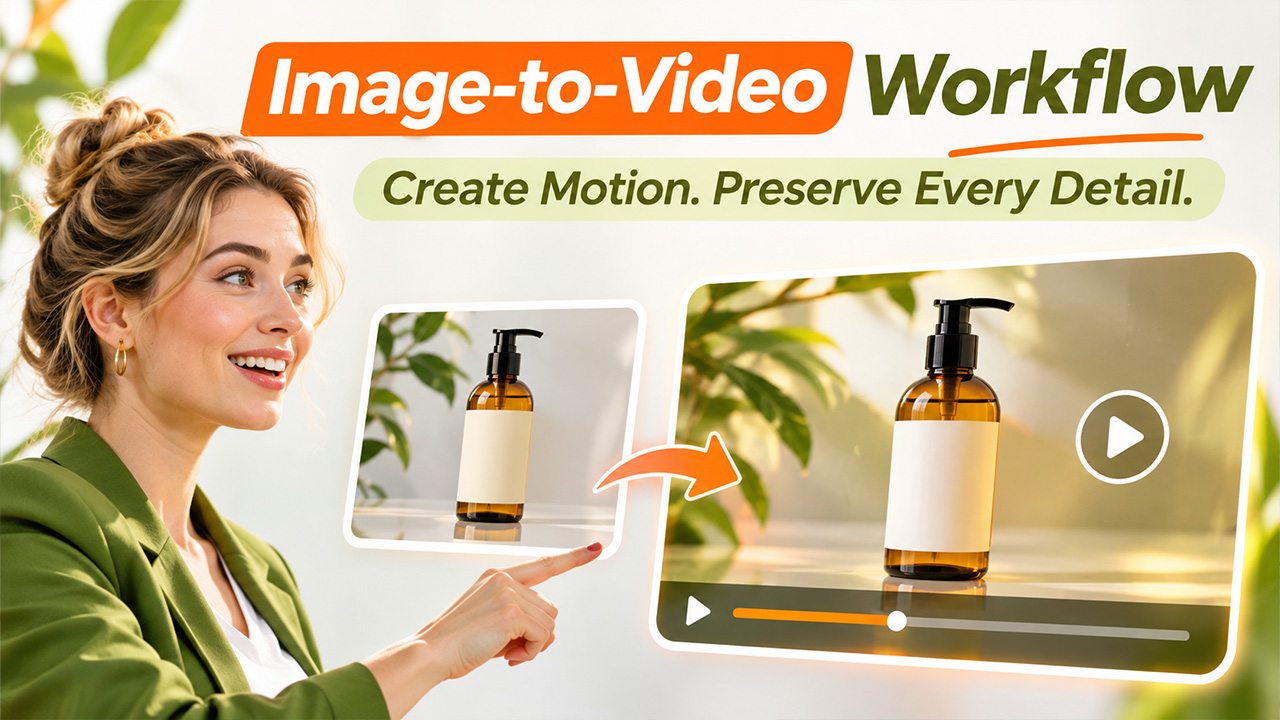
An amber glass bottle with a blank label on a reflective surface. This is an illustrative product still of the kind a marketing team might already have signed off—not a MixVio output, and not a new generation prepared for this article. The label is blank; no brand is shown. Photo: Volker Thimm, Pexels. Cropped and downsampled from the 3,543-pixel original. License: Pexels License (free commercial use; attribution is a courtesy, not a condition).
An effective image-to-video workflow helps marketing teams transform approved product photographs and campaign stills into short video assets without losing sight of the original creative direction. However, the process requires careful planning, visual checks, and human approval before a generated clip is ready for publishing.
A packshot or campaign still that has already cleared legal and brand review can still be a poor candidate for a moving ad. Motion can make a landing-page loop or a pitch preview more useful. It can also soften a label, warp a mark, or send a signed-off file back for a second look. The first decision is not which tool to open. It is whether this particular still should move at all, what information has to remain readable if it does, and when a static ad is the more honest choice.
Decide Whether Your Approved Still Is Ready for an Image-to-Video Workflow
Before anyone generates a clip, three questions usually settle the point. Before starting an image-to-video workflow, marketing teams should evaluate image ownership, visual quality, and the purpose of the intended video.
Do you own the still, or have authority to animate it? Image-to-video starts from a photograph you are allowed to use. A file cleared only for static publication is not automatically cleared for a generated clip.
Is the still a good input? Clear, well-lit images with a readable subject work better than compressed files, tiny products, or frames in which the important type is already hard to read. If the still survived review because of a fine label or a small logo, motion is more likely to undo that work than to help it.
Does the channel actually need motion? A short vertical cut, a loop, or a pitch preview can justify a motion pass. Another crop of the same still, or a placement where the product must hold perfectly still, may not. If the moving version would not add information the still already gives, keep the still.
This is a go or no-go screen, not a production system and not a model test. If the still passes it, text-to-video is useful when the scene does not exist yet. Image-to-video is the route to try when the subject is already locked in a photograph you are authorized to animate. Other tools, including Runway, Luma, and Pika, can start from a still in the same way. One place to turn an approved still into a short video is MixVio’s image-to-video generator. It starts from a photo you own or are authorized to animate. You describe the motion, choose a format and a model, review the credit quote, and download a private MP4.
What Must Remain Readable in an Image-to-Video Workflow?

If you do go ahead, separate two lists before you generate them.
A reliable image-to-video workflow starts by identifying the visual elements that cannot change during animation, including product shape, packaging, logos, typography, and brand colors.
The first list is what must remain recognizable: the product silhouette, the crop that already survived review, and any typography, mark, or pack color the still was chosen to show. Treat those as review criteria, not as promised results. Subject identity, logos, fine typography, packaging detail, and exact brand color can drift or distort from the reference frame. A sharp label can soften. A mark can warp. A signed-off color can shift under a new light. Compare every take with the source for contour, marks, type, and color before anyone treats it as a candidate.
The second list is the motion you will allow: a limited camera move or a light shift that does not invent a new object, a new label, or a different product. A feature-page example of a motion prompt is “slow push-in, fabric and hair in light wind.” For a packshot, that might be a slow push-in or a soft change of light, with an explicit instruction not to add text, logos, or a different object. The aim is a modest motion pass that still shows the same subject. That is a target for review, not a promise that composition and color will hold.
When a Static Ad Is Better Than an Image-to-Video Workflow
Related walkthrough
Top 5 Image Generation Tools You Need in 2026!

Keeping the still is not a failed motion pass. It is the right output when the still is already doing the work. An image-to-video workflow is not necessary for every campaign. When product accuracy, fine typography, or exact brand presentation is essential, a static image may remain the more reliable creative asset.
Stay with a static ad when the brief depends on exact typography, a logo, or pack detail that you cannot allow to drift; when movement would change, or make harder to support, a claim that already sits on the frame; or when the placement only needs the signed-off still, not a loop. A short clip will also not replace a hero shoot that needs real hands, real rooms, and product behavior you can stand behind in an ad. It is not a system for building corporate training courses, personalized lessons, or modules that change with an employee’s performance data.
If you do generate a motion pass
When the still is worth moving, a short process is enough to hand to another teammate.
- Start with a still you own or are authorized to animate. Product photographs, portraits, storyboard frames, and owned concept art are the usual starting points. Avoid heavy compression, tiny subjects, and images you do not have the rights to move.
- Describe the action and the camera move using effective AI video prompts, not a new product, and stay inside the motion you have already allowed.
- Choose the intended format before you generate. Public image-to-video routes commonly support 9:16, 16:9, and 1:1, which covers most Reels, Shorts, landing-page, and ad placements. After you have a take, check whether any later crop would lose details you need to keep.
- Confirm the credit quote, then generate. The quote changes with the model, duration, and resolution you select. On MixVio’s image-to-video page, a published default example is a 5-second, 480p Seedance 2.0 video at 16 credits. Treat that figure as an illustration of the quote step, not as the cost of every job. Failed runs cost no credits.
- Compare more than one model on the same still when the first take is close but not right. Reviewed public routes include Seedance 2.5, Seedance 2.0, MiniMax H3, Kling, Veo, and Gemini Omni Flash. Keep the take that matches the brief; do not turn the job into a model review.
- Review the private file before it leaves the workspace. Uploads, prompts, and finished videos stay as private workspace assets on MixVio. That is helpful for draft work, but it is not permission to publish.
Most public image-to-video routes generate clips in the 3–15 second range. Seedance 2.5 also supports a continuous 4–30 second take. Pick the length in the generator before you confirm credits.
What has to be re-checked after a clip exists
Once a clip exists, the question is no longer whether a tool can produce motion. It is whether the moving version still carries the information that made this still usable. If a mark, a line of type, or a product edge was the reason to use the file, and the clip no longer shows it clearly, the still remains the better ad.
Watch for new impressions as well. Motion can make a product look more active, more fragile, or more abundant than the still claimed. If a caption or end card still uses language that the moving picture now overstates, revise the language or keep the still.
Check whether the intended advertising platform requires disclosure for this use, and follow its applicable rules. That check belongs to the advertiser. A private workspace, or a completed draft, does not answer it.
Commercial use has a separate boundary. On MixVio, paid-plan outputs may be used commercially, subject to the Terms of Service and each model provider’s usage rules. You must own or be authorized to animate the uploaded reference, and you must have rights to every face, brand, and prompt you submit. Free-plan outputs are for evaluation and are not for commercial publishing.
Store the source still with the settings you used and the date of the take, so a colleague can see how the clip was made.
Keep the still in charge
A locked still is not an instruction to animate it. Decide first whether it should move, what must stay readable, and when the static frame is enough. If a motion pass is justified, generate a take, compare it with the source, and keep a person on the final yes or no. MixVio’s image-to-video path is one place to try that work.