

DNS_PROBE_FINISHED_NXDOMAIN: Complete Guide to Fix This DNS Error
Learn why DNS_PROBE_FINISHED_NXDOMAIN occurs and how to fix it with steps for checking DNS settings, clearing caches, changing DNS servers, and restoring access.
Facing a DNS_PROBE_FINISHED_NXDOMAIN error prevents you from accessing a website and impacts your overall browsing experience. The common errors associated with DNS happen when your browser cannot resolve a domain name as per its associated IP address. Having a clear idea about the main causes and executing effective solutions can easily and quickly restore your internet connectivity. In this complete guide, let us understand the troubleshooting methods to fix the DNS_PROBE_FINISHED_NXDOMAIN error across diverse devices and platforms.
What is DNS_PROBE_FINISHED_NXDOMAIN?
DNS_PROBE_FINISHED_NXDOMAIN is a common failure caused by issues in Domain Name System resolution that stop browsers from loading websites. The NXDOMAIN component showcases a non-existent domain, indicating that the DNS server cannot find the requested domain name or translate it into a verified IP address.
Understanding the Error Message
The Domain Name System works as the address book of the internet, transforming human-readable domain names into IP addresses easily read by machines. When you type in your website URL, the DNS servers implement this translation to set up connections. The DNS_PROBE_FINISHED_NXDOMAIN error occurs when this process of translation fails.
How do Distinct Browsers Showcase This Error?
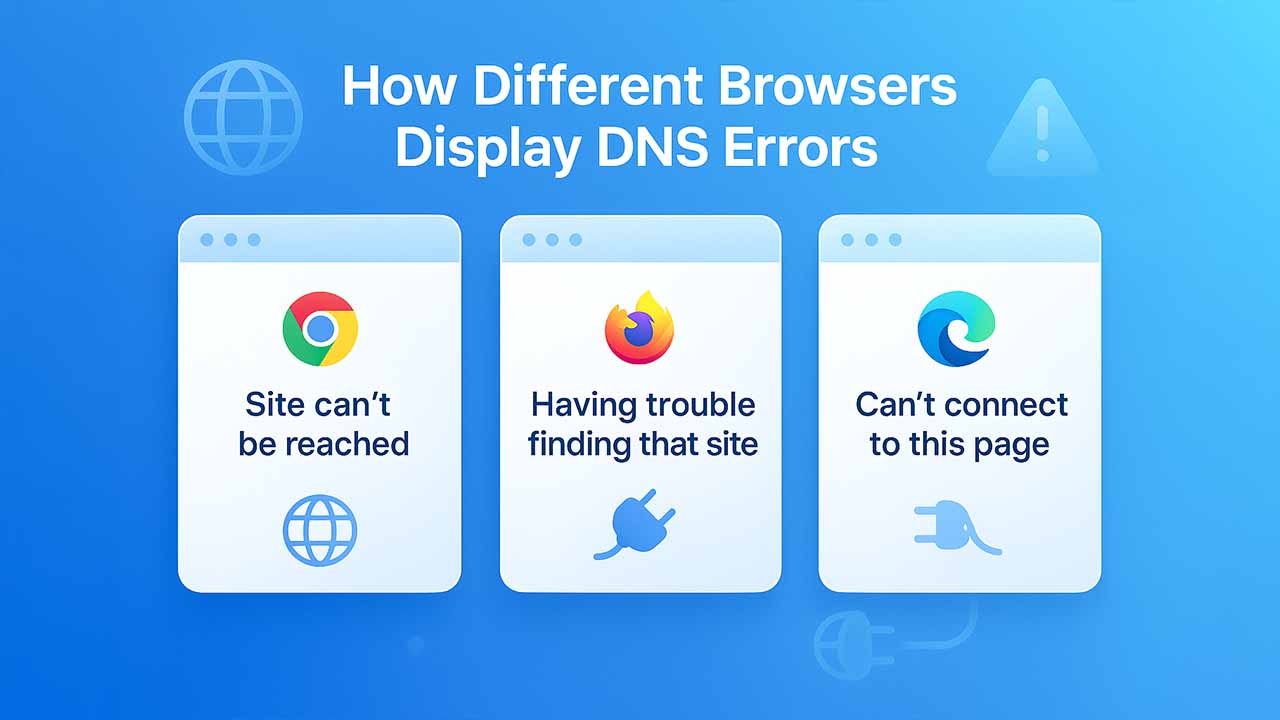
While the underlying problem is quite consistent, the way this error is displayed varies from browser to browser:
- Google Chrome: Displays the message “This webpage is not available” or “This site can’t be reached.”
- Mozilla Firefox: The error message is shown as “Hmm. We’re having trouble finding that site.”
- Microsoft Edge: Displays similar connectivity messages with a few variations.
Having a clear understanding of these variations aids in identifying the issue, irrespective of whichever browser you choose.
DNS_PROBE_FINISHED_NXDOMAIN Common Causes
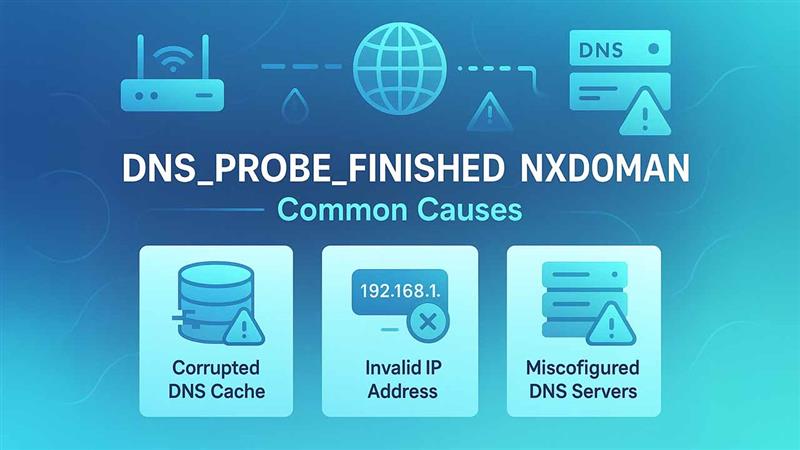
Numerous factors cause this DNS resolution failure. Recognizing the cause simplifies the troubleshooting process and ensures quicker resolution.
Errors in Network Configuration
- Corrupted DNS Cache: Corrupted or outdated DNS records locally stored prevent effective domain resolution.
- Invalid IP Address: Routers facing problems while assigning valid IP addresses create issues in connectivity.
- Misconfigured DNS Servers: Incorrect DNS Server Settings create issues while accurately translating domain names.
Problems Related to Domain
- Unregistered or Expired Domains: Attempting to gain access to domains that are no more or whose registrations have expired.
- Missing DNS Records: Domains that lack effective A or AAAA records cannot direct traffic to the right servers.
- Recent Changes in Domain: Recent DNS modifications or newly registered domains need propagation time.
Software Interference
- VPN Conflicts: Virtual Private Networks can interfere with DNS server settings.
- Antivirus Software: Sometimes, antivirus software blocks legitimate DNS queries.
- Firewall Restrictions: Overly restrictive rules of the firewall prevent DNS resolution.
- Browser Issues: A corrupted or outdated browser causes resolution failures.
Learn More:
- Top 6 Basic Coding Concepts You Must Know in 2026
- SSIS 469: Quick Troubleshooting and Prevention Guide
- How to Fix ERR_CONNECTION_TIMED_OUT Error
Effective Solutions to Resolve DNS_PROBE_FINISHED_NXDOMAIN
Related walkthrough
Fix Error 31007 — Migrate from Twilio Lookup v1 to v2

Executing such systematic solutions effectively addresses the majority of the DNS_PROBE_FINISHED_NXDOMAIN errors.
Method 1: Flush DNS Cache
Updating your DNS records prompts the system to extract fresh data from DNS servers.
For Windows:
- Start the command prompt as an administrator.
- Run the command: ipconfig /flushdns.
- Wait until you receive your confirmation message.
- Next, restart your browser and check your connectivity.
For macOS:
- Open the Terminal application
- Provide the following command: sudo dscacheutil -flushcache; sudo killall -HUP mDNSResponder
- Give an administrator password when you are prompted.
- Close the Terminal and verify whether the error has been resolved.
For Google Chrome:
- In the URL search bar, type Chrome://Net-Internals/#DNS.
- Next, find and click on the option “Clear host cache.”
- Go to “Chrome://net-internals/#sockets.”
- Choose “Flush socket pools” for comprehensive cleanup.
This method fixes issues that are caused by outdated cached DNS records.
Method 2: Renew IP Address
Getting a fresh IP address from your router removes all configuration conflicts.
Windows Process:
- Open your Command Prompt as an administrator.
- Type the command ipconfig /release and then press Enter.
- Implement ipconfig /renew to get a new IP address.
- Check whether you can access the website.
macOS Procedure:
- Go to the Apple Menu and then access System Preferences.
- Choose Network settings.
- Select the advanced button.
- Go to the tab TCP/IP.
- Select the button “Renew DHCP Lease.”
This solution focuses on connectivity issues associated with DHCP
Method 3: Modify DNS Servers
Transitioning to dependable public CNS servers bypasses default configurations that cause issues.
Suggested DNS Servers:
- Google Public DNS: 8.8.8.8 and 8.8.4.4
- Cloudflare DNS: 1.1.1.1 and 1.0.0.1
- OpenDNS: 208.67.222.222 and 208.67.220.220
Configuration Steps:
- Access the settings of the network adapter.
- Choose your active connection.
- Manually modify your DNS server addresses.
- Save your changes and then restart your connection.
Dependable DNS servers make sure that the domain resolution remains consistent.
Method 4: Verify Hosts File
The local hosts file can block specific servers inadvertently, needing manual verification.
Windows Examination:
- Open your Notepad as an administrator.
- Go to File and then click on “Open.”
- Then, access: C:\Windows\System32\drivers\etc\
- Choose your “hosts” file.
- Delete any entries blocking target websites.
- Next, save your modifications.
macOS Review:
- Launch your Terminal application.
- Run the command: sudo nano /etc/hosts.
- Recognize blocked domains below the localhost line.
- Remove problematic entries.
- Select “Command + O” to save your changes.
Clearing your blocked entries helps you restore access to sites that are previously inaccessible.
Method 5: Temporarily Disable Antivirus and VPN
Security software interferes with normal DNS operations occasionally.
Testing Process:
- Disable VPN connections temporarily.
- Pause your antivirus software protection.
- Test your website’s accessibility.
- After verification, re-enable your security measures.
If you find that disabling the security software successfully fixes your error, you must configure exceptions for legitimate traffic.
Method 6: Restart Device and Router
Simple power cycling generally fixes the underlying connectivity problems.
Correct Restart Sequence:
- Power down the computer completely.
- Then, unplug your router and modem from the power source.
- Wait for at least 60 seconds.
- First, reconnect the modem, then enable initialization.
- Then, reconnect the router after you see that the modem has stabilized.
- Power on your computer and then check your connection.
This method resolves temporary glitches impacting network equipment.
Method 7: Reset Chrome Flags
Experimental Chrome characteristics can cause unprecedented DNS problems.
Reset Procedure:
- Provide chrome://flags in the address bar.
- Select the button titled “Reset All” present at the top.
- Relaunch your browser when prompted.
- Verify the resolution of the error.
This solution solves the problem emerging from experimental browser configurations.
Mobile Device Solutions
DNS_PROBE_FINISHED_NXDOMAIN errors similarly impact mobile devices, needing platform-specific approaches.
Android Troubleshooting
- Clear your Chrome browser data via Settings.
- Toggle the Airplane mode on and off successively.
- Reset your network settings if issues persist.
- Update your browser to the newest version.
iOS Resolution Methods
- Next, restart your device to clear the DNS cache.
- Next, you should toggle your Airplane mode for a quick reset.
- Reset your network settings by selecting Settings, then General, and then Reset.
- Verify browser and iOS updates.
Mobile platforms need simplified approaches because of limited system access.
Best Practices and Prevention
Executing preventive measures minimizes the future occurrences of the DNS_PROBE_FINISHED_NXDOMAIN error.
Consistent Maintenance
- Clear the DNS cache periodically to avoid corruption.
- Ensure that the operating systems and browsers remain updated.
- Track router firmware updates.
- Verify that the domain registrations remain active.
Network Configuration
- Consistently leverage dependable DNS servers.
- Configure effective firewall rules enabling DNS traffic.
- Track security software with new definitions.
- Record any changes in network configuration.
Domain Management
- Proactively track domain expiration dates.
- Verify that the DNS records point to the right IP addresses.
- Allow propagation time that is required after DNS modifications.
- Ensure backup DNS server configurations.
Proactive maintenance reduces disruptions and ensures continuous connectivity.
When to Look for Professional Assistance?
Specific scenarios need professional help beyond basic troubleshooting.
Persistent Problems Point Toward Much-Deeper Issues
- The error remains persistent across numerous devices and networks.
- The domain correctly works for other users but consistently fails for you.
- Latest major network infrastructure changes.
- Suspected problems with the DNS server at the ISP level.
Connect with your web service provider or network administrator when simple solutions prove to be ineffective. Website owners facing domain-level problems must connect with their domain registrar or hosting provider for assistance in DNS configuration.
Conclusion
As the blog makes it clear, fixing DNS_PROBE_FINISHED_NXDOMAIN needs systematic network troubleshooting. We can also help you fix other types of Chrome browsing errors, such as ERR_CACHE_MISS or SSL protocol-related issues. Check out our other troubleshooting guides in our blog section.
Consistent maintenance, such as periodic DNS cache clearing and router restarts, prevents connectivity issues. When you are facing the DNS_PROBE_FINISHED_NXDOMAIN error, applying these effective solutions methodically restores the accessibility of the website quickly. Keep in mind that patience at the time of DNS propagation and systematic troubleshooting ensures the best results for fixing, preventing, and managing DNS problems.
Related blog: 400 Bad Request Error: What It Means and How to Fix It