Password Generator Practices That Protect Campus Accounts
Learn about password generator practices that protect campus accounts from phishing, breaches, and hacks. Smart, simple security tips for students.
Campus accounts are like the master keys of a university. One login can open email, Wi-Fi, learning platforms, payroll systems, library access, research data, and sometimes even door-entry apps. So if your password practices are sloppy, it’s a bit like leaving your dorm room door unlocked with a neon sign that says, “Free stuff inside!”
The good news? You don’t need to be a cybersecurity expert to protect yourself. You just need strong, repeatable practices—especially around password generators. Think of a password generator as a high-powered blender for randomness: it mixes letters, numbers, and symbols so thoroughly that nobody can “guess the recipe.” Let’s get practical.
Why Campus Accounts Get Targeted So Often
Universities have a unique problem: thousands of users, tons of devices, and constant turnover every semester. That’s basically a buffet for attackers.
Here’s what criminals love about campus logins:
- High value access: Your account might connect to financial aid, direct deposit, tuition payments, HR systems, or research tools.
- Password reuse: Many people reuse passwords between school, social media, shopping, and streaming. Attackers know this and use “credential stuffing” (trying leaked passwords on new sites).
- Busy schedules: When you’re rushing between classes or deadlines, you’re more likely to click a fake “Your mailbox is full” email.
- Shared devices: Labs, libraries, study groups—more chances to forget to log out.
So if you’re thinking, “I’m just one student, who’d target me?”—that’s exactly the mindset attackers count on. They don’t always hunt individuals like movie villains. Often, they cast a wide net and see who bites. This happens a lot when students register on suspicious “homework help” websites that ask for a campus email and password, or push you to install shady apps and browser extensions. If you’re stressed and a site says it can help you super fast, that’s exactly when you should slow down and double-check who you’re dealing with. Some of these sites are basically phishing traps, and once they have your login, they can jump into your university email and reset other accounts. That’s why, when you are thinking, “Who can do my PowerPoint presentation for me?” it’s safer to stick with well-known, reputable services (many students choose Edubirdie) instead of random links from ads or sketchy social media posts. Always read reviews, check the site’s domain and policies, and never reuse your campus password anywhere outside official university systems.
Strong password generator practices turn you from “easy catch” to “not worth it.”
What a Password Generator Should Actually Do
Not all password generators are equal. Some are solid. Some are basically a random-looking costume over weak logic. The difference matters.
A good password generator should:
- Create long passwords (ideally 14–20+ characters for most accounts).
- Use true randomness (cryptographically secure randomness, not predictable patterns).
- Let you control rules (include/exclude symbols, avoid confusing characters like O/0 if needed).
- Generate unique passwords every time (no templates like CampusName2026!).
Also, you’ll get the best results if the generator is built into a reputable password manager (or a trusted OS/browser manager). Because here’s the catch: the strongest password in the world is useless if you store it in a Notes app called “passwords lol.”
Security guidance from NIST (U.S. National Institute of Standards and Technology) emphasizes longer secrets and avoiding outdated rules like forced frequent password changes unless there’s a reason (like suspected compromise). Length and uniqueness matter a lot. (NIST SP 800-63B) [1]
The Daily Practices That Make Password Generators Actually Work
A password generator is a tool. Your practices are the system. If your system is weak, the tool can’t save you—like carrying an umbrella but refusing to open it in the rain.
Below are practices that protect campus accounts in the real world.
Practice 1: Generate a unique password for every campus-related login
This is the big one.
Use the generator for:
- University email
- Student portal / SIS
- Learning platform (Canvas, Blackboard, Moodle, etc.)
- Library accounts
- Research tools
- Department portals
- Any third-party app tied to your campus login
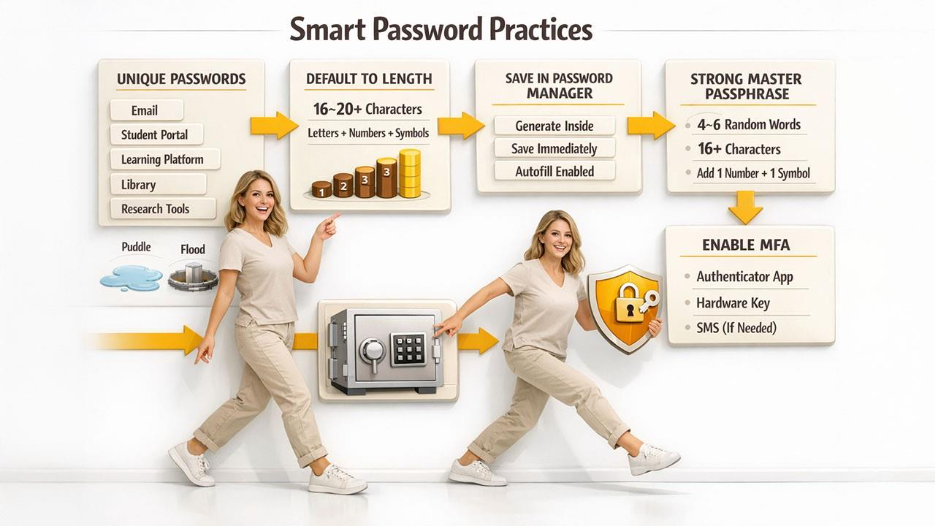
If one password leaks from a random service, it shouldn’t unlock your university life. Unique passwords turn a breach into a small puddle instead of a flood.
Practice 2: Default to length, not cleverness
People try to be “smart” with passwords: song lyrics, substitutions like P@ssw0rd, or patterns like Fall2026!. Attackers know all those tricks.
Instead:
- Choose 16–20 characters when allowed.
- Use the generator’s full mix (letters + numbers + symbols) unless a system is picky.
- If symbols break the login (yes, some systems are still weird), increase length and use letters + numbers.
Length is like adding more tumblers to a lock. It’s simple, but powerful.
Practice 3: Let your password manager store it—don’t “temporarily memorize”
A common failure pattern is:
“I’ll generate it now, paste it once, and remember it later.”
That’s how you end up:
- Reusing passwords,
- Writing them on paper,
- Or saving them in unprotected places.
Instead, make it automatic:
- Generate inside the password manager,
- Save immediately,
- Use autofill on your phone/laptop.
If you must write a password down during onboarding (like your first day on campus), treat it like cash: keep it private, then destroy it once safely stored.
Practice 4: Use separate “vault thinking” for your master password
Your password manager needs one strong key: a master password (or passphrase). This is the one you do want to remember, and it should be strong enough to protect everything else.
Best practice: use a long passphrase you can remember but others can’t guess.
Example style (don’t copy this literally):
MapleRiver!Bicycle7CloudsVivid
It’s like a long sentence with extra grit. NIST also supports long memorized secrets and discourages arbitrary complexity rules that hurt usability.
A simple master passphrase recipe you can actually remember
Related walkthrough
How to Create App Password for Microsoft Outlook Email | Office 365

Try this:
- Pick 4–6 random words (not a quote, not a lyric).
- Add one number and one symbol if you want.
- Make it at least 16 characters, longer is better.
Think of it like a secret smoothie: the more ingredients, the harder it is to recreate.
Practice 5: Turn on MFA (multi-factor authentication) everywhere you can
A password generator is strong, but MFA is like adding a second lock. If someone steals your password through phishing, MFA can still stop them.
Use:
- Authenticator app (strong option)
- Hardware keys if your campus supports them (even stronger)
- SMS only if that’s the only available option
Many universities already require MFA for email—and for good reason. Exploring advanced sign-in methods like SSO, biometrics, and hardware keys can further strengthen your campus account security beyond a basic password alone. CISA strongly recommends MFA as a key defense against account takeover.
Practices That Close the “Weak Link” Gaps
Even with perfect generated passwords, people still get hacked because of the side doors: phishing, password resets, shared computers, and recovery settings.
Let’s seal those gaps.
Practice 6: Treat password resets like a high-risk event
Attackers love “Forgot password?” because it’s often easier than cracking anything.
Protect your reset process:
- Use a non-campus email as a recovery address only if it’s well secured (with MFA).
- Keep your phone number updated if it’s used for recovery.
- Don’t use easily guessed security questions (or avoid them when possible).
- If you can set “recovery codes,” store them in your password manager.
If your recovery email is weak, your campus email is weak. It’s like installing a steel door but leaving a window open.
Practice 7: Never share passwords—even with friends or group members
Group projects create weird moments like:
“Just send me your login so I can submit it.”
Nope.
Instead:
- Use proper sharing features (some password managers allow secure sharing)
- Or submit from your own device
- Or ask your instructor/TA for a safer workflow
Sharing passwords doesn’t just risk your account—it can violate university policy and create academic integrity problems. One “helpful” share can turn into a mess.
The safest way to handle shared campus work without sharing logins
Try these alternatives:
- Share files in official systems (Google Drive, OneDrive, campus LMS groups)
- Use role-based access (team folders, project spaces)
- Ask IT or your department for a shared service account when appropriate (common in labs)
The goal is shared work, not shared identity.
Practice 8: Use generator settings that match campus rules (without weakening security)
Some campus systems reject certain symbols or limit length. Annoying, yes. But you can still stay strong.
If a system:
- blocks symbols → use longer letters+numbers
- caps length at 12 → use max length and absolutely keep it unique
- rejects pasted passwords → use the manager to reveal and type carefully (and complain to IT, honestly)
Don’t “solve” weird rules by making your password predictable.
Practice 9: Watch for phishing that targets campus logins
Phishing is the #1 reason strong passwords still get stolen. The email looks official. The login page looks real. Your brain is tired. Boom.
Your practice checklist:
- Don’t click login links from emails if you can avoid it.
- Go to the campus portal by typing the address yourself or using a bookmark.
- Check the domain carefully (attackers use look-alikes).
- If the page “feels off,” stop.
Password managers help here too: autofill usually won’t trigger on a fake domain. That’s like having a guard dog that refuses to enter the wrong house.
Practice 10: Log out on shared or public computers—always
Campus labs are useful, but they’re also full of risk.
Do this every time:
- Use a private/incognito window if possible
- Never save passwords in the browser on shared machines
- Log out of each service, then close the browser
- Clear downloads if you accessed sensitive files
Generated passwords won’t help if your session is still open for the next person.
A Quick Campus-Ready Password Generator Checklist
Use this like a “pre-flight list” before you take off:
- Generate unique passwords for every campus login
- Prefer 16–20 characters where possible
- Store passwords in a password manager, not notes or spreadsheets
- Use a strong master passphrase (16+ characters, 4–6 random words)
- Enable MFA for email and any critical services
- Lock down recovery options (recovery email + MFA, recovery codes stored safely)
- Avoid phishing by typing URLs or using bookmarks
- Never share passwords; use shared tools instead
- Log out on shared devices and avoid saving credentials
Conclusion: Strong Passwords Are a Practice, Not a One-Time Event
A password generator is like a gym machine: powerful, but only if you use it correctly and consistently. When you build the right practices—unique generated passwords, safe storage, MFA, and smart phishing awareness—you stop relying on luck. You start relying on a system that protects you even on your busiest, most distracted days.
And that’s the real win. Because campus life is already full of deadlines, group chats, and late-night assignments. Your account security shouldn’t be one more stressful thing. With the right password generator practices, you can lock your digital door, toss the key into a safe place, and get back to what you actually came to campus to do.