

How to Fix BIOS, Windows Update & ASUS App Issues on Your Laptop
Struggling with BIOS errors, Windows update failures, or ASUS app issues on your laptop? Learn step-by-step solutions to fix common problems and improve your device performance quickly.
Is your ASUS laptop acting up after a Windows update, stuck in a BIOS loop, or throwing errors in the ASUS app? Here’s a clear, step-by-step guide to diagnose and fix all three — including a safe reset option if nothing else works.
What’s Going Wrong?
These three issues often appear together, especially after a major Windows update or a BIOS update.
Understanding them separately helps you fix them in the right order.
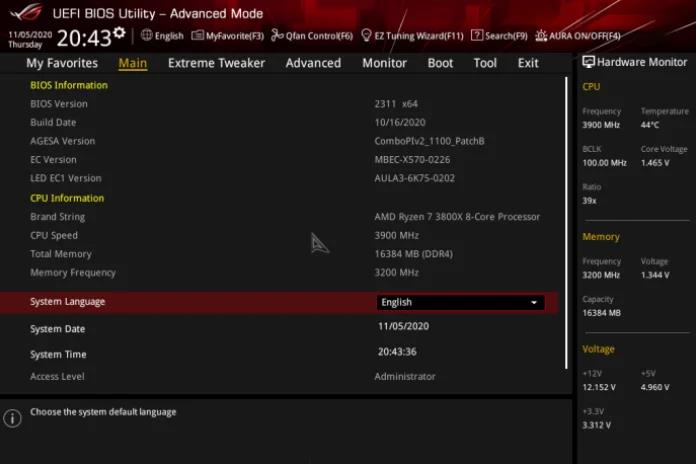
1. BIOS Issue
Firmware may be outdated or misconfigured, causing boot problems or hardware mismatches.
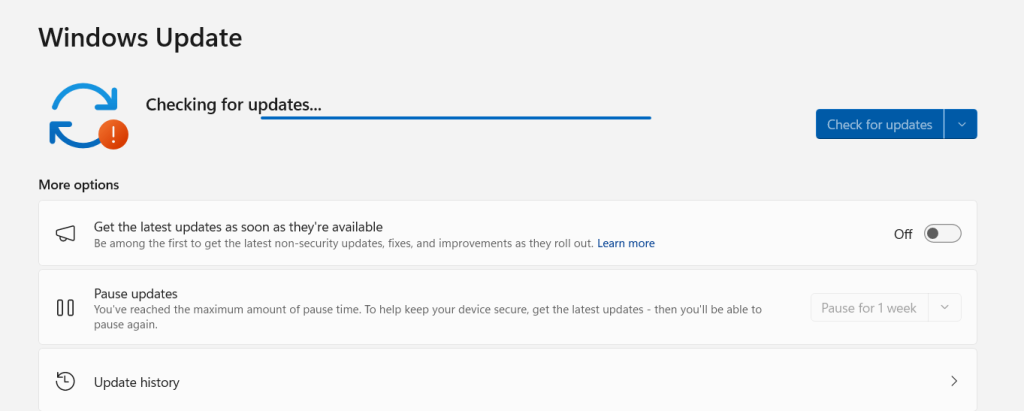
2. Windows Update Mismatch
A Windows version that’s out of sync with your BIOS can cause instability, crashes, or boot failures.
3. ASUS App Update Issue
Outdated ASUS drivers or MyASUS app errors can conflict with both Windows and your firmware
Follow these steps to fix it in order
Related walkthrough
GPT-6 Can Build a 3D Rocket Using ONLY Your Voice

Always try the software fixes first before touching BIOS settings. Work through each step before moving to the next.
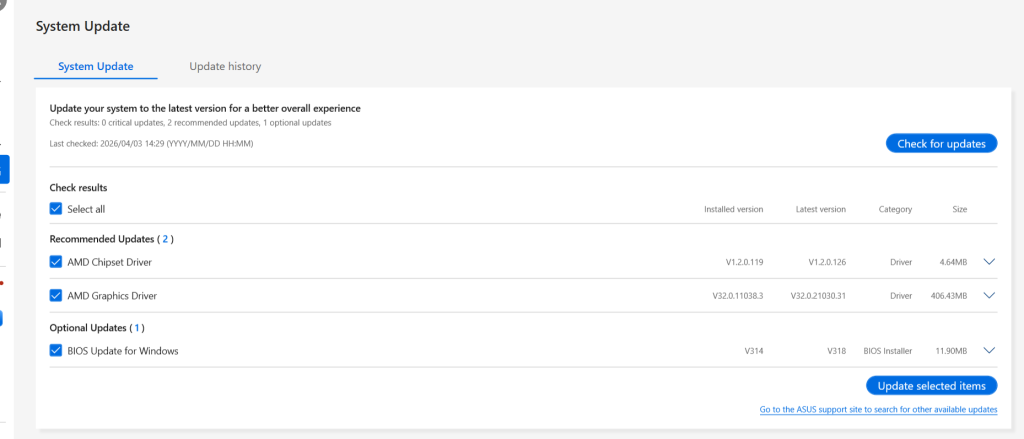
1. Update everything in the ASUS App
Open the MyASUS application and navigate to Customer Support → Software Update. Install all available updates — this includes drivers, utilities, and firmware packages managed by ASUS. Restart your laptop when prompted, then move to the next step.
2. Upgrade Windows to the latest version
Go to Settings → Windows Update and check for updates. Download and install everything available, including optional driver updates. This ensures your OS is in sync with the BIOS and ASUS firmware you updated in Step 1. Restart after updates are applied.
3. Reset BIOS to default settings
Restart your laptop and immediately press F2 to enter BIOS setup. Once inside:
Press F10 to save and exit, then when your laptop restarts, press F2 again and use F9 to load optimized defaults if needed, or press F11 to access the boot menu and select your Windows drive.
This clears any misconfigured BIOS settings and re-establishes the correct boot order.
If nothing works — factory reset Windows
How to reset Windows
- Press the Windows key and type ” Reset ” in the search bar.
- Click on”Reset this PC”from the results.
- Select”Factory Reset”(also shown as “Remove everything” for a full clean reset).
- Choose whether to keep or remove your personal files, then follow the on-screen prompts.
- Let Windows complete the reset — this may take 20–60 minutes.
In most cases, running ASUS app updates and Windows Update together resolves the conflict. The BIOS key sequence is a quick way to rule out firmware-level issues. And if you do end up doing a factory reset — don’t panic, it’s often the fastest path back to a fully working, stable laptop. Good luck!
Also Read:
How to Use chrome://net-internals/#dns for Troubleshooting and Optimization?
Why Custom Web Development in Technosuffice Is Crucial for Your Business Growth
ERR_CACHE_MISS: 7 Methods to Fix Chrome Cache Error (2026 Guide