
ERR_ADDRESS_UNREACHABLE: Common Causes and How to Fix It in Chrome
Learn what causes ERR_ADDRESS_UNREACHABLE and how to fix it. Follow practical troubleshooting steps for network settings, DNS issues, browser errors, and connectivity
Google Chrome is one of the most prominent and broadly utilized browsers. However, you can face issues when using it, some of which can stop you from accessing websites. One of such errors, which we will discuss in this blog, is ERR_ADDRESS_UNREACHABLE. The positive side is that fixing these issues is simpler than you think. Solving it can be as simple as restarting your router or clearing the cache of your browser. Alternatively, you might also have to change your DNS settings. So, let us begin our discussion and understand why you might be seeing the “ERR_ADDRESS_UNREACHABLE” error. We will also elucidate a few troubleshooting methods to fix this error. Let us go straight in-
What Is ERR_ADDRESS_UNREACHABLE?
There is a reason why Google is a highly popular web browser. Its user-friendliness puts it ahead of the competitors. Even a five-year-old finds it easier to surf the internet using Google Chrome. You can also enhance your browsing experience with the help of Chrome extensions. However, the browser is not immune to technical problems. As you try to load a website, you can come up with various errors, such as ERR_ADDRESS_UNREACHABLE, which shows up like this:
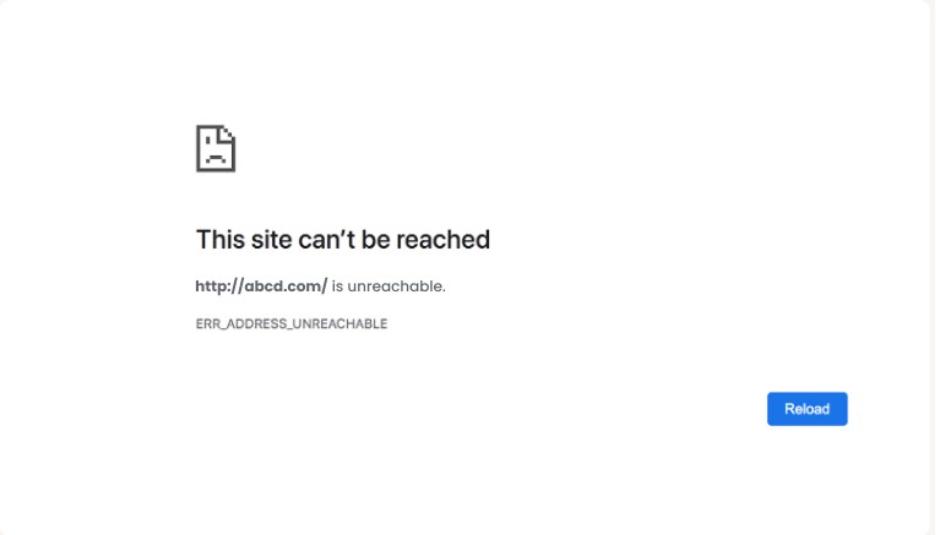
There are predominantly two reasons why you might be facing this error:
- The address of the website is not reachable because it does not exist yet.
- There might also be temporary problems that prevent your web browser from accessing your website.
Now, let us go ahead and understand the common causes of this problem-
ERR_ADDRESS_UNREACHABLE Error Common Causes
Before we understand the common causes of this Chrome error, let us quickly understand how DNS (Domain Name System) works. In simple words, it is a system that helps your browser to search for website addresses by linking with their servers. It transforms a domain name like “www.guestpostcrm.com” into an IP address that is associated with a particular server.
This process does not take more than a few seconds (sometimes even less!). You just need to type in your domain name and find the content of the website within seconds. This is specifically true if you have logged on to the website before because your browser stores the data about previous “lookups” in the DNS cache. Similar to DNS_PROBE_FINISHED_NXDOMAIN, this error occurs due to DNS-related problems where your browser is unsuccessful in finding the right server address. Now, since you have
Understood this, let us quickly go over a few common causes of “ERR_ADDRESS_UNREACHABLE.”
- If the data is corrupted within the browser cache or DNS, it can cause an error known as “ERR_ADDRESS_UNREACHABLE.”
- Alternatively, there might also be Chrome extensions that are stopping your web browser from connecting with your website.
- Another reason is your router being in the error state. This can prevent your browser from loading the web page.
- In addition, the proxy server can also trigger the Chrome error and interfere with your connection.
How to Resolve the “ERR_ADDRESS_UNREACHABLE” Error?
Related walkthrough
How to YouTube Unblock on Google Chrome | Quick & Easy Fix 😱

Fortunately, there are a few troubleshooting techniques that can enable you to fix this Chrome error. Let us discuss these steps one by one-
1. Restart the Router:
At times, your router can face a sort of deadlock in an error state, triggering the “ERR_ADDRESS_UNREACHABLE” message. Thus, one of the first solutions you can adopt is restarting your router to check whether it is causing the error, or if you want to use browser troubleshooting methods. Disconnect your router simply from the power source for around 30 seconds. Then, turn it back on and wait until your system gets connected to the internet.
Once you have restarted the router, just reload the page to check whether the error message is still showing up. If the problem is not fixed, you need to implement the next step.
2. Try Utilizing a Different Browser:
If restarting the router does not work, you need to determine whether the error is related to Google Chrome. You can ensure this by trying a different browser, like Mozilla Firefox. Mozilla Firefox is recommended since it utilizes its own network stack. So, it should not be affected by similar Chrome issues.
Just launch your Firefox browser window and load your page. If it works, you will identify whether Chrome is the main problem, and if it does not, you can continue with more troubleshooting fixes to rectify the problem in your browser. Meanwhile, you can keep on using Firefox.
3. Implement the Windows Store Apps, Troubleshooter:
If you are utilizing Google Chrome on a Windows device, try running the Windows Store Apps Troubleshooter as well. It is a helpful app that can recognize problems with applications like the Chrome browser and instruct you on how you can fix them.
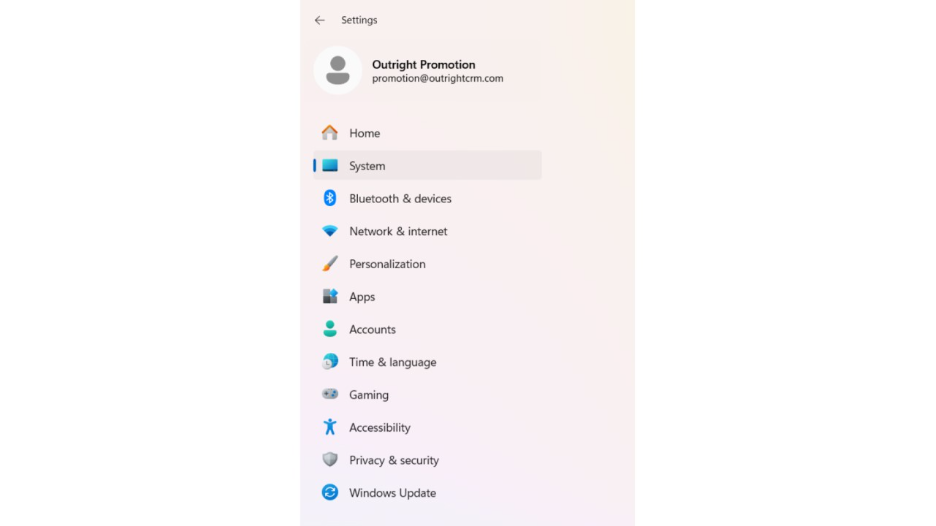
- To access the Troubleshooter, you need to go to “Settings,” then choose “System” on your device.
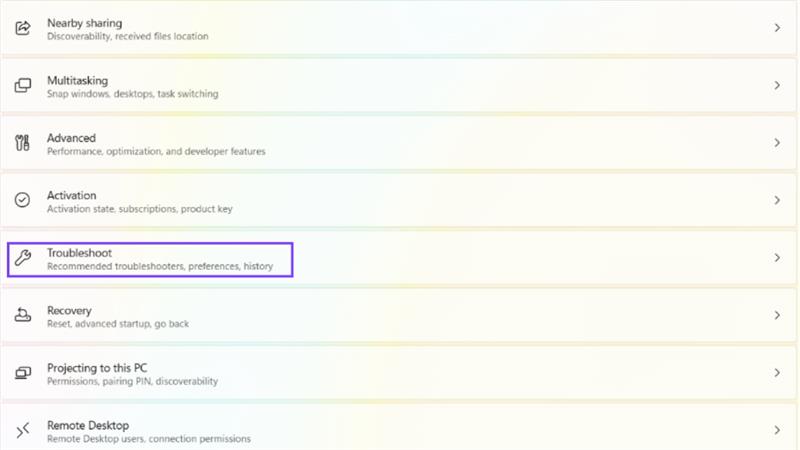
- After that, go to “Troubleshoot.”
- Next, select “Other Troubleshooters.”
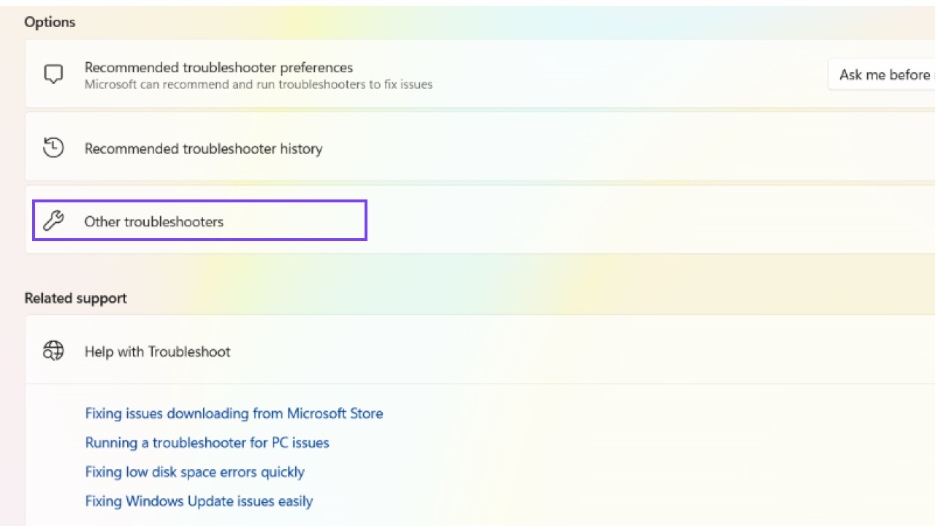
- Now, choose “Windows Store Apps” among various options. Select “Run.”
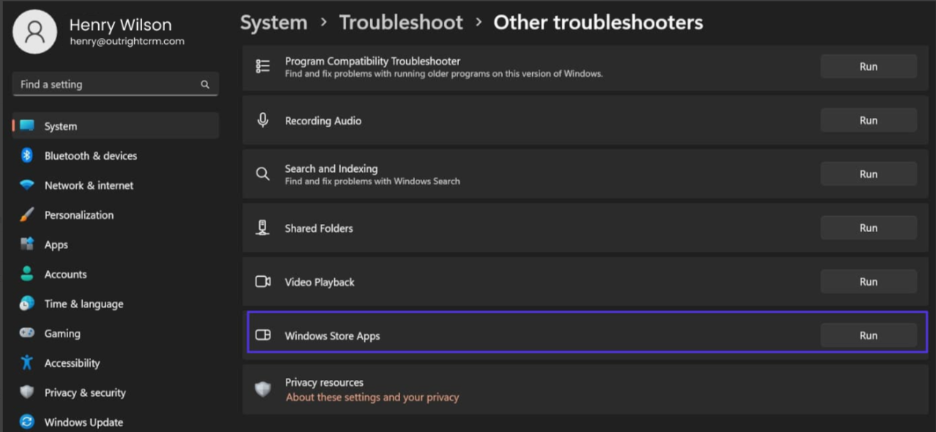
Allow the troubleshooting tool to complete the job for a few seconds. Either the tool will identify the problem, and you will see a message “Get More Information About the Problem,” or if there are no issues, you will see a message “Troubleshooting Could Not Identify the Problem.” You need to switch to the next method in that case.
4. Clear Your Chrome Browser Cache:
The browser cache stores all the data related to the websites you are visiting. Doing so allows your browser to quickly load more pages on further visits and enhance your browsing experience. However, at times, the data within the cache becomes corrupted or outdated. In such cases, browser errors such as “Err_Cache_Miss” and “ERR_ADDRESS_UNREACHABLE” get triggered. Thus, you can try clearing the cache before moving on to more complex troubleshooting methods.
- Open Chrome on your desktop or laptop. Notice the three dots on the top right corner.
- From the menu, select the option “Delete browsing data.”
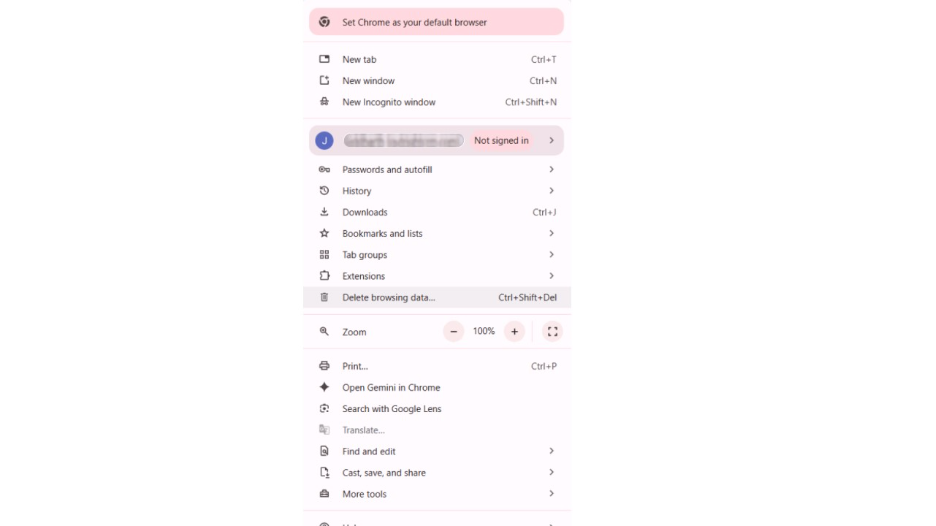
- Next, a pop-up window will appear where you need to select “Cached Images and Files.”
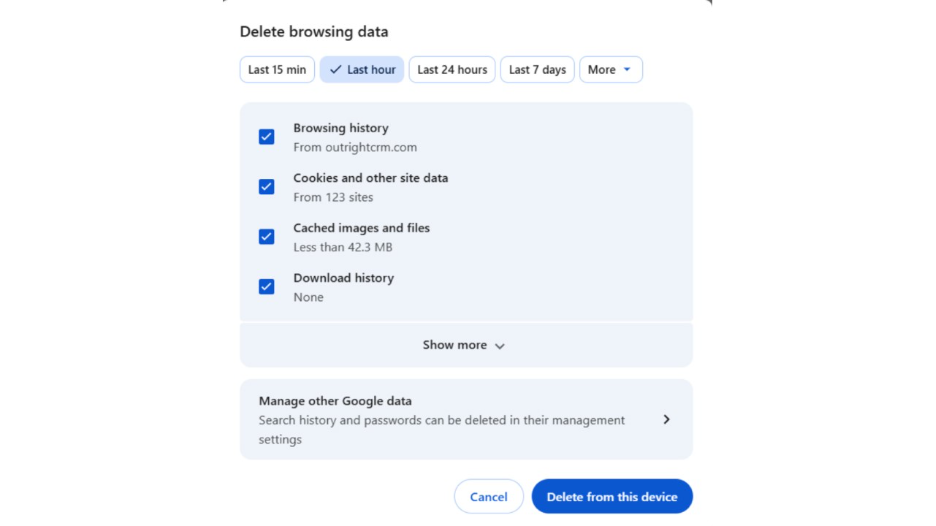
- You can also choose to check “Browsing History” and “Saved Cookies,” but they are not important for troubleshooting. Finally, select “Delete from this Device.”
On Android Devices-
The process to clear browser cache on Android devices is slightly different:
- Firstly, download and launch the Google Chrome app on your phone.
- After that, in order to fix “ERR_ADDRESS_UNREACHABLE” on your phone, you can select “More” and then click on “Settings.”
- Next, choose “Privacy and Security.”
- After that, you need to select “Clear Browsing Data.”
- Ultimately, select the option “Cached Images and Files” followed by clear data.
If you are still seeing the “ERR_ADDRESS_UNREACHABLE” message, you can begin implementing the next step.
5. Disable Chrome Extensions:
Installing Chrome extensions is one of the most efficient ways to enhance browser functionality, such as an ad blocker or grammar checker. However, this third-party software can have bugs that can trigger error messages or conflicts. Similar to how ERR_SSL_PROTOCOL_ERROR can be triggered sometimes because of a faulty extension interfering with secure connections, specific extensions can cause “ERR_ADDRESS_UNREACHABLE” and disrupt normal browsing.
Thus, we suggest you disable all the Chrome extensions to check if one of them is causing an “ERR_ADDRESS_UNREACHABLE” error. You can easily disable browser extensions by following the methods below:
- Click on the three dots in the browser window of your Google Chrome.
- Then, select “Extensions” and then click on “Manage Extensions.”
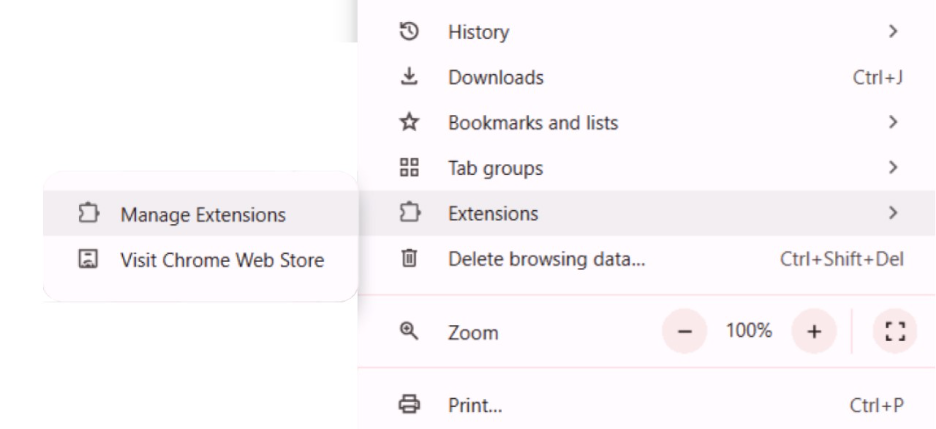
- You will now see a list of all of your Chrome Extensions. You can disable each one by clicking on the “Remove” button.
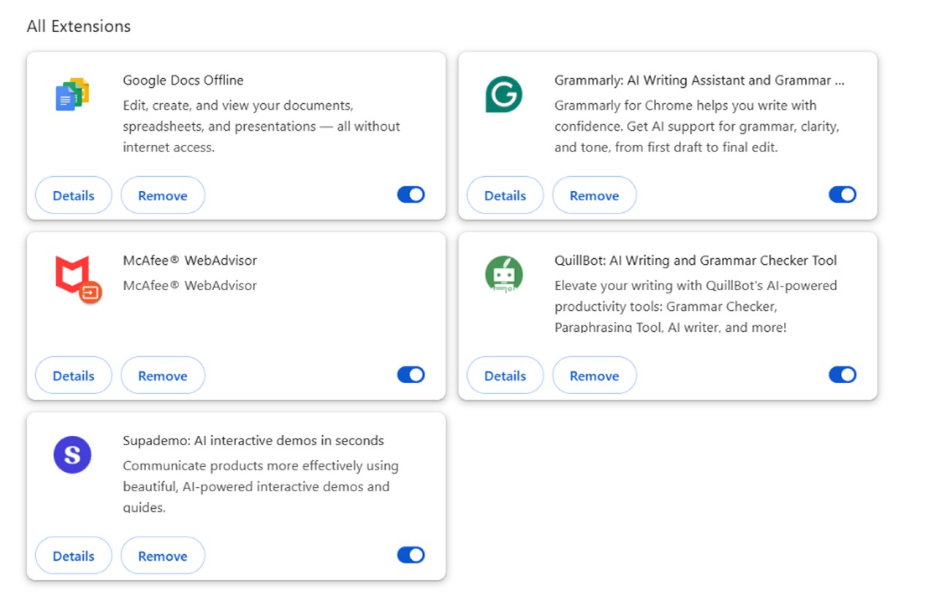
One of these active extensions might be causing the browser error. Delete the extensions that you do not need. If it fixes your problem, it’s great. Otherwise, you can try step 6.
6. You Can Clear the DNS Cache and Modify Your DNS Settings:
As already stated, the DNS cache stores data related to DNS “Lookups” that your device has performed. It helps your browser to connect more smoothly with a website.
However, if the DNS cache has corrupted data, it can cause an error like “ERR_ADDRESS_UNREACHABLE.” In this case, you can try flushing the DNS cache on your device. Once you do that, your browser will look for the website again once you load it. Since this is a browser issue, we suggest removing the DNS cache in your Google Chrome.
- For this, you would have to visit the following address: chrome://net-internals/#dns.
- Next, go to “DNS” and select “Clear Host Cache.”
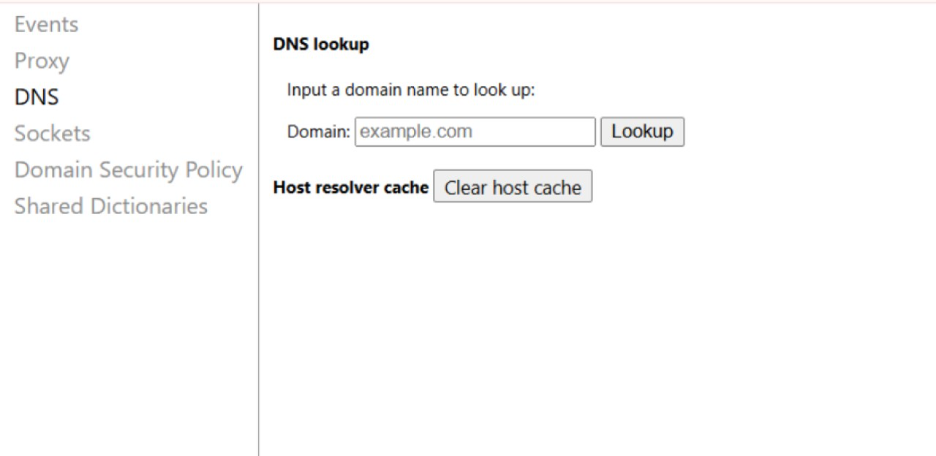
If this does not fix your problem, you can try changing your DNS settings. For instance, you can utilize the Google Public DNS IP address. They are recommended because of their reliable servers and high performance.
How to Change DNS Settings on a Windows Device?
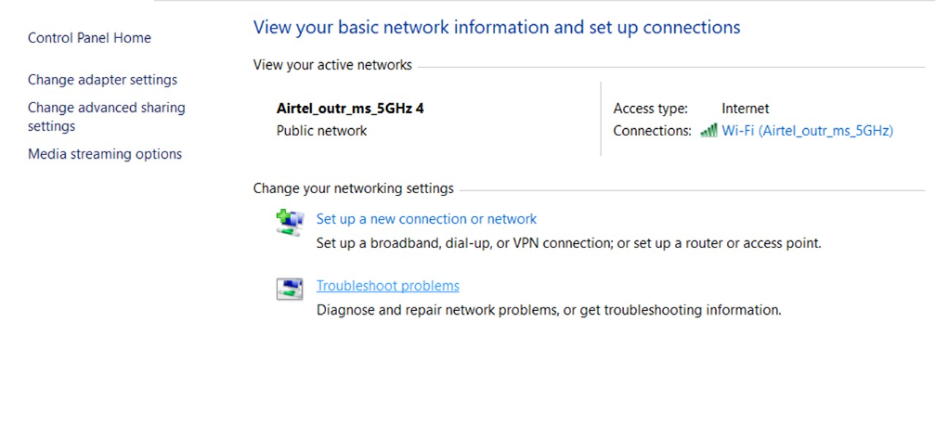
- Go to “Control Panel.”
- Select “Network and Internet.”
- Then, go to “View Network Status and Tasks.”
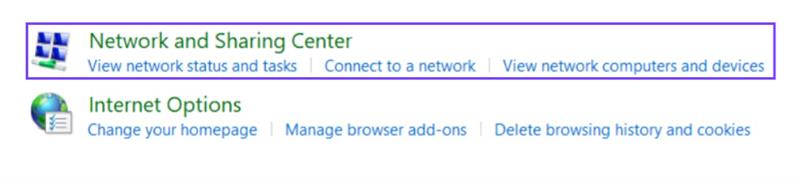
- After that, choose “Change Adapter Settings” from among the options on the left-hand menu.
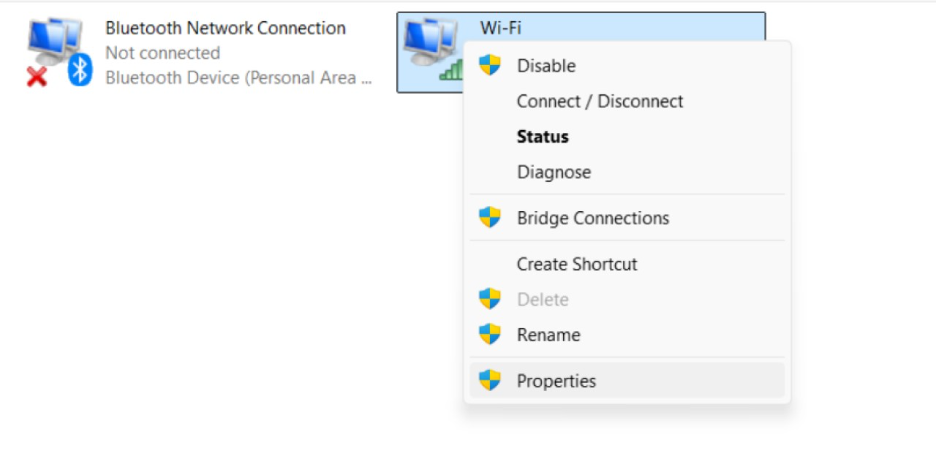
- Then, right-click on your network and select “Properties” from the drop-down.
- Select the option “Internet Protocol Version 4 (TCP/IPV4)” and then select “Properties.”
- After that, enter 8.8.8.8 into the box of “Preferred DNS Server.”
- In the box of “Alternate DNS Server”, enter 8.8.4.4.
- Then, finally select the option “Ok.”
In MacOS, you can modify the DNS settings by selecting the Apple icon and going straight to System Preferences and then selecting the option “Network.” Then, choose your network, and then go to “Advanced” and then “DNS”. Select the “+” icon and then provide your DNS addresses in the relevant boxes. Ultimately, click “Ok” to save your changes.
7. Disable the Proxy Server:
A proxy server works as the middleman between a user and a server. It processes and receives browser requests while securing data contained on the server. On your end, utilizing a proxy can obscure your IP address and safeguard your online activities from cyber threats. In a few cases, a proxy server can stop you from connecting with a website. For example, in the “ERR_CONNECTION_REFUSED” error, a server denies or actively blocks an incoming request. In such cases, the “ERR_ADDRESS_UNREACHABLE” error can be triggered. Therefore, you can try disabling the proxy server and then check whether it rectifies your problem.
You can disable the proxy server with the help of the following steps:
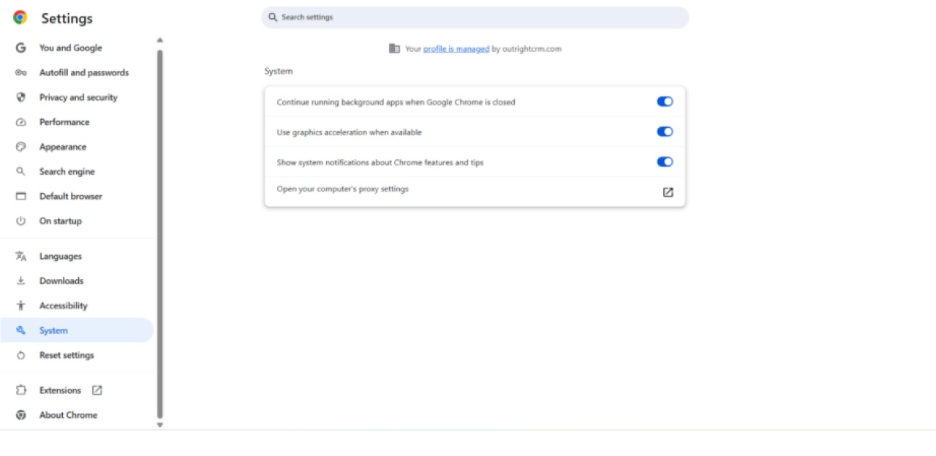
- Select the three dots in the Google Chrome browser window.
- Then, go to “Settings,” select “System,” and select the option “Open Your Computer’s Proxy Settings.”
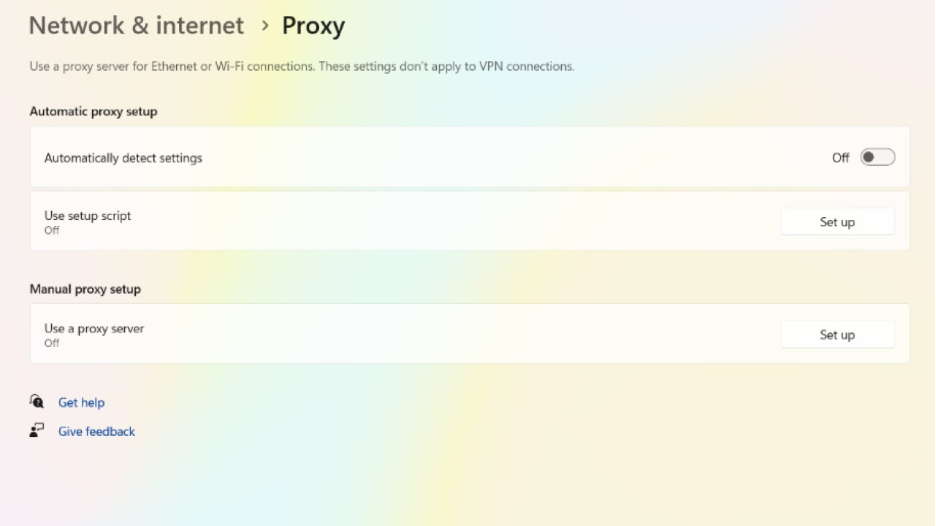
- In the next screen, make sure “Automatically Detect Settings” is turned off. Also, ensure that “Use a Proxy Server” is turned off.
8. Connect With Your Hosting Provider:
If you are managing a website, it is possible that your audience is unable to access your website due to the “ERR_ADDRESS_UNREACHABLE” error. You can try fixing it using the methods described above, and if none of them work, the last option is to contact your hosting provider. Contact a reliable hosting provider. They must have an organized ticketing system, a phone number, or a live chat support where you can contact them. Ideally, your hosting provider must be available 24/7 with a responsive and dedicated team that can respond to you within a few hours.
Conclusion
Facing the ERR_ADDRESS_UNREACHABLE error means you cannot access a website because either the URL is not correct or there are a few temporary technical issues. The good news is that fixes can be implemented easily and are greatly manageable. You can begin with straightforward steps such as restarting your router or clearing browser cache, choosing to disable extensions, flushing DNS, or switching off your proxy server. Most users fix this issue without requiring expert assistance. However, if nothing works, you can connect with the hosting provider and ask for professional assistance. Adopt the right approach and patience; this error is quite fixable, and you can return to your browsing soon.