

If you’ve been creating videos for a while, you already know how time-consuming recording voiceovers can be. Finding a quiet room, fixing background noise, dealing with retakes, and matching every
If you’ve been creating videos for a while, you already know how time-consuming recording voiceovers can be. Finding a quiet room, fixing background noise, dealing with retakes, and matching every line to the visuals—it's a process that drains your energy fast. CapCut is already famous for being simple, powerful, and creator-friendly. But most people only use the basic functions of its Text to Speech AI tool. What many don’t realize is that CapCut hides several advanced AI features that can turn a regular script into a studio-level narration. Whether you’re making TikToks, YouTube videos, educational content, business videos, or social media promos, these lesser-known features can help you produce polished content—without ever turning on a microphone.
Hidden CapCut Text to Speech AI Features That Boost Your Content
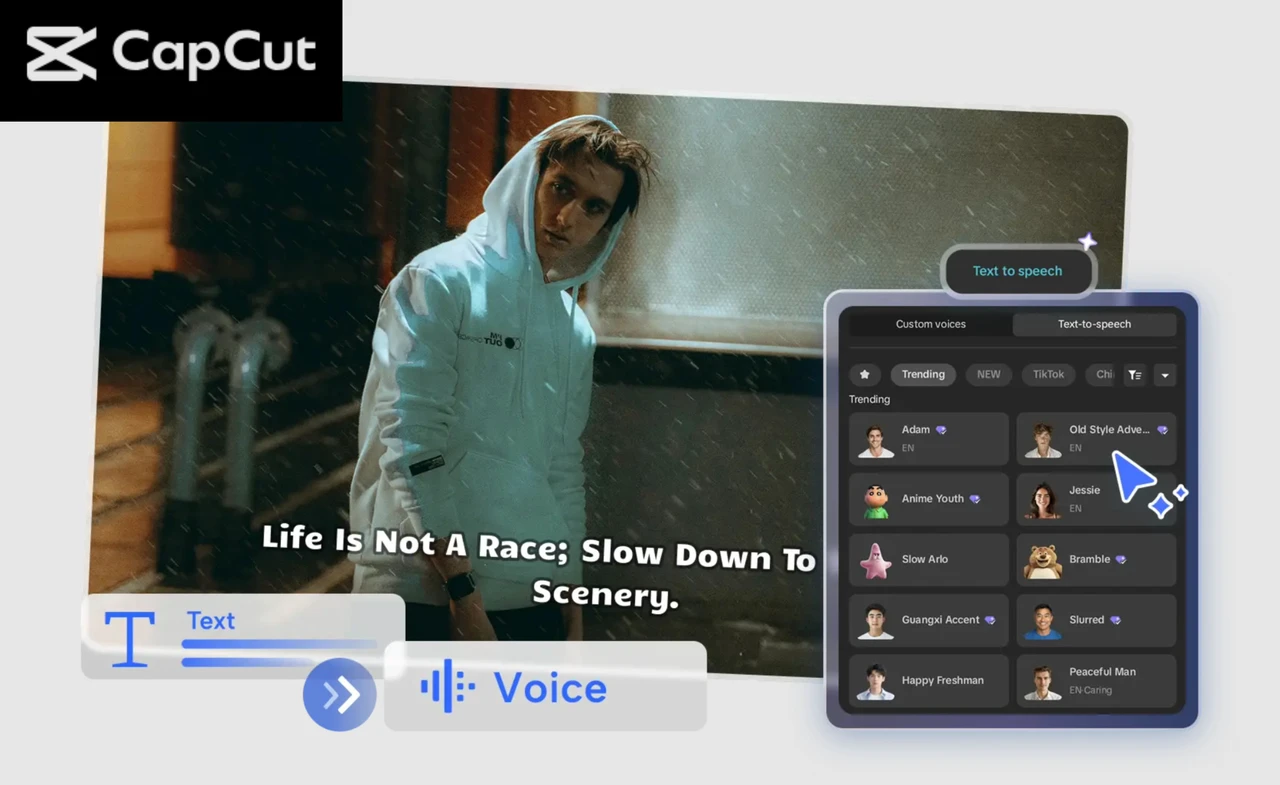
- Over 400+ Realistic AI Voices (Including Characters & Accents)
Many creators think CapCut only offers a few robotic voices—but the opposite is true. CapCut’s library includes hundreds of voices, from natural human narrators to fun character voices. You’ll find:
- Conversational male and female narrators
- Deep documentary-style voices
- Youthful casual voices for short-form content
- Character voices for gaming and storytelling
- Multilingual and multicultural accents
- Emotion-based tones like warm, serious, cheerful, or dramatic
If you want your brand to sound unique, this extensive voice collection offers endless options. As AI voice technology evolves rapidly, creators now have access to more realistic, emotional, and human-like voices than ever before. These advancements are part of the latest AI voice generator trends that are reshaping how digital content is produced across YouTube, social media, and business platforms.
- 2. Emotion Control for More Natural Delivery
This is one of the most underrated features. CapCut lets you adjust how emotionally expressive the voice sounds. Instead of a flat narration, you can choose tones like:
- Calm
- Happy
- Serious
- Excited
- Sad
- Energetic
This makes it far easier to match the voice to the mood of your video.
- 3. Voice Effects That Add Personality
CapCut’s Text to Speech tool includes optional voice effects that give your audio more flavor. You can add:
- Cute pitch-ups
- Deepened cinematic tones
- Robotic or metallic effects
- Retro radio sound
- Layered ambience
These effects are perfect for intros, transitions, or trendy TikTok moments.
- 4. Built-In Noise Reduction for Clean Audio
Most AI tools generate clean voices—but still leave slight static or background texture. CapCut fixes this with its Noise Reduction feature that smooths out the audio and removes unwanted background hiss. This means you don’t need additional editing software to clean your sound.
- 5. Automatic Audio Timing (Syncs Perfectly With Your Video)
CapCut can automatically align your text-to-speech audio with your visual clips. No need to manually drag, cut, or stretch the voiceover. The AI handles the timing so your narration flows naturally with the visuals.
- 6. Adjustable Speed, Pitch & Volume
If you’ve ever struggled with a voice that sounds too slow, too deep, or too loud, CapCut gives you complete control:
- Increase or decrease speaking speed
- Adjust pitch to match energy
- Fine-tune volume levels
- Add fade in/fade out for smoother transitions
These small details make your audio feel more professional.
- 7. Multilingual Voices for Global Content
Want to create multilingual tutorials, subtitles, or international versions of your content? CapCut supports dozens of languages with natural accents and pronunciations. Perfect for brands targeting global audiences—or students working on language projects.
- 8. Script-Friendly Editing Tools
CapCut isn’t just a TTS generator—it’s also a script assistant. You can:
- Paste long scripts
- Break narration into segments
- Edit text in real time
- Re-generate specific lines without losing your timing
This saves hours when you’re producing multi-scene videos.
Why These Features Matter for Creators
In today’s digital world, speed and quality are everything. CapCut’s Text to Speech AI helps you:
Whether you're a student, influencer, business owner, or casual creator, these hidden features help you deliver polished videos with less effort. Try CapCut, other tools such as AI Avatar, AI Video Maker, and Nano Banana Pro to create high-quality content.
How to Make an Amazing Video Using CapCut Text to Speech
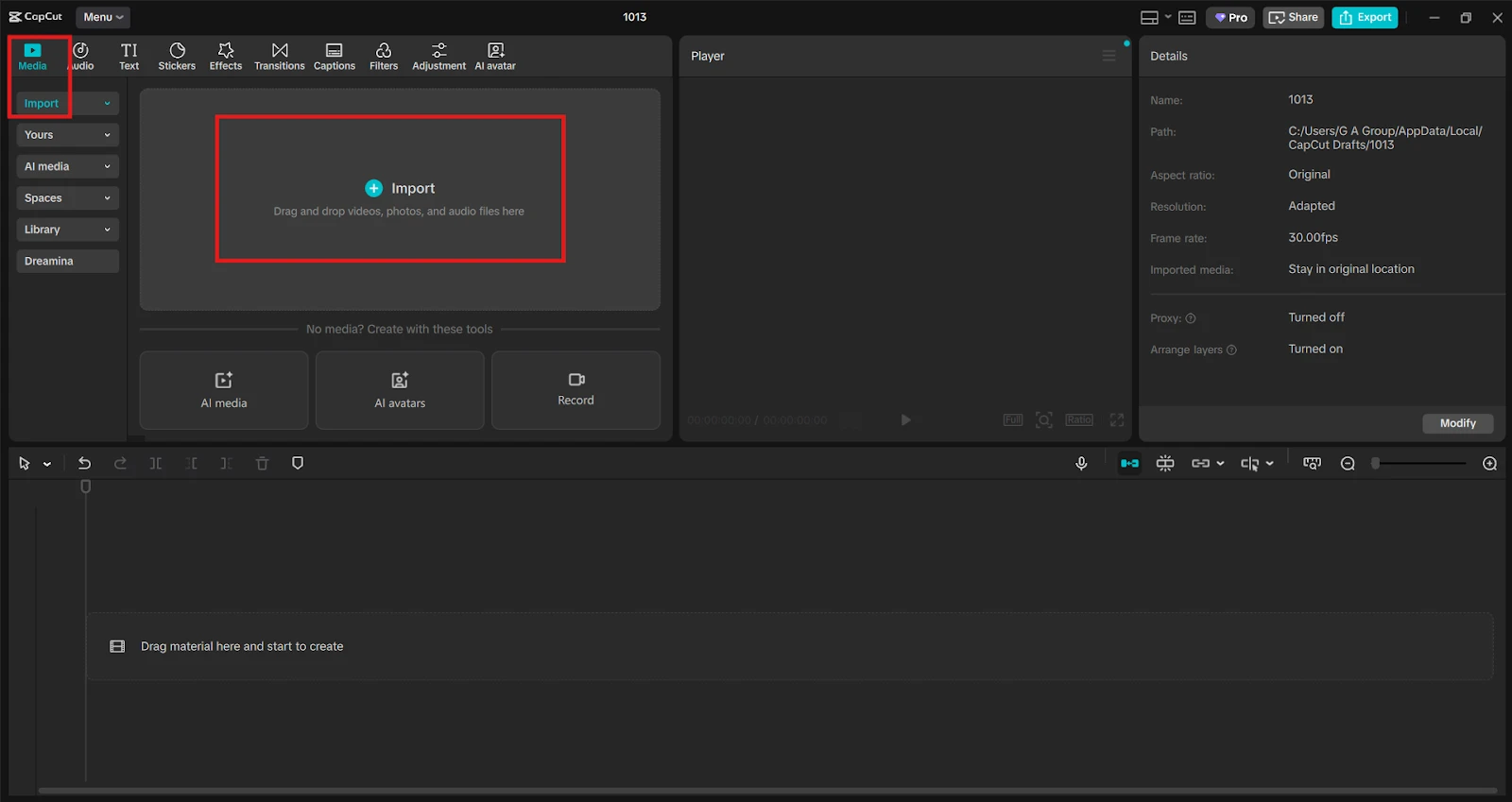
Step 1: Upload video
Visit CapCut and upload the video to a blank canvas from your device storage. You can also start with a blank project and add clips later. Once your footage is on the timeline, you’re ready to add your AI narration.
Step 2: Convert text to speech
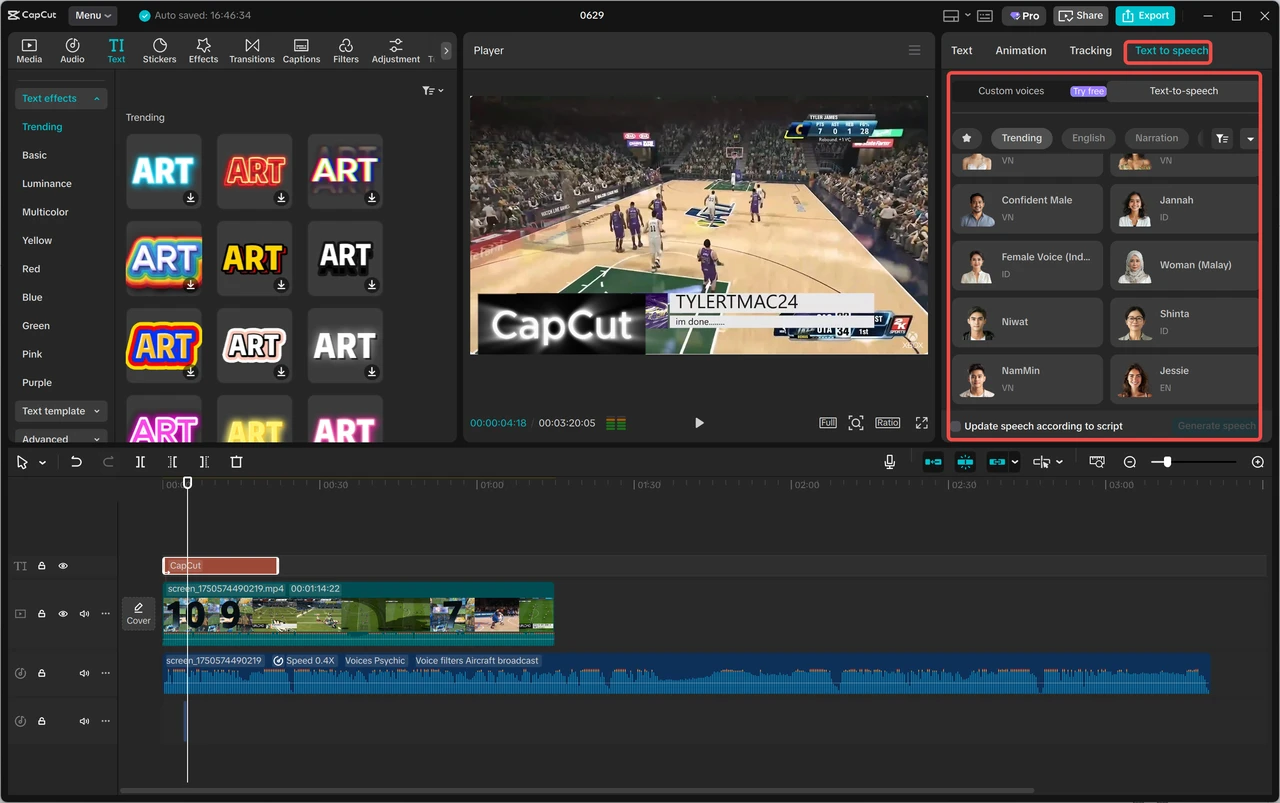
Apply “Text” > “Default text” to enter your script, then click “Text to Speech” to generate voices. You can experiment with different voice styles, tones, and languages until you find the perfect match for your video. For more advanced options, check out other AI video generators to enhance your video projects quickly. After choosing a voice, feel free to apply:
- Voice effects
- Noise reduction
- Volume adjustment
- Fade-in and fade-out
- Speed or pitch control
These tools help enrich your audio content and make it sound polished.
Step 3: Export & share
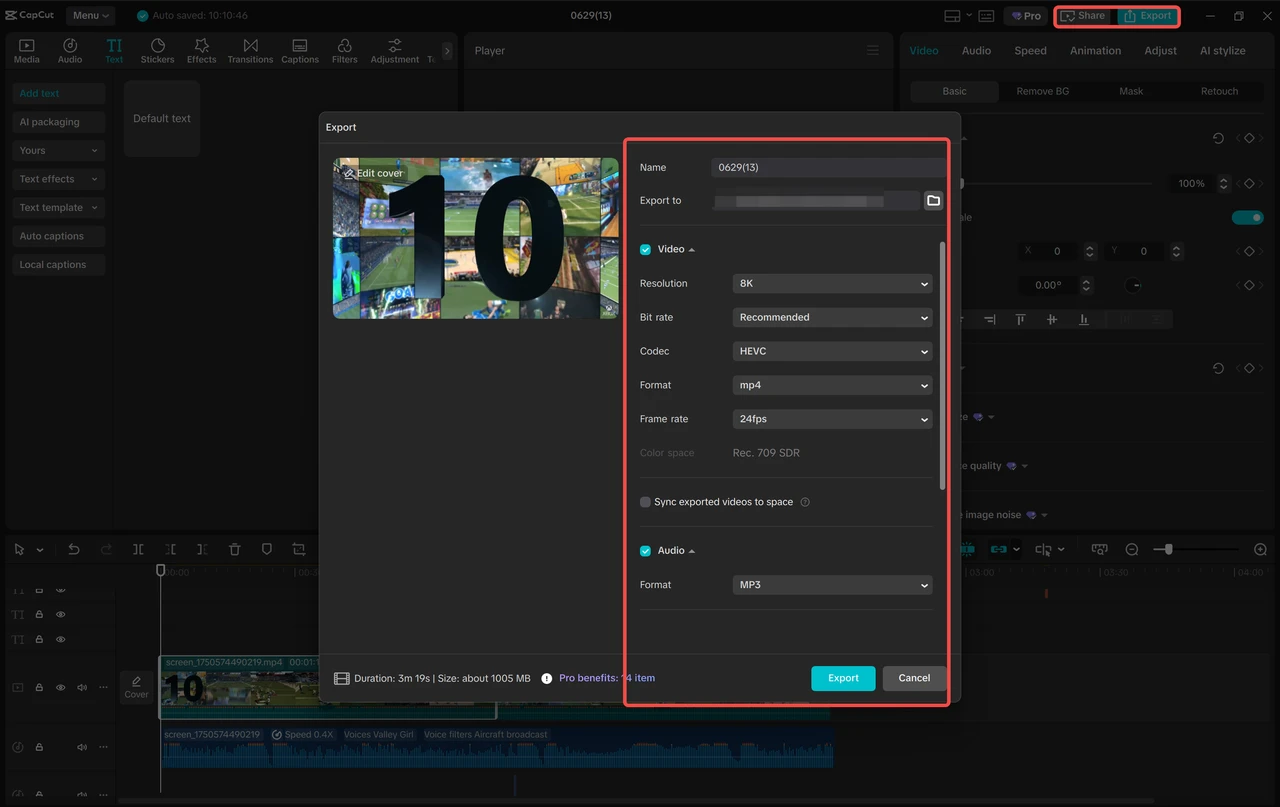
Set your export parameters, including file name, resolution, format, and quality. Once you're satisfied, export the final video and share it on your social media channels, such as TikTok, Instagram Reels, Facebook, or YouTube.
Conclusion
CapCut’s Text to Speech AI is more powerful than most people realize. With advanced voices, emotional tones, noise reduction, timing tools, and deep customization, you can create high-quality voiceovers in minutes. These hidden features help elevate your content, save time, and make your videos look—and sound—far more professional.
Respond to this article with emojis