




Imagine this: you want to quickly finish an important work online, such as submitting a work form, logging into your bank portal, or checking the pricing page of the product
Imagine this: you want to quickly finish an important work online, such as submitting a work form, logging into your bank portal, or checking the pricing page of the product you are planning to purchase. This is where your browser can show you an error and display a message: ERR_SSL_PROTOCOL_ERROR. Facing this error is not only inconvenient, but it can also make you feel as if you hit the wall with no solution visible. This is a standard SSL error that indicates that your website server or browser could not complete the verification process that the website is safe to visit. As a result, you cannot access the website and face this error message.
The ERR_SSL_PROTOCOL_ERROR is a prevalent error that people face on the web on a day-to-day basis. A broad range of users across Firefox, Chrome, Edge, and Safari face it almost daily. The causes are different, and it can be triggered from something as simple as a wrong date and time set on your device or a misconfigured or complex SSL certification on the web server. It is quite a frustrating error because it is difficult to pinpoint exactly what is the actual cause of this error. The cause can be anything between incorrect data and time, TLS version mismatch, and antivirus and firewall interference to server-side misconfigurations.
If you are encountering this problem and wondering how to solve it, this guide is tailored for you. Irrespective of whether you are a website owner addressing a visitor’s complaint or a user trying to access your website, this detailed guide details the major causes that trigger ERR_SSL_PROTOCOL_ERROR. You will also know the clear and simple fixes for Android, Mac, Windows, and iPhone. At the end, you will not only know how to fix the error today, but you will also know how you can stop it from coming back in future.
What is ERR_SSL_PROTOCOL_ERROR?
At its foundation, ERR_SSL_PROTOCOL_ERROR is an error that your browser displays when the user’s browser is unable to establish a secure HTTP connection. This error often occurs when the SSL/TLS handshake fails to complete successfully. The common causes of this failure are misconfiguration, protocol incompatibility, and certification expiration.
SSL/TSL handshake refers to a process that establishes a secure and encrypted connection between your browser and the website server. Think of it as a private code between two parties. Your browser and the website must match this code to communicate securely. When they fail to agree, the connection is immediately disconnected, and your browser disables access to safeguard your sensitive data from vulnerable security threats.
What SSL and TLS are
TLS (Transport Layer Security) acts as a successor to SSL (Secure Sockets Layer). These are encryption protocols built to protect communications between servers, applications, systems, and users over the internet. When you visit a website and see "https://" in the URL or a padlock icon in your browser's address bar, this means the browser uses these protocols to secure your data. This encryption protects sensitive information such as login credentials and payment details.
The ERR_SSL_PROTOCOL_ERROR 2025 error indicates that a critical security process was hindered, blocking the creation of a secure tunnel between your device and the web server.
How the Error Displays Across Different Browsers
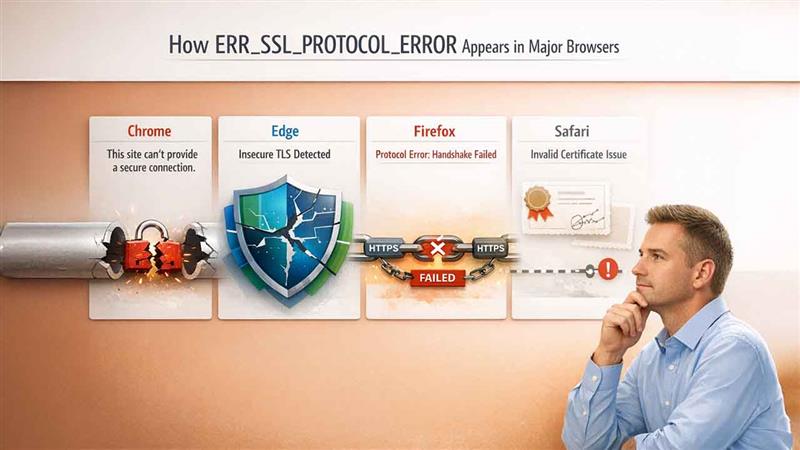
While the root cause remains consistent, different browsers may present this error in slightly different ways:
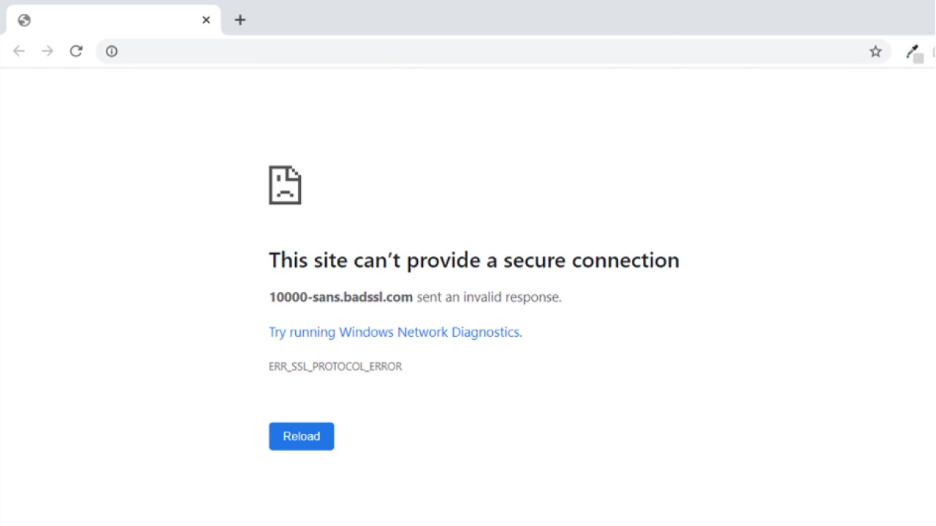
- ERR_SSL_PROTOCOL_ERROR Chrome: When the error code is shown in the Google Chrome browser, it displays the most straightforward message: "This site can't provide a secure connection." Chrome instantly blocks access to safeguard users from connections at risk of compromise.
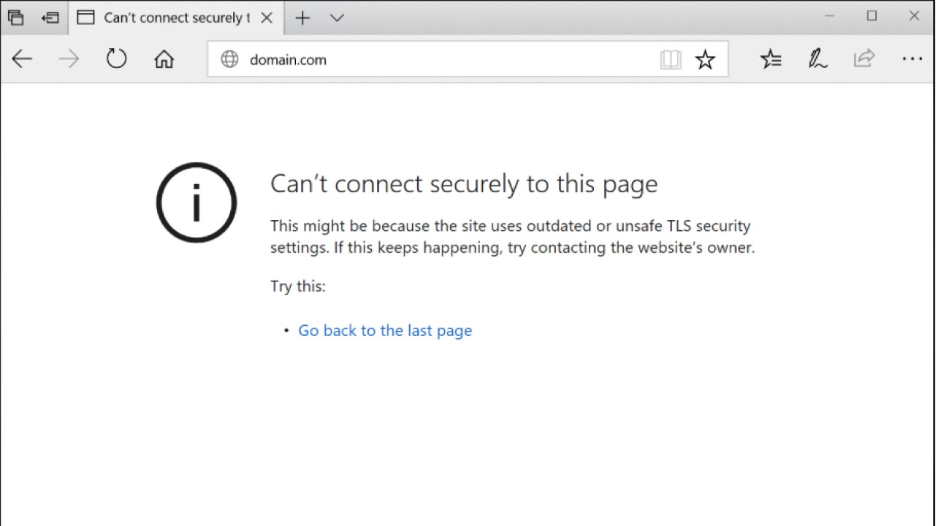
- Microsoft Edge: Shows an error message: "Can't connect securely to this page," with additional context indicating that the site may be using legacy or insecure TLS security configurations.
- Mozilla Firefox: Presents an extensive warning regarding the failed secure connection, often referencing specific protocol version challenges and providing troubleshooting tips right on the error page.
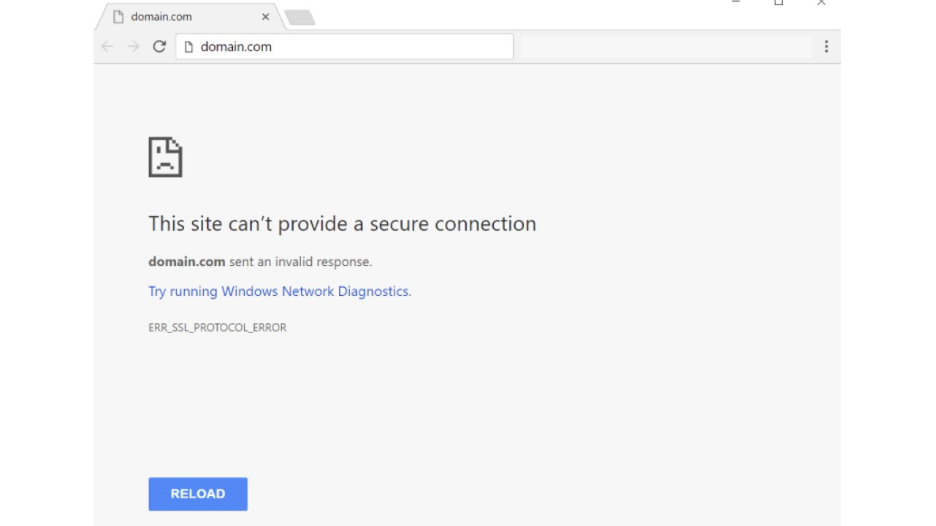
- Safari (Mac and iPhone): Shows a message "Safari cannot open the page because the network connection was lost" or highlights that the certificate provided by the server is not valid.
Read also: How to Fix the “This Site Can’t Be Reached” Error: A Quick Guide
Key Reasons Why ERR_SSL_PROTOCOL_ERROR Occurs
Understanding the actual reasons behind this error across different browsers is the initial step toward fixing it. Below are the most common causes:
1. Incorrect Date and Time Settings
It may seem minor, but SSL certificate validation totally depends on the accurate date and time settings of your device. Certificates are time-stamped, and browsers confirm their validity against your system's clock. If your date is configured incorrectly, or the time zone of your device is drastically wrong, it prevents validation and causes an error.
2. TLS Version Mismatch
Cutting-edge browsers and servers offer multi-version support like TLS 1.0, 1.1, 1.2, and 1.3. Security challenges are prone to move away from outdated versions like TLS 1.0 and 1.1. If your browser only supports the latest versions while the server offers older, deprecated versions, the handshake will fail. Conversely, if a server supports only the latest TLS 1.3 connections, but your browser or device has not been updated yet, the secure handshake will fail, and the ERR_SSL_PROTOCOL_ERROR fix issue will appear.
3. Firewall and Antivirus Interference
Most security software, like hostile antivirus programs and firewalls, sometimes blocks SSL inspection functionality that evaluates and reviews encrypted traffic. However, designed to protect, these features may disrupt reliable SSL connections, especially if the systems rely on legacy certificate authorities or enforce overly forceful blocking practices.
4. Outdated or Misconfigured SSL Certificate
Every SSL certificate has its expiration date, which is generally valid for one to two years. Browsers deny setting up secure connections with the website when the certificate has expired. Likewise, misconfigured certificates trigger this error—such as incorrect domain names, mismatched certificates, or missed critical information like Subject Alternative Names (SAN).
5. Browser Cache and Cookies
Outdated or corrupted data in your browser cache, like associated security information, often causes connection issues. To confirm whether it causes an error, consistent cleaning of your browser cache is essential to mitigate the risk of future connection failures.
6. QUIC Protocol Issues
QUIC (also abbreviated as Quick UDP Internet Connections) refers to a transport protocol developed by Google to offer faster and more enhanced connections. Although certain conditions can cause QUIC to interfere with conventional SSL/TLS protocols, causing the ERR_SSL_PROTOCOL_ERROR Chrome users to occasionally encounter the ERR_SSL_PROTOCOL_ERROR.
7. Server-Side Misconfigurations
Incorrect web server settings and incompatible SSL/TLS certificates are a frequent reason for this error. These issues include misconfigured nginx or Apache settings, missing third-party certificates in the certificate chain, or neglecting to enforce HTTPS connections when SSL is enabled. Similarly, other connection errors, such as DNS_PROBE_FINISHED_NXDOMAIN, can also block access to websites and often require structured troubleshooting measures.
Fixing ERR_SSL_PROTOCOL_ERROR: User-Side Solutions
Despite which browser you're working on, the underlying cause and solutions remain broadly consistent. The following are some platform-specific fixes that need your immediate attention.
Verify Your System Date and Time
This is the simplest solution that resolves the issue more frequently than you'd expect.
For ERR_SSL_PROTOCOL_ERROR Android:
- Go to Settings on your browser
- Click System -> Date & time
- Turn on Automatic date & time and Automatic time zone
- Restart your browser application
For ERR_SSL_PROTOCOL_ERROR iPhone:
- Open Settings
- Go to General -> Date & Time
- Enable Set Automatically
- Close and reopen Safari or your browser app
For Windows:
- In your taskbar, right-click the Clock
- Select Adjust date/time
- Turn on Set time automatically and Set time zone automatically
- Restart your browser and retry
For Mac:
- Navigate to System Preferences
- Go to Date & Time
- Locate Set date and time automatically
- Click Time Zone tab and confirm your location
- Restart your browser
Clear Your Browser Cache and Cookies
Clearing cached SSL information often fixes ERR_SSL_PROTOCOL_ERROR connection problems caused by old certificate data.
For Chrome:
- Click on the three-dot menu icon from top right corner
- Select More tools -> Clear browsing data
- Choose a time range, such as “All time"
- Locate and select Cached images and files and Cookies and other site data
- Click Clear data
For Firefox:
- Click on the menu button > Settings > Privacy & Security.
- Find Cookies and Site Data and
- Click Clear Data
- Select both boxes and click Clear
For Safari (iPhone/iPad):
- Navigate Settings, click Safari
- Scroll down and select Clear History and Website Data
- Verify the action
Block Browser Extensions and Add Ons
Extensions may sometimes interfere with SSL connections, so temporarily blocking them is an effective way to isolate the issue.
For Chrome:
- Enter "chrome://extensions" in the search bar
- Enable all extensions
- Retry accessing the website
- Re-enable extensions one by one to find the problematic one
The same process works for Edge by typing "edge://extensions" and other Chromium-based browsers.
Remove SSL State (Windows Only)
Windows maintains an individual SSL state cache that can result in persistent ERR_SSL_PROTOCOL_ERROR issues.
- Select Windows + R on keyboard to Run
- Enter "inetcpl.cpl" and click Enter
- Go to the Content tab
- Click Clear SSL state
- Click OK and restart your browser
Disable QUIC Protocol (Chrome)
Despite QUIC helping fasten connection speed, it can occasionally cause conflict with SSL protocols.
- Type "chrome://flags/#enable-quic" in the address bar
- Locate Experimental QUIC protocol
- Modify the dropdown from Default to Disabled
- Click on Relaunch to restart Chrome
Important: If the problem persists, restore QUIC by configuring it back to Default.
Update Your Browser
Old browsers lack support for cutting-edge TLS protocols and security practices.
- Chrome: Click menu > “Help” > “About Google Chrome” (updates automatically)
- Firefox: Click menu > “Help” > “About Firefox” (updates automatically)
- Edge: Click menu > “Help and feedback” > “About Microsoft Edge
- Safari: Update through macOS System Preferences > “Software Update”
Temporarily Disable Antivirus and Firewall
In most cases, security software interferes with reliable SSL connections, preventing secure access.
Windows Security:
- Open Windows Security
- Go to "Virus & threat protection"
- Click "Manage settings" under "Virus & threat protection settings"
- Temporarily turn off "Real-time protection"
- Try accessing the website
- Important: Re-enable protection immediately after testing
- Third-party antivirus: Review your antivirus documentation for SSL evaluation or the HTTPS filtering feature. Temporarily block these features, examine the connection, then re-enable them.
Reset Network Settings
Network configuration problems can prevent proper SSL handshakes.
For Windows:
- Open Settings > Network & Internet > Status
- Click "Network reset."
- Confirm and restart your computer
For ERR_SSL_PROTOCOL_ERROR Android:
- Open Settings > System > Reset options
- Select "Reset Wi-Fi, mobile & Bluetooth."
- Confirm the reset
For ERR_SSL_PROTOCOL_ERROR iPhone:
- Go to Settings > General > Transfer or Reset iPhone
- Select "Reset"
- Tap "Reset Network Settings"
- Enter your passcode and confirm
Switch Browser or Network
Test the platform with another browser to determine whether the error is browser-related. Likewise, switching between WiFi and mobile data (or vice versa) can showcase network-related issues.
If ERR_SSL_PROTOCOL_ERROR persists across all browsers and different networks, the problem is more likely to reside with the website itself, rather than your device.
Best Practices to Prevent Future Challenges
Well said: prevention is better than cure. To lower the chances of running into this error again, follow these practices:
For Users:
- Ensure your device date and time are configured to update automatically.
- Install browser extensions cautiously—use reliable sources only.
- Use trusted antivirus software with updated definitions
- Consistently update your operating system, browser, and security software
- Clear browser cache frequently (at least once in a month)
For Website Owners:
- Regularly check your website to mitigate mixed content problems.
- Enable automatic SSL certificate renewal (services like Let's Encrypt provide free automated renewals)
- Leverage tracking tools (e.g., Uptime Robot or Pingdom) to catch your SSL issues early.
- Track certificate expiration tenure and set reminders 30 days before expiration
- Ensure server software and SSL/TLS libraries are up to date.
- Test your SSL configuration often with SSL Labs
- Set up proper redirects from HTTP traffic to HTTPS.
- Enforce HTTPS connections to HSTS (HTTP Strict Transport Security).
- Obtain SSL certificates from trusted Certificate Authorities (CA).
For website owners, knowing how to use database tools like SSIS 469 also streamlines data transfer and improves server settings that influence SSL certificate deployment.
ERR_SSL_PROTOCOL_ERROR on Mobile vs. Desktop: Key Differences
A lot of users have a misconception that ERR_SSL_PROTOCOL_ERROR is the same across all devices. However, it is important to know that desktop and mobile environments manage SSL/TLS connections differently in ways that affect why and how this error appears.
On Desktop (Windows/Mac):
- Popular browsers such as Chrome, Firefox, and Edge on Desktop devices depend on the certification store of the operating system. So, if your OS has a corrupted certificate cache or is just outdated, possibilities of running into error messages such as ERR_SSL_PROTOCOL_ERROR are more than likely to surface.
- System-level cybersecurity software and firewalls deploy in-depth SSL inspections on desktop machines, which can break encrypted connections silently. In some cases, it also causes another error known as ERR_CONNECTION_REFUSED where the server actively rejects the request of the browser altogether.
- In Chrome Desktop, QUIC protocol conflict is a lot more common since it aggressively runs more in complete OS environments.
On Mobile (Android/iPhone):
- The most common cause of ERR_SSL_PROTOCOL_ERROR on mobile devices is data/time sync failures. They often happen after system restore or battery drain.
- Network switching, hopping between cellular data and Wi-Fi can interrupt the SSL handshake in between the process, temporarily creating the error.
- Safari iOS implements stricter certificate validation than desktop Safari, which basically means that a self-signed certificate or an expired certificate has a greater possibility to create this error on iPhone than on Mac.
Comprehending whether your ERR_SSL_PROTOCOL_ERROR is specific to a device is one of the quickest ways to narrow down your solution. If the error appears only on your phone but not on your laptop (or vice versa), you can instantly eliminate almost half of the possible causes and identify the right solution more quickly.
When ERR_SSL_PROTOCOL_ERROR Is Due to Website’s Fault, Not Yours
One of the common misconceptions is thinking that ERR_SSL_PROTOCOL_ERROR means that the issue exists only in your device or browser. Actually, a considerable number of such errors entirely originate on the server side, and no amount of clearing cache or network resetting on your end will resolve them.
Here is how you can tell if the website is the main problem:
- The error shows up across different browsers and devices: If you notice an error ERR_SSL_PROTOCOL_ERROR on your laptop, phone, or on the computer of your friend simultaneously, the problem certainly exists on the server-side.
- Other websites load fine: If you see that other HTTP websites are working fine without any problems and the error message is only showing up while accessing a particular website, server configuration or SSL certificate of the website can be the main issue. At times, this error also combines with another error known as “DNS_PROBE_FINISHED_NXDOMAIN,” which signals more in-depth infrastructure issues other than the SSL layer.
- The certificate has expired visibly: On Chrome, select the padlock icon > then select the option "Connection is not secure" > choose "Certificate." If the certificate has already expired, the website owner must renew it.
- The website has recently relaunched or migrated: Domain migrations are some of the few instances for SSL misconfigurations like SSL certificate assigned to the previous domains which are being still served from the new server.
What you can do:
- Utilize the free Server Test of SSL Labs (ssllabs.com/ssltest) to explore the certificate of the website and identify the configuration issues.
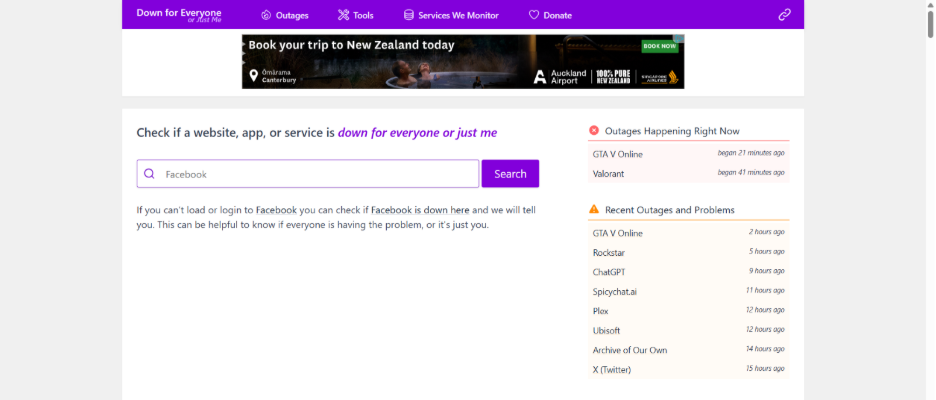
- Check “Down for Everyone” or “Just Me” (downforeveryoneorjustme.com) to check whether everybody is facing the same issue of access.
- Browsers sometimes display an error known as “Err_Cache_Miss” along with SSL failures at the time of website migration. This implies that the website could not extract a valid cache response. However, “Err_Cache_Miss” is a valuable secondary signal which indicates that something recently changed on the server.
- Directly contact the website owner and mention that you have been facing the ERR_SSL_PROTOCOL_ERROR while accessing the website so that they can investigate their server setup properly.
If you are an owner of the websites who has recently got the report of such an error, instantly launch a full SSL audit. Make sure that your certificate is valid, your chain certification is complete, and your server provides support to present TLS versions (1.2 and 1.3).
Conclusion
ERR_SSL_PROTOCOL_ERROR is a ubiquitous browser error that users face while accessing a website. The causes are multifarious and as this blog has explained, there is no one-size-fits-all solution for these issues. Depending on your cause, the fix can be simple or comprehensive. Sometimes correcting data and time of your system can fix the issue while in some instances, you might have to take an in-depth look at server-side SSL configuration. What’s important is understanding where you need to look and what steps you would have to take.
In most cases, verifying time and data, clearing cache, disabling extensions that are causing issues, and resetting network settings will fix the issue in diverse cases. However, if none of the fixes are working for you, then there is an underlying issue on the website server, not on your device, and the right course of action is to communicate directly with the owner of the website.
For brands creating visibility through a website, SSL hygiene is one of the most important factors. An expired certificate or misconfigured SSL can block thousands of visitors silently before you can even notice. Thus, it is important to remain proactive: consistently renew your certificates, regularly track your SSL health, adopt HTTPS, and check your configuration with tools such as SSL Labs.
Remember: Keep in mind that the browser shows errors like ERR_SSL_PROTOCOL_ERROR to keep your browsing secure, not to frustrate you. Now, since you have understood the fundamentals, causes, and fixes of this error, you can respond to it with more confidence. So, quickly diagnose and fix the error and get back to your online browsing.
Respond to this article with emojis