
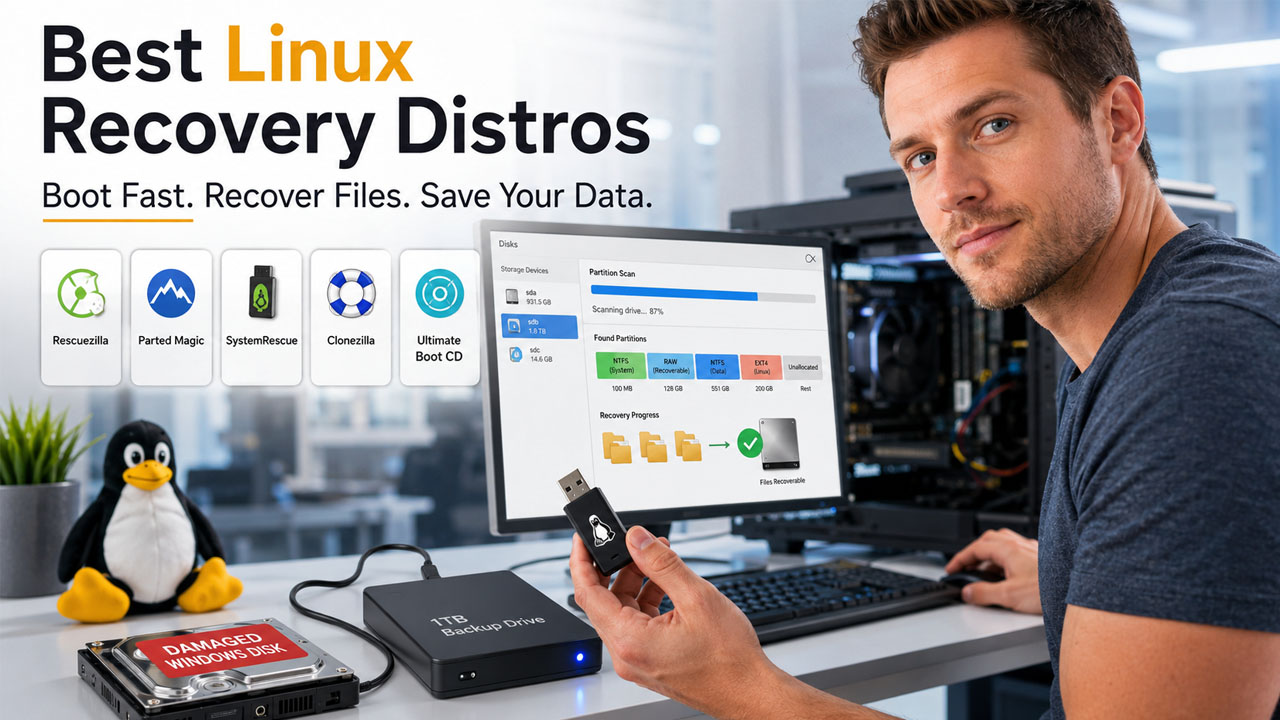
5 Best Linux Distros to Recover Windows Disks in 2026
Looking for the Best Linux Distro to Recover Windows Disks? Compare the top 5 recovery distros, their features, recovery tools, and ideal use cases.
You probably have experienced this moment when the screen suddenly goes black, or the loading circle keeps spinning without progress, and Windows fails to start up as it normally would. The most common reasons for this are corrupted boot files, failed system updates, or damaged partitions. Any of these can prevent your operating system from loading properly.
This makes you feel that you’ve lost all your photos, documents, and half-baked projects that are stored on the system. Many people’s first instinct is to search for a local data recovery service without knowing how much the repair might cost. But don’t panic because your files are fine and it’s just Windows that’s broken, not necessarily your data. This is where Linux comes in. You don’t need to understand technical aspects or command lines. You just need the right Linux distro to recover Windows disks, a spare USB stick, and about twenty minutes of patience.
What Is a Linux Distro?
If you’re new to this, “distro” here is short for “distribution”. It is kind of a version of the Linux operating system. Linux is a free and open-source operating system and is widely used by different teams across the world. They pair it with their own sets of tools, look, and focus. There are a few distros that are built for everyday computer use, like Windows or macOS alternatives. At the same time, others are built for one job only, which is fixing broken systems and extracting files off disks that won’t cooperate.
A recovery-focused distro runs entirely from a USB drive or CD; it doesn’t rely on your Windows installation to start. Instead, it boots into its own environment and detects your Windows drive, allowing you to access files, scan the drive for issues, and recover important data without launching Windows. Even if your Windows operating system won’t boot, the Linux recovery system can still access your drive and help you retrieve your files. If you’d rather set up a full Linux system afterward, it helps to know how to install Linux properly
Key Features to Look for in the Best Linux Distro to Recover Windows Disks
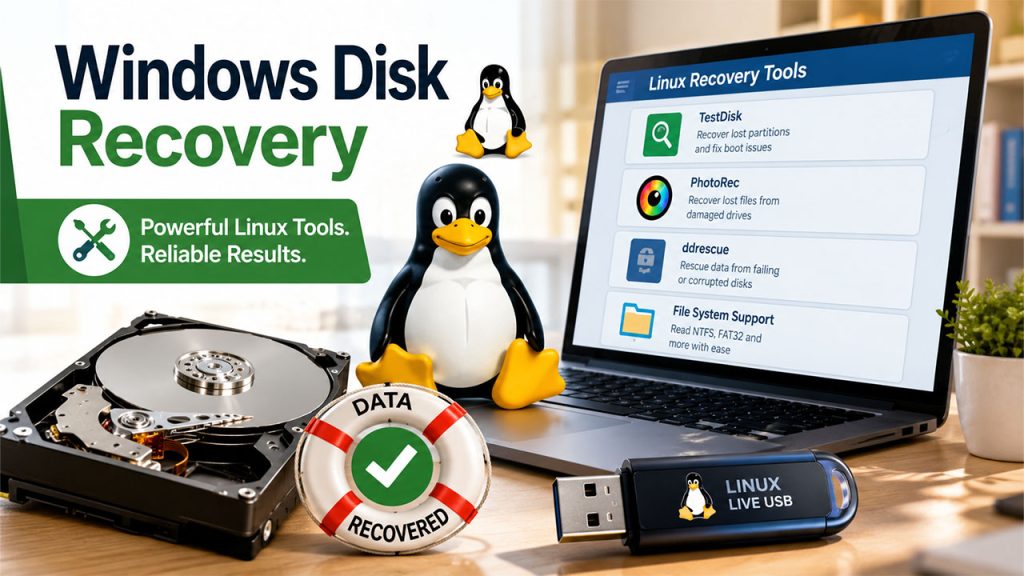
Not every recovery distro offers the same capabilities. Before choosing one, it’s worth understanding the features that make a Linux recovery tool reliable:
- Built-in Recovery Tools: Look for software that includes tools like TestDisk, PhotoRec, or ddrescue. If you have to search for software and then install it while you’re on the verge of losing your files, you’re wasting your time.
- Solid File System Support: It needs to read NTFS and FAT32 without a fight, since that’s what most Windows drives are formatted with. If a distro stumbles here, it is not the one for the job.
- True Portability: It should run straight from a USB stick without needing any installation. That matters most when the Windows machine in front of you refuses to boot at all.
- A Workable Interface: Don’t look for the one with a pretty interface. It just needs to let you find the tools you need without digging through five layers of menus, whether you’re a first-timer or someone who’s done this a hundred times.
If you get these four things right, you’re already closer to a good recovery experience.
Top 5 Best Linux Distros to Recover Windows Disks in 2026
If you’re looking for a quick overview, the table below compares the five best Linux recovery distros based on their ideal use case, skill level, and standout features.
| Distro | Best For | Skill Level | Standout Feature |
| SystemRescue | Serious, all-purpose recovery | Beginner to advanced | Modern kernel, huge file system support |
| Rescatux | Guided, wizard-based fixes | Beginner | Step-by-step prompts for boot repair |
| Ubuntu (Live) | Familiar, everyday recovery | Beginner | Recognizable desktop, easy file access |
| Knoppix | Fast, no-install emergencies | Beginner to intermediate | Fully portable, runs on almost any hardware |
| GParted Live | Partition work alongside recovery | Intermediate | Visual, graphical partition editor |
The comparison table gives you the highlights, but each distro has its own strengths. Here’s a closer look at what each one offers and when you should choose it.
1. SystemRescue
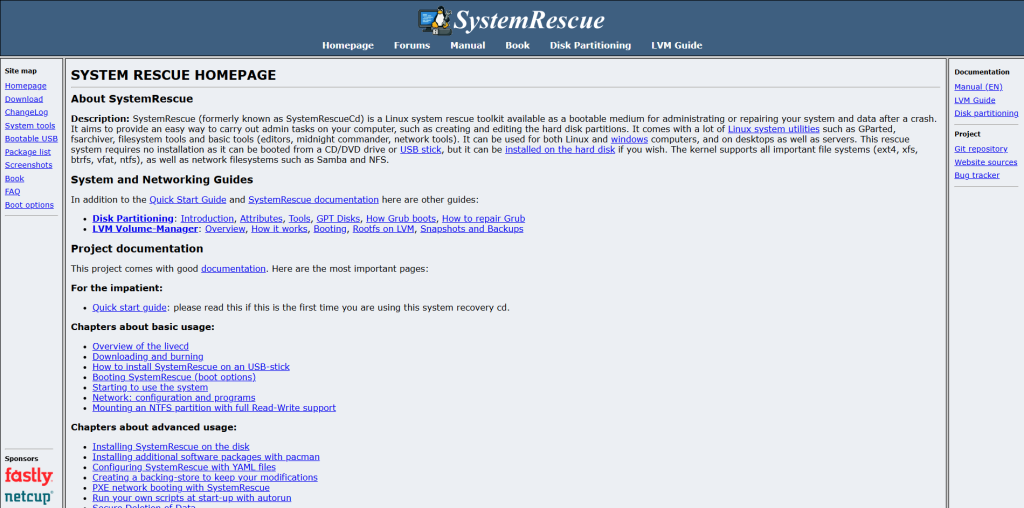
SystemRescue is one of the most widely used Linux distro. It brings recovery tools and handles everything you throw at it. It reads NTFS, FAT32, ext4, and a handful of other file systems without complaint, so compatibility is never the issue here.
It stands out from the crowd because it always stays updated and relevant. It ships with a modern kernel, which means it actually recognizes newer hardware, NVMe drives, and USB4 devices instead of leaving you stuck with an outdated system that can’t even see your disk. It has a simple interface and offers both command-line tools and lightweight graphical options.
Key highlights:
- Comes with TestDisk, ddrescue, and GParted pre-installed
- Modern kernel supports NVMe, USB4, and newer hardware
- Reads NTFS, FAT32, ext4, XFS, Btrfs, and more
- Offers both command-line and lightweight GUI options
- Frequently updated, so it rarely falls behind on new drives
2. Rescatux
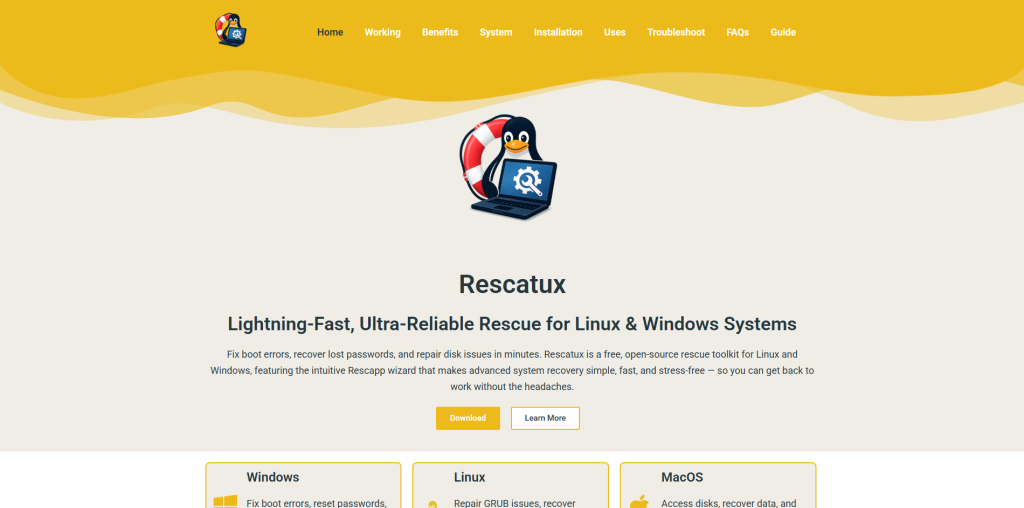
Rescatux makes bigger problems feel manageable. If Windows fails to boot due to a bootloader failure, Rescatux helps you fix it with actual prompts and wizards instead of expecting you to memorize terminal commands.
This guided approach makes it friendly and approachable. All you have to do is click through a menu, tell it what’s wrong, and it handles all the heavy lifting on its own. If you’ve never worked with Linux before and have no clue about the command line, start here.
Key highlights:
- Menu-driven, wizard-style repair process
- Automatic GRUB and EFI bootloader repair
- Includes Windows and Linux password reset tools
- No command-line knowledge required
- Best suited for total beginners
3. Ubuntu (Live)
Booting an Ubuntu Live USB gives you a desktop environment that looks and feels close enough to what most people already expect from a modern operating system. This makes the whole process a lot less intimidating.
It is not made especially for recovery like SystemRescue, but it works well even without that. You can just plug in your Windows drive that is damaged, browse it like a regular folder, and start pulling files off manually if the disk is readable. It is the easiest option if you want to quickly grab your files and perform basic recovery.
Key highlights:
- Familiar, desktop-style interface
- Easy manual file browsing and drag-and-drop copying
- Handles basic disk and boot repair tasks
- No prior Linux experience needed
- Good middle ground between simplicity and capability
4. Knoppix
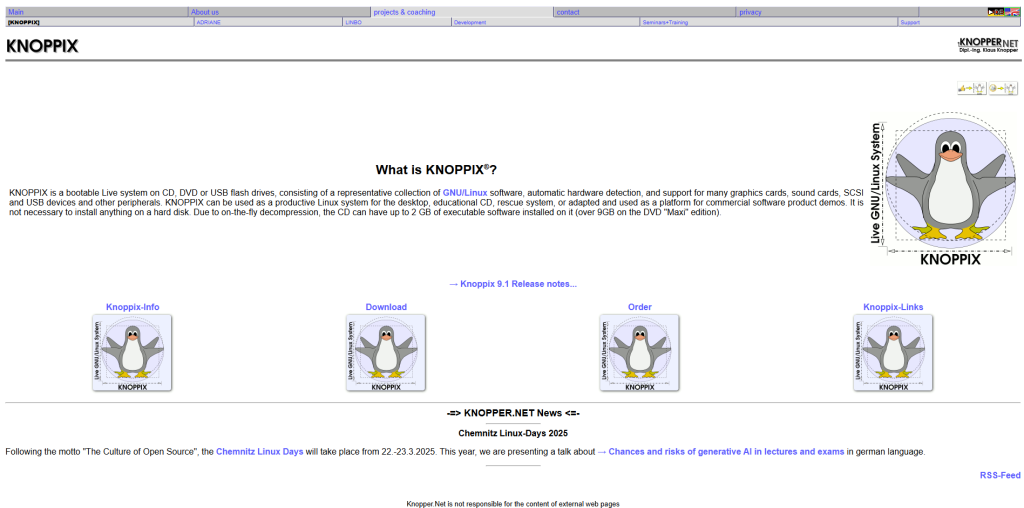
Knoppix was one of the original “run it straight from a disc” distros, and it still does that job better than most. There is no need for installation. You can boot it from a USB or CD, and it takes only a couple of minutes to run the entire process. It comes in handy during emergency situations like when the Windows machine won’t start, and you’re running out of time.
It reads nearly every file system you’re likely to encounter and runs on a wide range of hardware without much fuss. A lot of technicians keep a Knoppix USB in their bag because it is extremely lightweight and portable.
Key highlights:
- Zero installation, runs entirely from USB or CD
- Extremely fast to boot in emergencies
- Broad file system and hardware compatibility
- Lightweight and highly portable
- Favored by technicians for on-the-go recovery
5. GParted Live

GParted Live isn’t strictly a recovery tool in the same sense as the others, but it earns its spot here because partition problems and data loss go hand in hand more often than people realize. If a partition has shifted, shrunk, or gone missing, GParted allows you to see it, resize it, or move it, all through a proper graphical interface.
This tool is used when the disk itself is fine but the partition table is the mess. If you’re able to actually see what’s happening on the drive, rather than just trusting text output, it helps you stop making things worse.
Key highlights:
- Visual, graphical partition editor
- Resize, move, or recover partitions without wiping data
- Ideal for partition-table issues rather than file loss
- Clear visual layout instead of guesswork commands
- Works well alongside other recovery distros, not as a replacement
Essential Recovery Tools Included in Linux Recovery Distros
Related walkthrough
Nvidia Just Put an AI Agent on Your PC | Nemotron 3.5 Explained

Most of the best Linux recovery distributions come with powerful utilities that can repair partitions, recover files, and rescue failing drives.
| Tools | Function |
| TestDisk | Repairs broken or missing partitions and can often bring a disk back to a readable state. |
| PhotoRec | scans a drive for recoverable files, even ones that seem completely gone, and pulls them out regardless of the original file system. |
| Ddrescue | clones or images a failing drive, which matters most when the disk itself is dying and every read attempt risks losing more data |
You can use one of these tools or all three together depending on what is wrong. For a dead partition table, go for TestDisk. For missing files, use PhotoRec, while a physically failing drive calls for ddrescue if you attempt to do anything else. The goal here is to get a safe copy before the disk gives out completely. Keeping a Linux cheat sheet handy makes navigating these tools much faster
How to Use a Linux Distro to Recover Windows Disks (Step-by-Step)
Once you’ve selected the right recovery distro, the process is straightforward. Follow these steps to access your Windows drive and recover your important files safely:
- Pick your distro: Download the ISO file for whichever one fits your comfort level: SystemRescue for flexibility, Rescatux if you want guidance, Knoppix if you need speed.
- Create a bootable USB: Free tools like Rufus or UNetbootin turn that ISO into a working USB drive in a few minutes.
- Boot from the USB: Restart the computer, enter the boot menu (usually F12, F2, or Esc depending on the machine), and select the USB drive instead of the internal disk.
- Run your recovery tool: Open TestDisk or PhotoRec, point it at the damaged Windows drive, and let it scan. This step can take a while depending on the size of the disk, so don’t rush it.
- Recover files to a separate drive: This part is non-negotiable. Save everything to a different disk, never back onto the one you’re trying to fix. Writing to a damaged disk while trying to recover from it is how good data becomes unrecoverable.
That’s really it. There is no deep Linux knowledge needed. Just be patient and follow the order above.
Best Tips for Safe and Effective Windows Data Recovery with Linux
Even with the right recovery tool, a few simple precautions can make the difference between a successful recovery and permanent data loss. Keep these best practices in mind before you begin.
- Use a reliable USB drive. A cheap or failing one can corrupt the process before it even starts.
- Test your recovery tools on a working drive first, if you can, just to confirm everything runs the way it should.
- Never save recovered files back onto the damaged disk. Always use a separate drive or external storage.
- Keep your workspace organized, so you don’t accidentally mix up which drive is which mid-recovery.
- If the disk is making unusual noises or clearly failing physically, image it with ddrescue first before attempting anything else.
None of this is complicated, but skipping it is exactly how people turn a fixable problem into a permanent one.
Conclusion
When Windows breaks, it doesn’t necessarily mean that your files are or will be gone. It just means that Windows needs help that Windows itself can’t provide. That’s exactly the gap that Linux fills. Whether you choose SystemRescue, Rescatux, Ubuntu, Knoppix, or GParted, the right Linux distro to recover Windows disks turns a stressful situation into one that can be managed easily. Grab a USB stick, pick the option that matches your comfort level, and take it step by step. Your files are usually a lot closer than you think.
FAQs About Linux Distro to Recover Windows Disks
Q. Do I need to know Linux to recover my Windows disk?
No. Distros like Rescatux and Ubuntu are built to be beginner-friendly.
Q. Will using Linux delete or damage my Windows files?
No, as long as you avoid writing recovered files back to the damaged disk.
Q. Which distro is best for a total beginner?
Rescatux or Ubuntu Live, since both offer guided, familiar interfaces.
Q. Can Linux recover files even if Windows won’t boot at all?
Yes. These distros run independently of Windows, straight from a USB.
Q. What’s the single most important safety rule during recovery?
Always save recovered files to a separate drive, never the one being fixed.