

ERR_Network_Changed: 7 Fixes to Resolve It Fast
Fix ERR_Network_Changed with 8 tested solutions, from clearing browser cache to resetting network settings. Follow simple steps to restore your connection.
When browsing the internet, an error message keeps showing up now and then: ERR_Network_Changed. Generally, it appears out of nowhere right when you are looking to open a page, and for a second, you might think that the website might be facing downtime. But it is actually your connection that is triggering the error. What is happening here is pretty straightforward. Your network was disrupted, or your browser saw a quick switch in your network. Perhaps the Wi-Fi was reconnected, or perhaps there was a glitch in the ISP. If you were playing around with the VPN, then this issue can also be triggered. It is not the fault of the website. Something is wrong on your end.
The positive news is that the problem is not serious. You do not have to be techy to resolve it either. A couple of quick checks can help you resolve the issue. In this blog, let’s go through what can cause it and why you see it mostly in Edge, Chrome, and other Chromium browsers. We will give you practical solutions that can help you fix this problem soon.
What Is ERR_Network_Changed?
This error appears when your browser detects that the network it was using is no longer available. Essentially, it was loading a page, and the connection details were modified midway. So, instead of completing the job, it just triggers a message and stops.
Now, it does not fully mean that you are no longer connected to the network. Often, it is due to a quick switch in how your device is connected to the network. Edge, Chrome, Opera, Brave, and other Chromium browsers will throw an error called “ERR_Network_Changed.” In Firefox and Safari, the error message might be different, but the causes are the same.
Let us take an analogy of a phone call. Let us assume you are making a phone call, and someone swaps your SIM card. The phone works, and you are still getting a signal. However, the call drops midway. This is the level of interruption that your browser is facing when it is trying to access a website, and that is what the error is all about.
What Are the Causes of the ERR_Network_Changed Error?
There is no single trigger. The error shows when the route between your website and device changes midway. Some situations where this happens:
1. Network Handoff:
Your machine changes routes between Wi-Fi bands or between Wi-Fi and the Ethernet, causing a temporary shift in the network connection. Even an automatic “brand steering” hop can disrupt the current page load.
2. Short Drops in Connection:
Brief loss of signal or spike in latency is sufficient. Even half a second of signal loss can lead to errors while accessing the page because the request was broken in the middle.
3. IP Address Conflicts or Changes:
A DHCP lease gets renewed, or the two devices can claim the same address. In both cases, the session you had does not match the address that your browser expects.
Read More: In more severe cases, an unresolvable address can also cause an issue called “ERR_ADDRESS_UNREACHABLE” error. Check out our dedicated blog to learn more about this error.
4. Issues in DNS Resolution:
The resolver is misconfigured, slow, or returning you stale results (e.g., a cache that requires a refresh, a provider outage, or a custom DNS that is not responding).
Read More: DNS_PROBE_FINISHED_NXDOMAIN
5. Proxy/VPN Interference:
Rules get updated, tunnel reconnects, or the app toggles on/off. Traffic gets rerouted, or the in-flight request cannot continue.
6. Router or OS Restarts/Updates:
Router reboots, firmware updates, sleep/wake cycles, or changes in firewall rules momentarily reset the path to the network.
7. Software for Filtering Traffic:
Specific adblockers, security suits, or “safe browser extensions” intercept requests: when the active connection is cut, or when they reload or update.
How Does ERR_Network_Changed Show Up in Distinct Browsers?
Related walkthrough
Get Email of all FATAL Errors using SuiteCRM and Server Errors Finder

The message “ERR_Network_Changed” is associated with Chromium-based browsers, which means you will mostly see it in Edge, Chrome, Opera, Brave, and others created on the same engine.
The cause of the message and wording is the same, but the interface around the message is dependent on the browser.
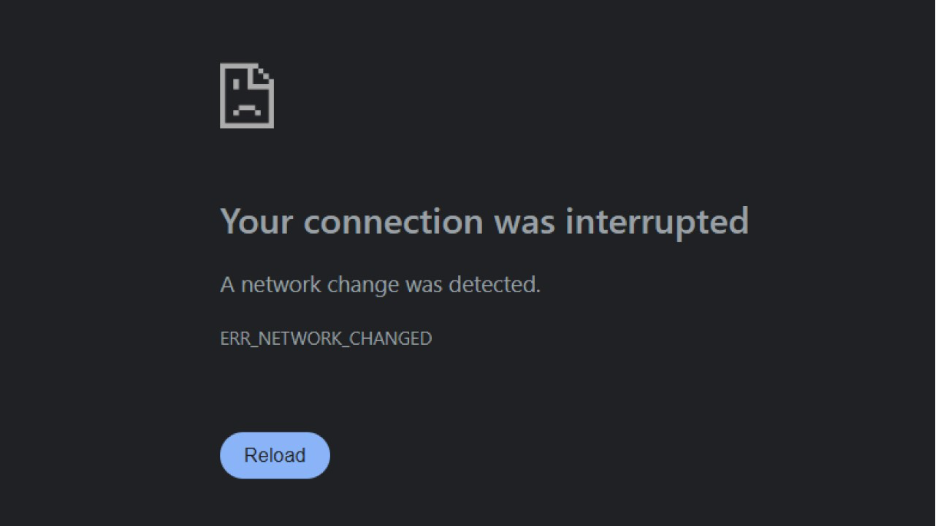
Here is how the error looks in Google Chrome:
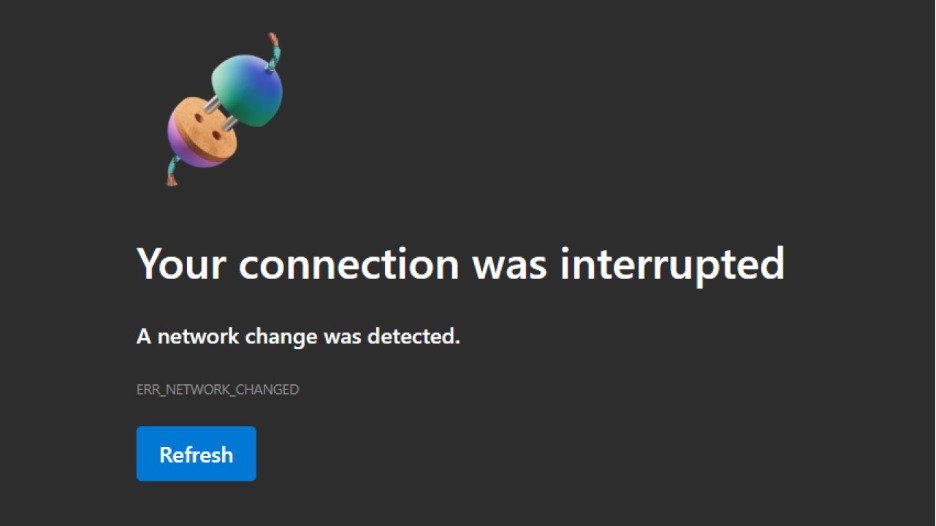
Here is how it shows up in Microsoft Edge:
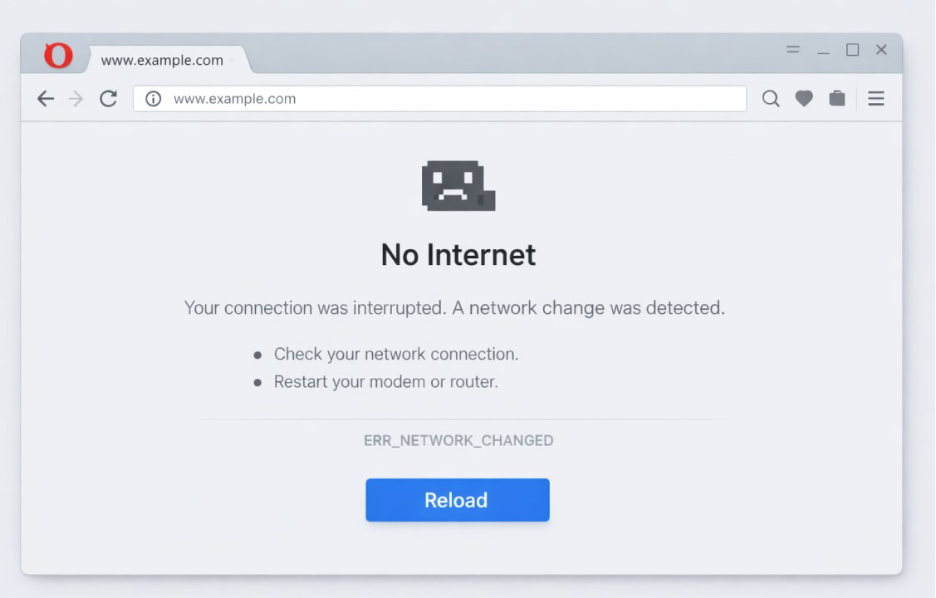
In Opera, you will see a similar message, “ERR_Network_Changed,” appearing at the bottom of the error page. The error page will be styled in the Opera interface. The error wording does not change.
Read More: How to Fix ERR_CONNECTION_TIMED_OUT Error
How Can You Fix the “Err_Network_Changed” Error? (8 Tested Solutions)
Often, the resolution of the error “Err_Network_Changed” is straightforward and does not need advanced rectification. You should begin with the simplest steps and move on to more technical solutions if the problem persists:
Let us go through a few fixes (starting from basic to advanced) to rectify this error:
1. Check the Internet Connection:
One of the basic things you can do to fix this error is check your network connection and find out whether it is stable or not. An unstable Wi-Fi or a drop in signal can cause the error “ERR_Network_Changed.” You can try restarting your router. If you are using Wi-Fi, you can try switching to a wired connection or moving closer to the router. With mobile hotspots, toggling airplane mode on or off can sometimes do the trick as well.
Once you restart, you can give your device some time to re-establish connections. You can then check your browser again. In many cases, this quick reset works and fixes the error.
2. Clear the Cache in Your Browser:
Web browsers keep a local cache of scripts, images, and other website data, so pages load quickly when you revisit them. However, if the stored data gets corrupted or outdated, it can interfere with new requests and cause errors such as “ERR_Network_Changed.”
Essentially, clearing the cache gives your browser a fresh start and forces it to get the latest version of each file.
On Chrome (and other Chromium-based browsers such as Opera or Edge):
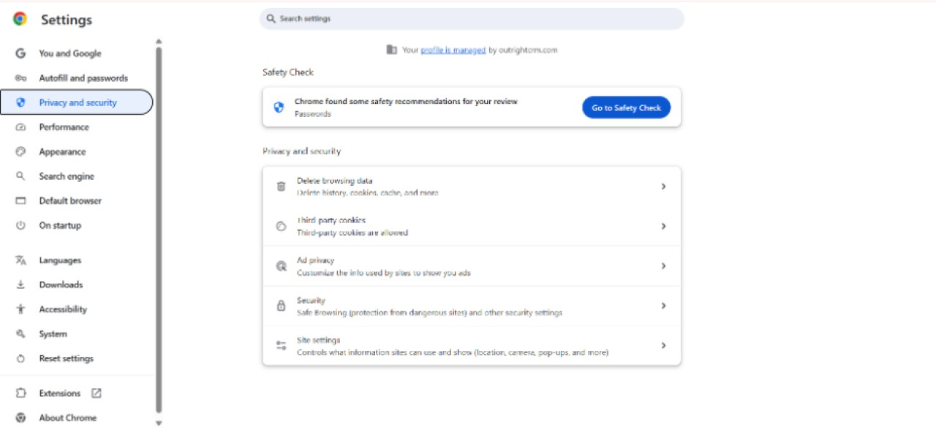
- Select “Settings,” go to “Privacy and Security,” and then choose “Delete Browsing Data.”
- Select a time range. Preferably, you should select “All time.”
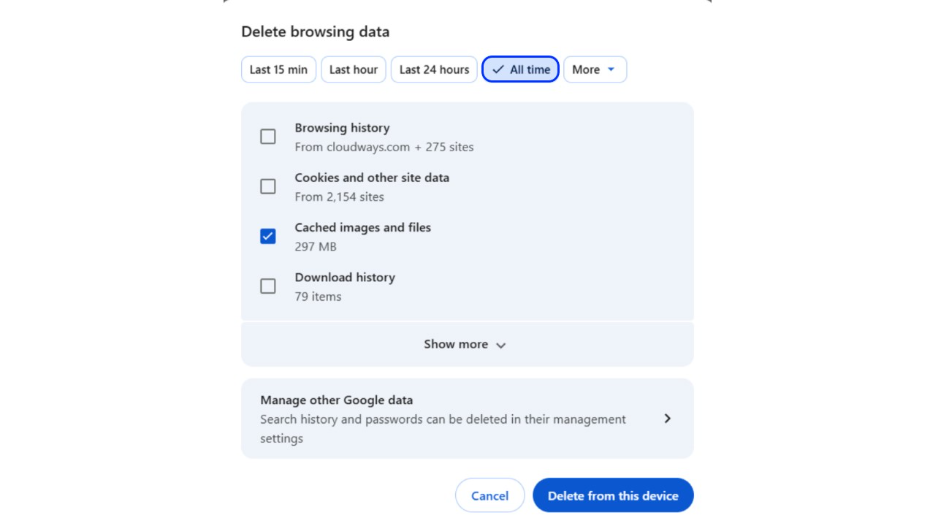
- Tick on “Cached Images and Files.” If you require a deeper reset, you can choose to tick “Browsing History,” “Download History,” “Cookies and other Site Data,” etc. Do not tick “Passwords and Other Sign-in Data” if you have not stored the data elsewhere.
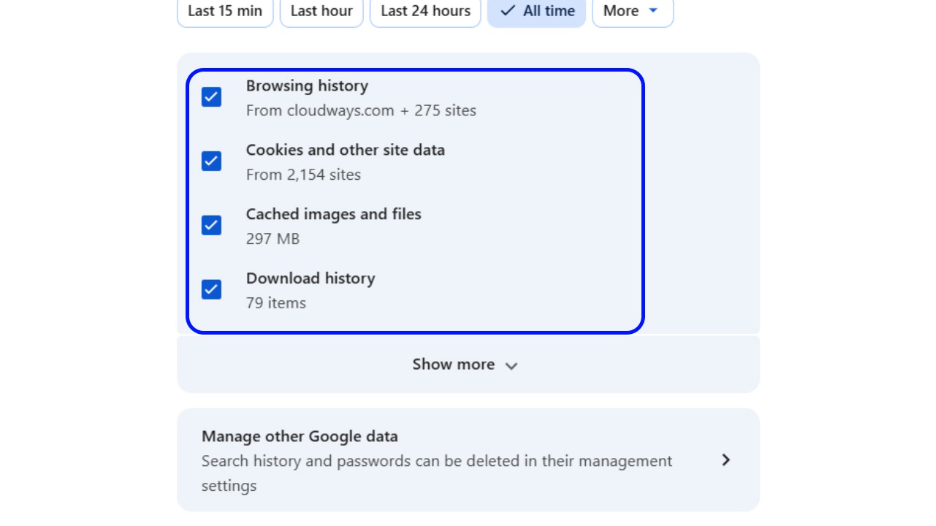
Once the cache is clear, you can restart your browser and reload the website. In numerous cases, the error gets fixed right after this step.
3. Modify DNS Settings and Clear the Cache:
A stale cache or faulty browser can confuse your browser and cause the “ERR_Network_Changed” error. On Windows 11, you can modify your DNS servers in the Settings app and then clear the cache to reset settings.
Windows 11 (Settings App):
- Open Settings, and then open “Network & Internet.”
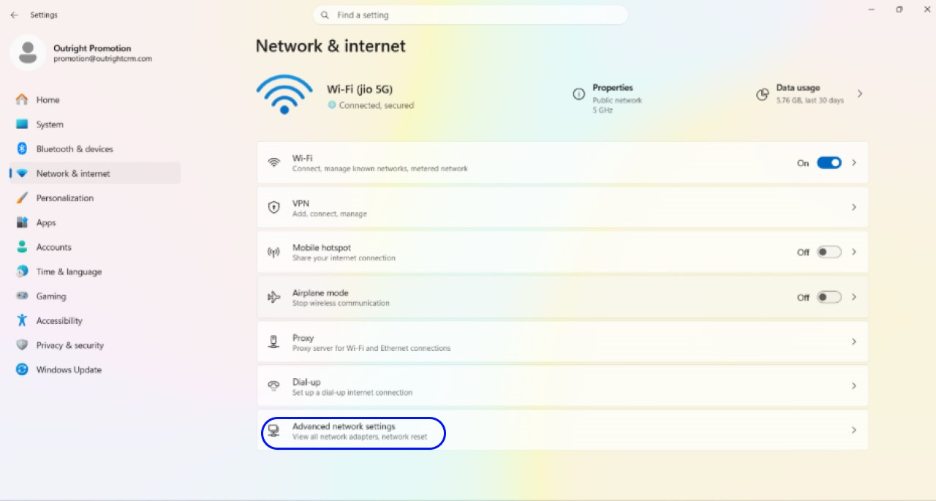
- Select your “Active Connection” and select the option “View Additional Properties.”
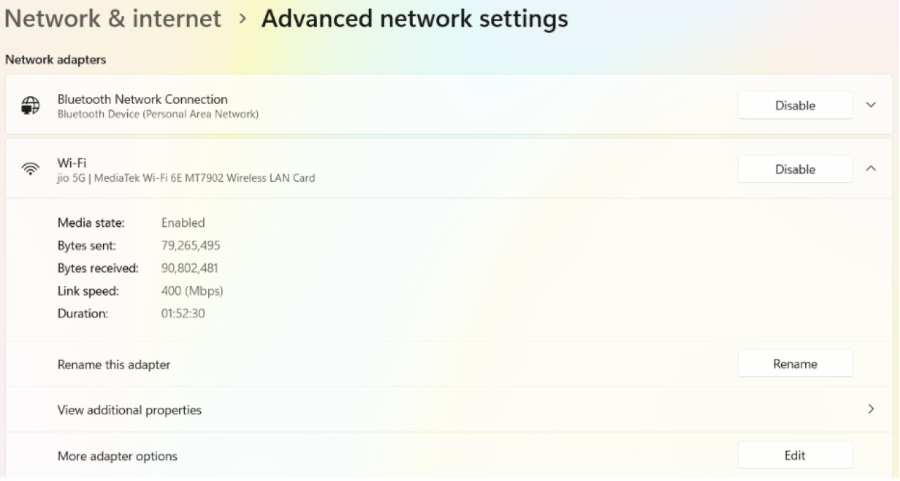
- Go to the “DNS Server Assignment” (likely set as Automatic (DHCP) currently) and select “Edit.”
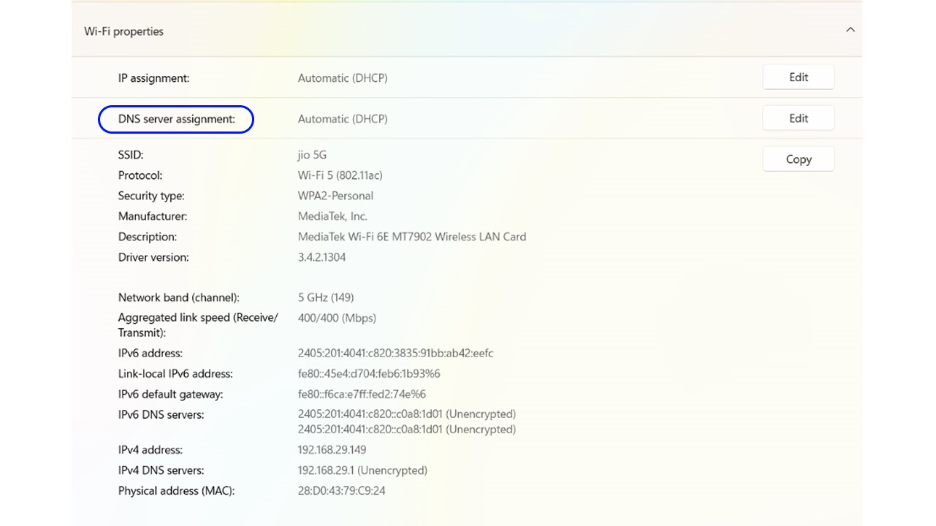
- A pop-up will appear on screen. Toggle to “Manual” and turn on “IPv4.”
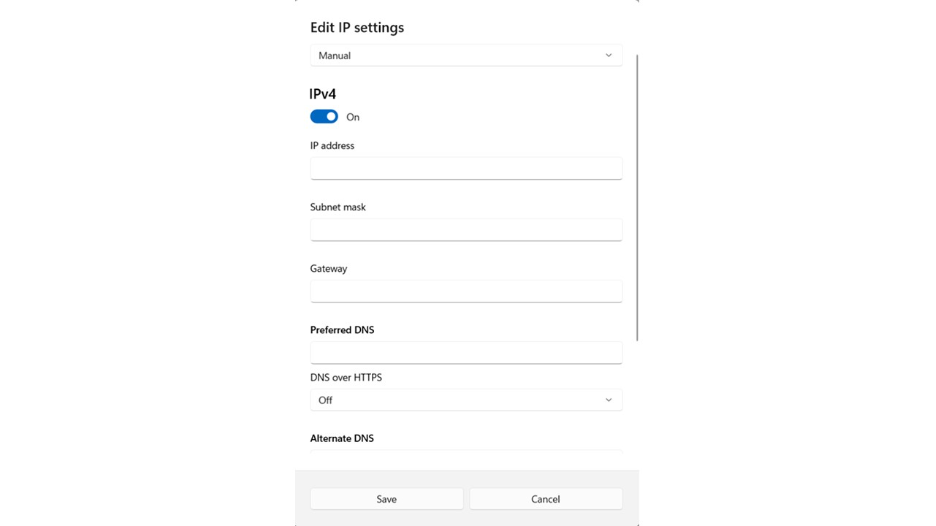
- Enter the following numbers in the Preferred and Alternate DNS, respectively.
Preferred DNS: 8.8.8.8
Alternate DNS: 8.8.4.4
- You can also turn on “DNS Over HTTPS.” This is an optional step and will ensure encrypted DNS.
- Select “Save.” Then, you can unplug/replug Ethernet or toggle Wi-Fi on/off.
4. Review and Adjust Your DNS Settings:
A misconfigured proxy can interfere with your connection even if you have not created one yourself. A few apps or VPNs include proxy settings in the background, so it is worth checking whether anyone is active.
On Windows 11:
- Open Settings, then select “Network & Internet” and then choose “Proxy.”
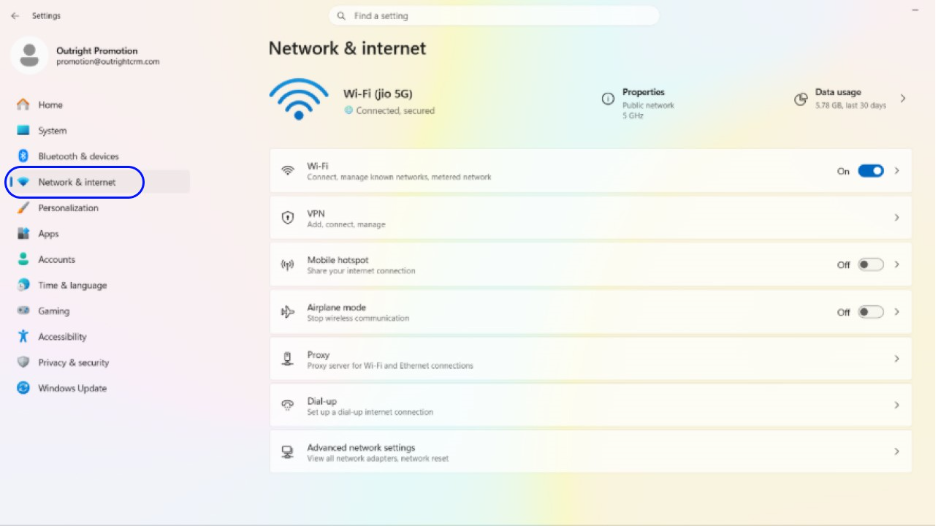
- See whether under Automatic Proxy Setup, “Keep Automatically Detect” settings are on or not. If it is off, turn it on.
- Go to “Manual Proxy Setup.” This should be turned off.
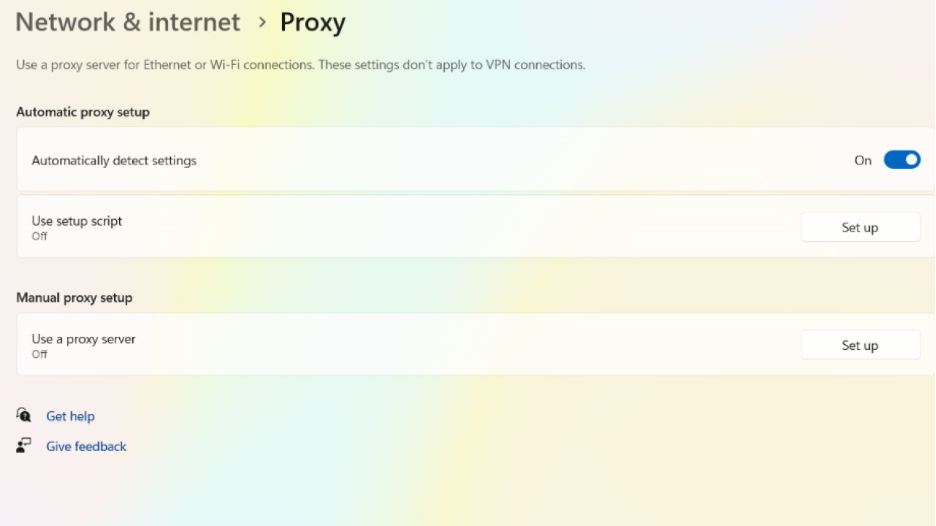
After that, choose to restart your browser and test the website again.
5. Reconfigure or Disable Your VPN:
Like proxies, VPNs can interfere with the network connection sometimes. While they are useful for your security and privacy, an unstable server or misconfigured VPN can interfere with network protocols and trigger interruptions that make it seem as if your connection is dropping.
Here is how you can fix it:
- Temporarily Turn It Off: Reload the website and disconnect your VPN. If things work fine after this, the most likely cause of this error is the VPN setup.
- Change Servers: Ensure that the app is updated, as older versions can conflict with network protocols and newer systems.
- Review Split Tunneling: If there is split tunneling in your VPN, make sure that your browser is not being routed through a faulty tunnel.
6. Network Configuration Reset:
If previous fixes have not worked out for you, a full reset of the network is worth trying. Over time, the networking stack of your system (including things such as Winsock, TCP/IP, and adapter settings) can collect misconfigurations or conflicts that interfere with your connectivity. Resetting network configuration brings everything back to normal.
On Windows 11:
- Open Settings. Then, go to “Network & Internet.” After that, select “Advanced Network Settings.”
- Select the option “Network Reset.”
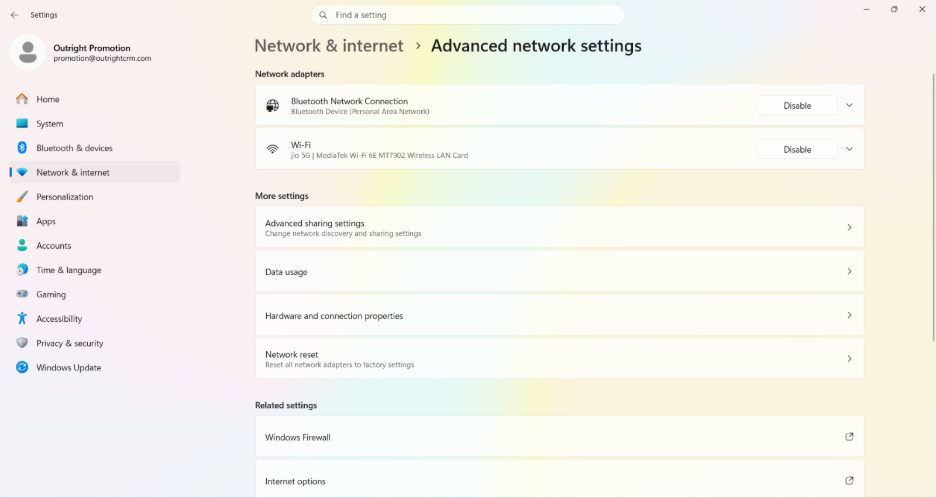
- On the next screen, select the option “Reset Now” and then choose “Confirm.”
On MacOS:
- There is no single “Reset” button on macOS. However, you can achieve the same result by:
- Opening System Settings (The option will appear as “System Preferences” on older versions).
- Go to Network and choose your active connection.
- Remove the connection with the “-” button and then add it back with a “+” button.
- Reconnect to Ethernet or Wi-Fi with fresh settings.
7. Reinstall or Update Network Drivers:
Corrupted or outdated networks are one of the prevalent reasons for an unstable network. A quick update generally resolves the error, and if that does not work out, reinstalling the driver generally does the trick.
On Windows 11:
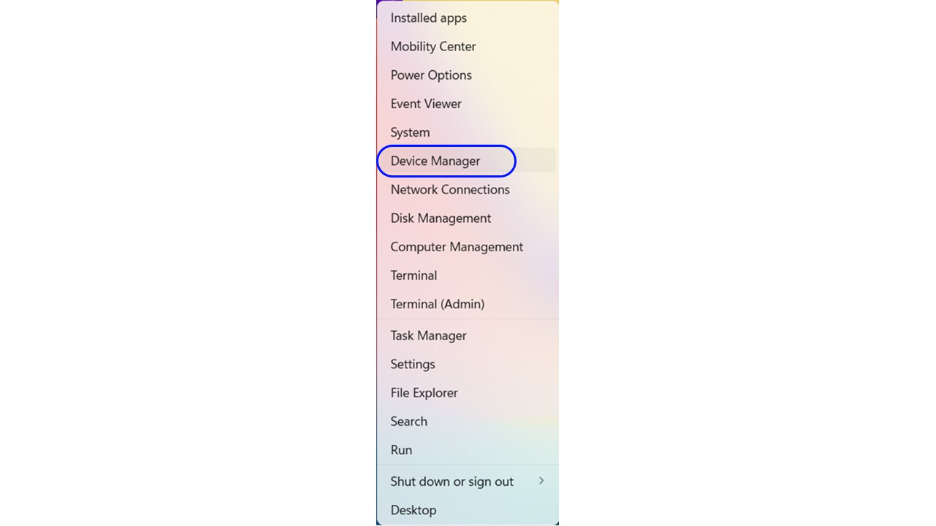
1. Go to the Start Button and right-click on it. Select “Device Manager” among various options.
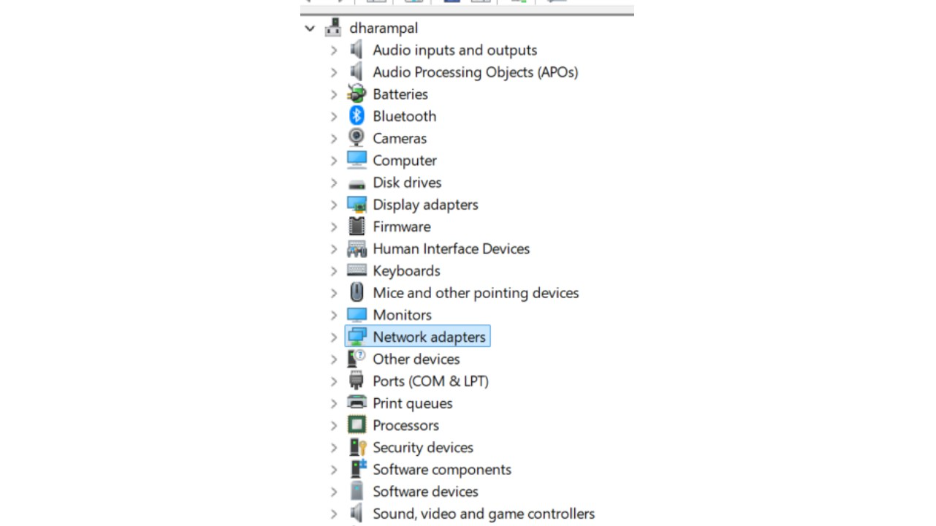
2. Tap on “Network Adapters” to expand it. You will see a list of your installed devices.
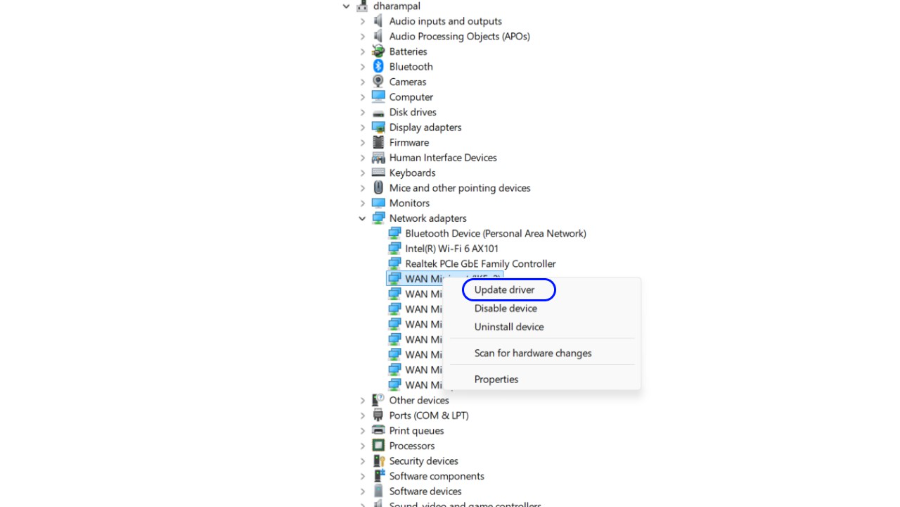
3. Find your active adapter and right-click on it. Select “Update driver” and then choose “Search Automatically for drivers.” This forces the driver to look for the latest version and install it.
4. Check whether it solves your issue. If it does not, you can perform an additional two steps:
- Check whether it solves your issue. If it does not, you can perform an additional two steps:
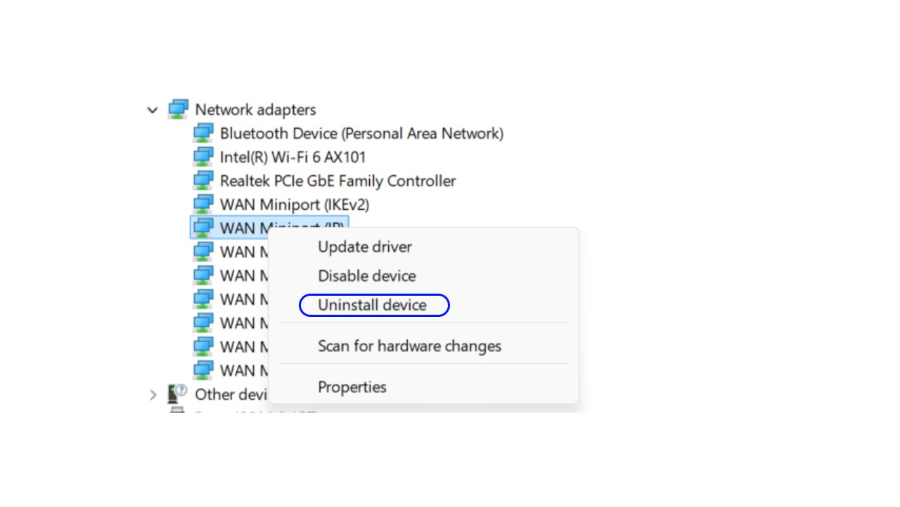
Reboot your computer, and your system will automatically reinstall the driver.
Conclusion:
The “ERR_Network_Changed” error can be frustrating but rather a simple problem to solve. It just means that your browser detected a network shift mid-request, whether that is a short Wi-Fi drop, a VPN connection, an IP address interruption, or a DNS hiccup. What you need to understand is that your website is not down, but your internet is not broken. Something had interrupted the connection midway.
Work through the fixes in the order of simple to advanced. Beginning with a router restart or clearing your browser cache fixes the problem in the majority of cases. If these do not help, adopting DNS settings, temporarily disabling VPN, or resetting the network stack will do the job mostly. None of these steps requires sophisticated technical knowledge, and most of the users resolve the error within a few minutes.
Read More: ERR_TOO_MANY_REDIRECTS