
7 Best Free PDF Form Filler Tools for Filling Out and Signing PDF Forms
You don’t need a printer or a scanner to sign a PDF file. Here are the Free PDF Form Filler tools you can use for free to sign documents.
Somewhere along the way, PDFs became the default format for anything official — rental agreements, tax forms, school registration papers, freelance contracts. And somewhere along that same path, a huge number of people are still printing these things out, filling them in by hand, scanning them back in, and emailing the result like it’s 2009. Works in theory. In practice? Slow, wastes paper, and half the scans are crooked or blurry.
Luckily, you don’t have to mess with a printer or a scanner. A free PDF form filler lets you type directly into a document, add a signature, and download the completed form without printing anything. You can do this properly without all that. There’s a solid handful of free tools out there that let you type directly into a PDF, add a signature, and send it off in a couple of minutes. Some are better for quick one-off forms, others are built more for people who deal with documents regularly. Below is a rundown of seven that are actually worth your time, not just recycled “top 10” filler.
7 Best Free PDF Form Fillers
Related walkthrough
Advanced Functionalities of SuiteCRM Empower PDF Template “Premium” version

We tested the options below based on how easy they are to use, what you can do without paying, and how well they handle common tasks such as filling out forms and adding signatures. If you need a free PDF form filler, these are some of the most practical options to consider.
Before diving in, it’s worth saying: not every “free” PDF tool is free in practice. Plenty of them dangle the feature, then hit you with a paywall the moment you try to download or export. The ones listed here either stay genuinely free for basic use or make the limits clear upfront, so there’s no bait-and-switch halfway through filling out your form.
1. PDFFly
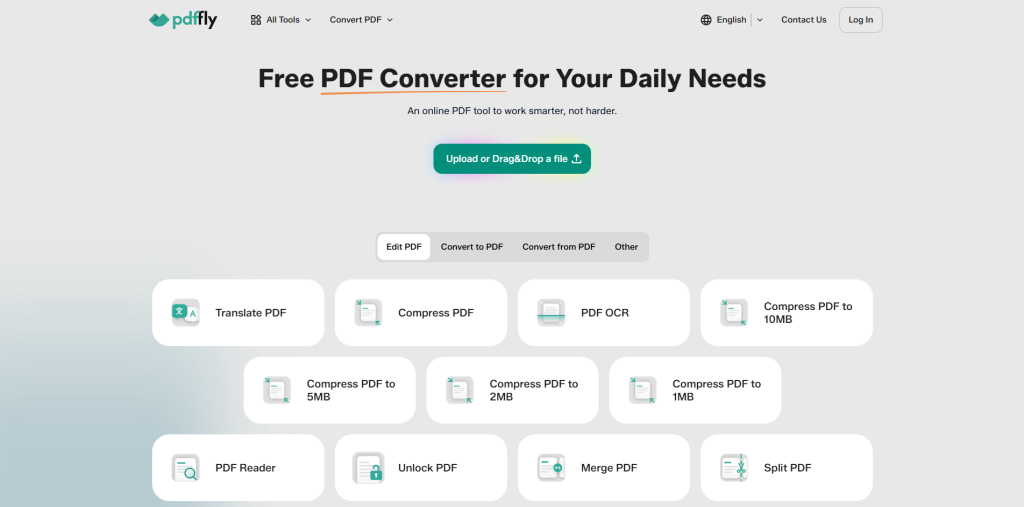
PDFFly is a browser-based PDF tool, so there’s no software to install. Its online editor lets you add text, annotations, images, and signatures to a PDF, as well as fill out forms. You can click where you want to add text, which also makes it useful for documents that weren’t originally designed as editable forms.
The signing tool is particularly straightforward. You can sign using your mouse or trackpad, type your name if you’re in a hurry, or even upload a scan of your handwritten signature. Once it’s in, you just move it to the right spot. If you just need to sign PDF for free without installing dedicated software, PDFFly offers a simple browser-based way to do it and says its signing tool doesn’t require an account.
2. Smallpdf
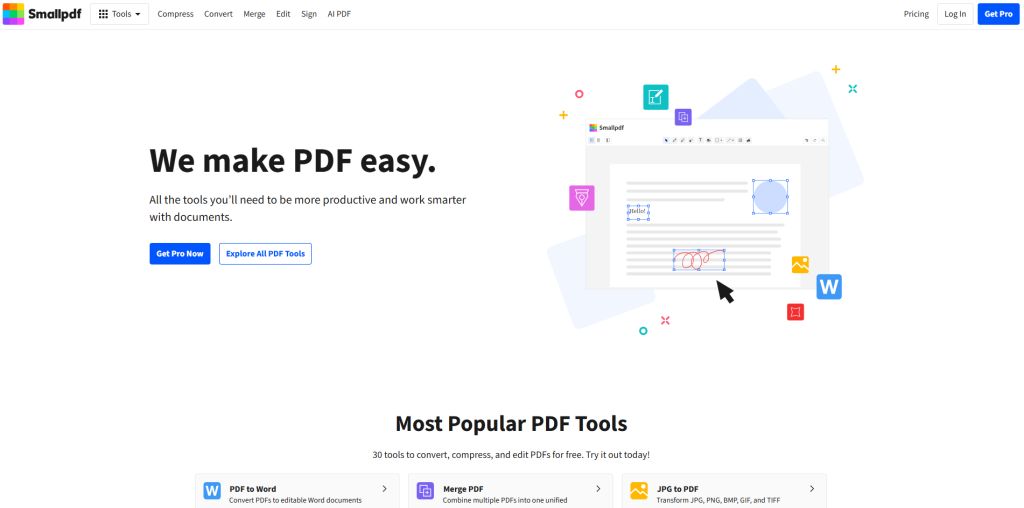
Smallpdf started out as a PDF compression tool and slowly grew into a full toolbox — merging, splitting, converting, and yes, filling and signing. The free tier limits you to a couple of tasks per day before it nudges you toward a subscription, which is mildly annoying if you’re doing bulk work. For the occasional form, it’s plenty. The interface is clean, almost too clean, like one of those Swiss apps that’s all whitespace and tiny fonts. But it’s simple enough that you’ll figure it out in seconds.
3. Adobe Acrobat online (Fill & Sign)
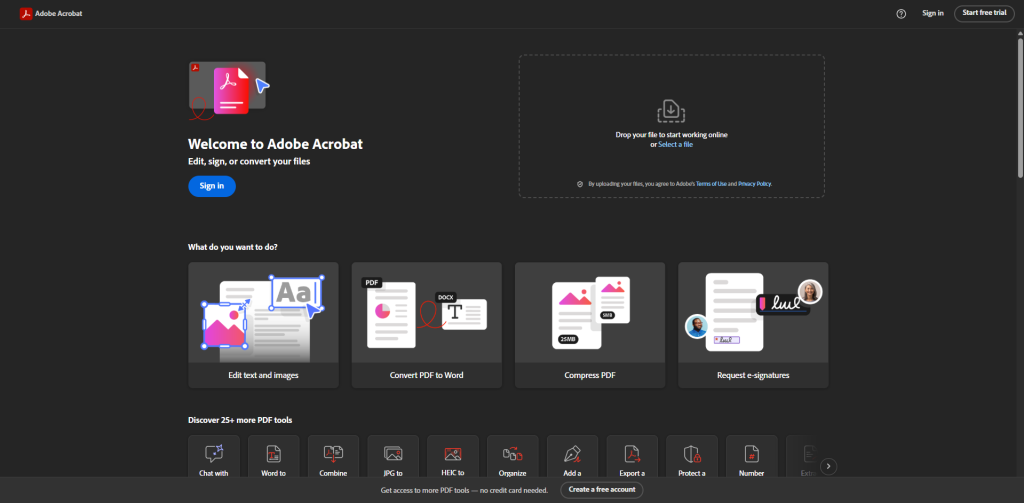
Adobe created the PDF, so their free Fill & Sign tool being reliable isn’t exactly shocking. In the web version, you can fill and sign a PDF without downloading anything: type into form fields, add checkmarks and initials, and sign with a typed, drawn, or uploaded signature. The only catch is a free Adobe account, which you need to finish and download the form, and Adobe says the tool has no trial and no expiry. Still, for a single form here and there, it’s a dependable option, especially since most people already trust the Adobe name.
4. DocHub
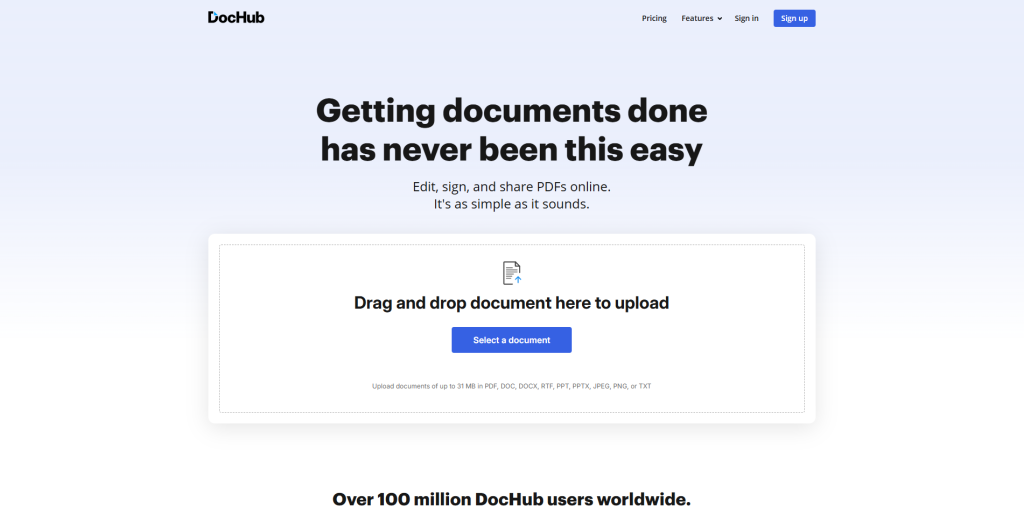
DocHub leans hard into integration, connecting directly with Google Drive and Gmail, so if your documents already live in Google’s ecosystem, this one saves a few extra clicks. Text fields are simple enough, and you can save multiple signatures too, handy if you want to keep your personal and business signatures separate. If you regularly work with PDFs, you may also need to combine PDF files online when several documents need to be brought together into one file. The only real downside? There’s a cap on how many documents you can process for free each month.. Once you burn through that, you’re stuck waiting for the next billing cycle.
5. PDFescape
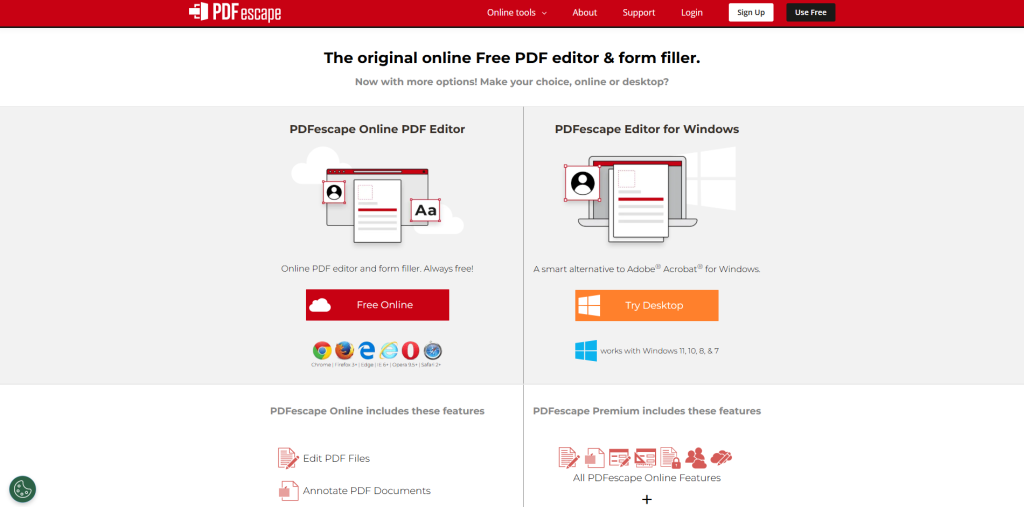
This one’s been on the scene for years, and it shows. The design feels frozen somewhere around 2015. That’s not necessarily a bad thing — the interface is a bit clunky, but it’s also refreshingly free of the “sign up to continue” pop-ups that plague newer tools. PDFescape handles form filling well, including whiting out or covering existing text if you need to correct something on a scanned document. Signatures are there if you need them, but this thing is clearly an editing tool first. The dedicated e-sign apps these days run circles around it in that department.
6. Xodo PDF
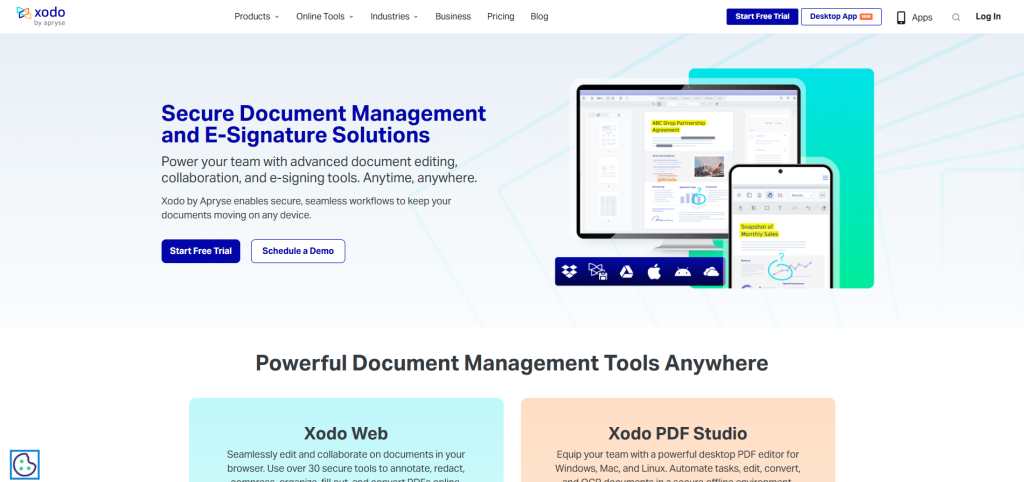
Xodo is a bit different — it works both as a desktop app and a mobile app, which matters if you’re filling out forms on your phone between meetings (it happens more than people admit). Annotation’s strong, with highlighting, notes, and signatures. Syncs with Drive and Dropbox too, so device-hopping is painless.
7. PDF Buddy
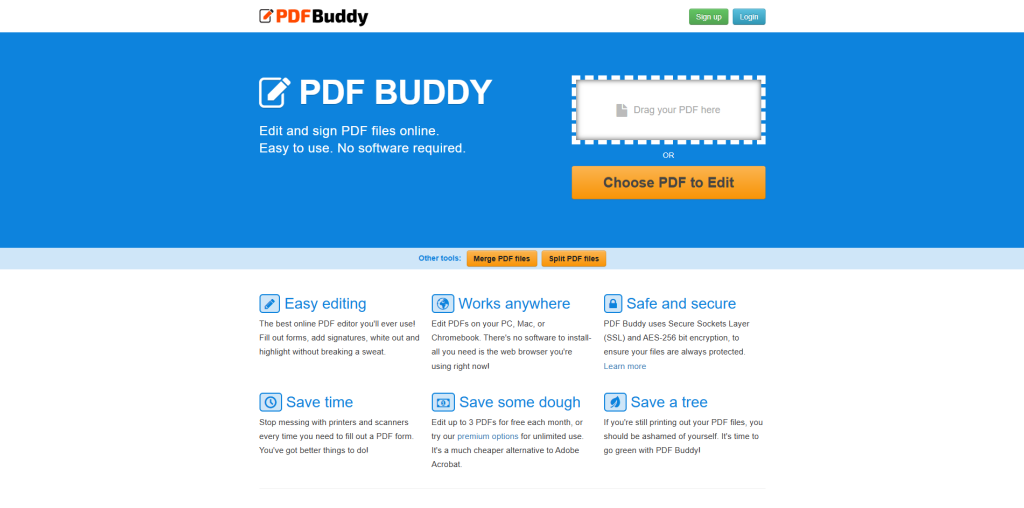
PDF Buddy flies under the radar compared to the big names. It’s lightweight, does the basics (filling, light tweaks) and doesn’t try to sell you on a million features you’ll never use. The free version limits you to three documents per month, which seems restrictive, but for light use like signing a lease or a waiver, it’s usually plenty. It’s quick, unobtrusive, and works as advertised.
A practical note before you pick one
Whether you need a free PDF form filler for a one-time rental agreement or regularly handle contracts and applications, the right tool can save you the hassle of printing and scanning. For more advanced editing needs, AI PDF editors can also help automate tasks such as editing, text recognition, and working with scanned documents.
There’s no single “best” tool here. It really comes down to how often you deal with PDFs and whether you’re on a laptop or phone most of the time. Doesn’t matter which tool you pick, always, always double-check the file you download before you send it off. It takes two seconds and saves you from looking careless. Fields get skipped, signatures wander off-pixel — it happens. But emailing a contract twice because you didn’t spot it? That’s the kind of embarrassment ten seconds could’ve saved you.