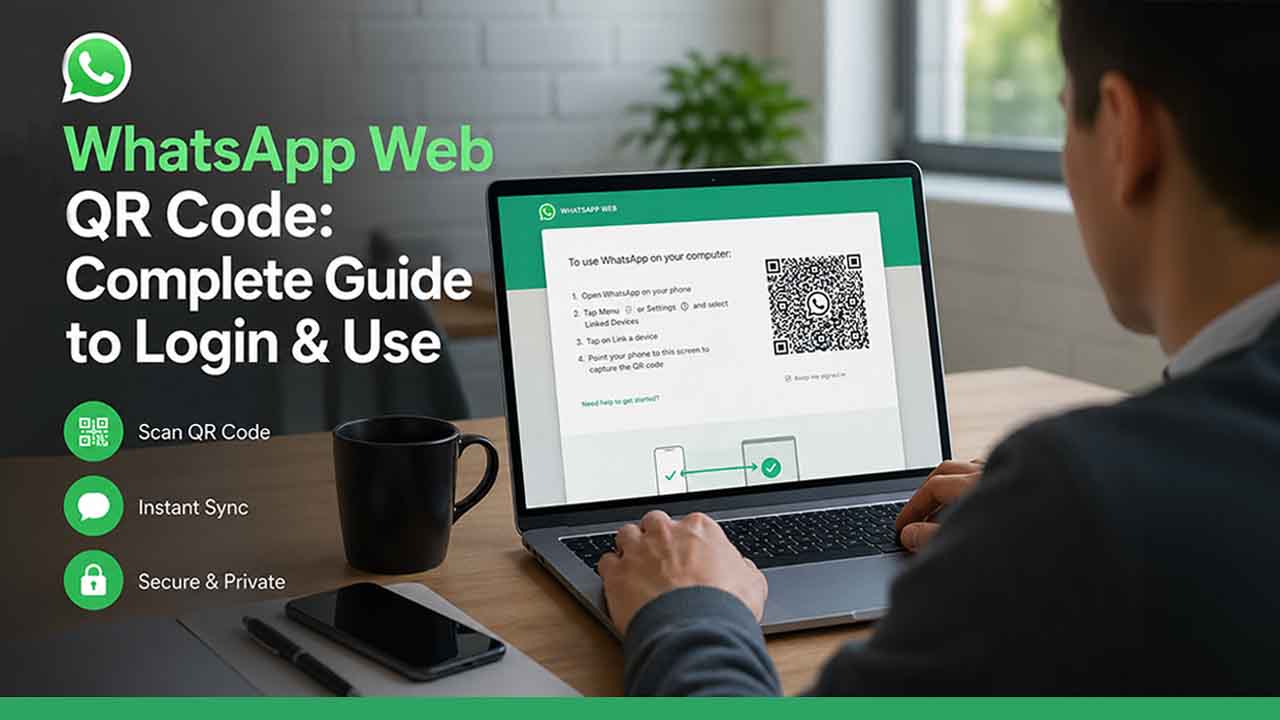
WhatsApp Web QR Code: Complete Guide to Login & Use
Learn how to use the WhatsApp Web QR Code to access chats on your computer. Step-by-step guide, benefits, fixes, and security tips explained.
If you have ever tried to manage a business conversation entirely on your phone, you know how exhausting it gets. You are squinting at a small screen, typing long replies with your thumbs, accidentally sending half-finished messages, and constantly switching between your phone and laptop. It is inconvenient and slows you down in more ways than you realize.
This is exactly the problem the WhatsApp Web QR Code solves. It is simple to use. You just have to scan a small square on your screen, and suddenly, your entire WhatsApp is there on your laptop. No complicated setup, no extra accounts, and no technical headaches.
Let us get into what it actually is, how it works, and why it genuinely matters, especially if you are running a business.
What Is WhatsApp Web QR Code & How It Works
In simple terms, the WhatsApp Web QR Code is a scannable code that appears when you visit web.whatsapp.com on your computer or laptop. When you scan it using your phone, it links your WhatsApp to your browser. This allows you to send and receive messages, share files, and manage your chats directly from your desktop computer or laptop.
The QR code is WhatsApp’s way of confirming that the phone’s owner authorizes the browser to access their account. There is no password or verification code. You just scan it and start working. What makes this particularly well thought out is the built-in security layer. Every QR code that WhatsApp generates is unique and time sensitive. If you do not scan it within a short window, it expires, and a fresh one appears. This means that nobody can take a screenshot and use it later to access your account.
If you are also looking to create scannable QR codes for other parts of your business, this guide on creating a QR code for your business is worth a read.
How to Use WhatsApp Web QR Code (Step-by-Step Guide)
The steps to using WhatsApp on the web are simple and easy to follow. Here’s what you need to do:
1. On your computer, open any browser and go to web.whatsapp.com. The QR code will appear automatically on the screen. You don’t need to do anything else on the browser side.
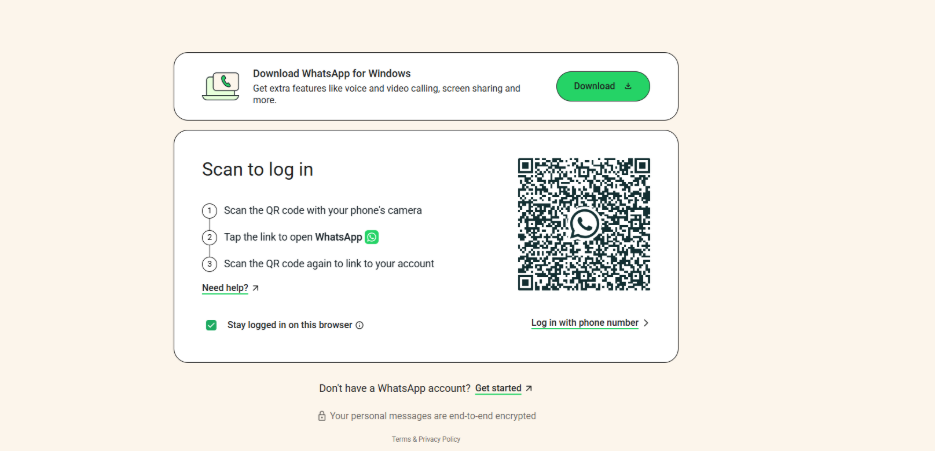
2. Now, pick up your phone and open WhatsApp or WhatsApp Business
3. If you use an iPhone, tap Settings at the bottom, then click Linked Devices. If you are on Android, tap the three-dot menu in the top right corner and select Linked Devices.
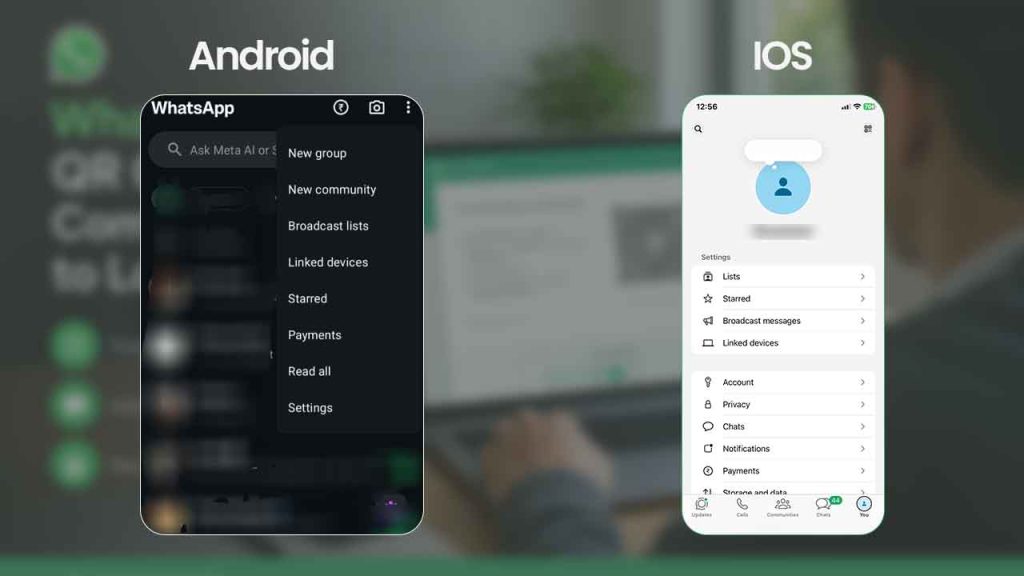
4. Click Link a Device. Your phone’s camera will open inside the app.
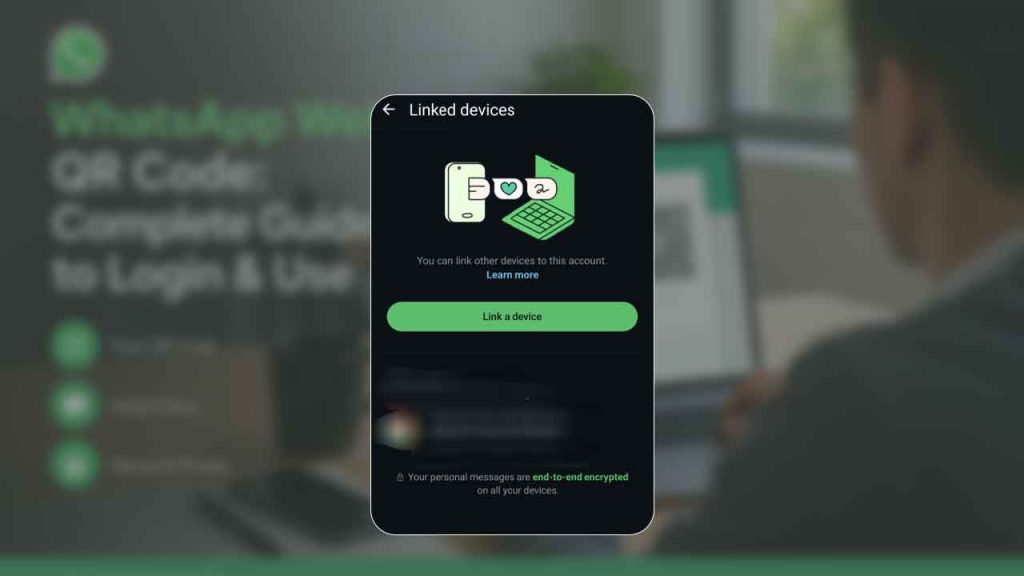
5. Face it towards the QR code on your computer screen and hold it steady just for a moment.
6. This is it. Now, your WhatsApp will load on the browser within a few seconds, and you’re ready to go.
This whole process takes a maximum of one minute. Once you are connected, you can start typing your messages, share documents straight from your computer, and read messages comfortably on the big screen. However, remember that your phone must have an active internet connection for the WhatsApp web to keep working. In case your phone loses internet connection, the browser session will pause until it reconnects.
Key Benefits of Using WhatsApp Web QR Code
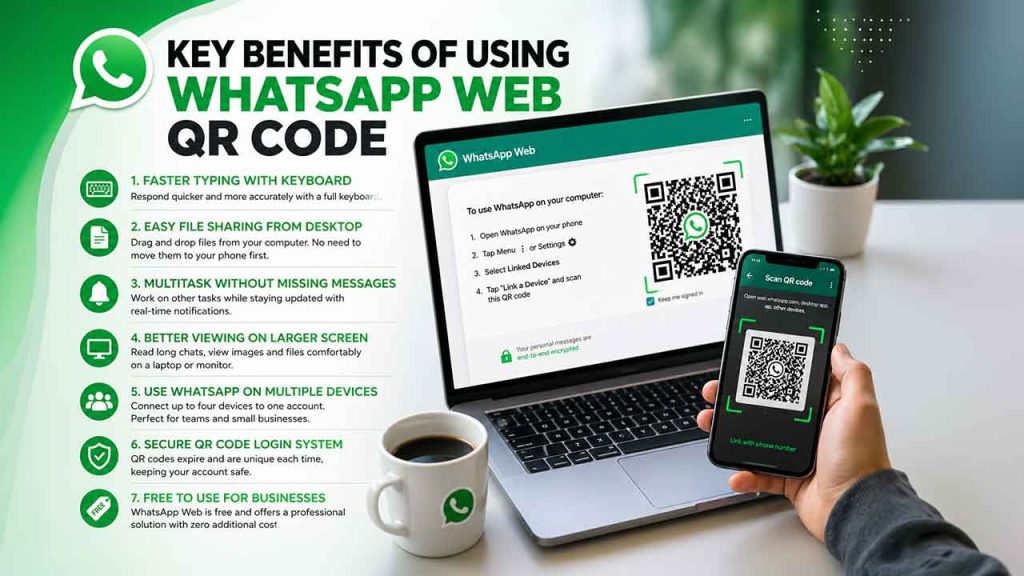
Using the WhatsApp Web QR Code is not just about convenience; it significantly improves how efficiently you manage conversations and daily communication.
- Faster Typing with Keyboard: If you are responding to customer queries or writing detailed messages, doing it on a full keyboard means your responses are quicker, more thorough, and less likely to make autocorrect mistakes or spelling errors.
- Easy File Sharing from Desktop: Whether you need to send a product catalog, PDFs, DOCs, or images, you can drag files directly from your computer. There is no need to transfer anything to your phone first.
- Multitask Without Missing Messages: WhatsApp web runs in a browser tab. You can work on other things while keeping your WhatsApp open. The real-time notifications will let you know when something comes in, so nothing slips. This eliminates the need to check your phone constantly.
- Better Viewing on Larger Screen: You can read long messages, conversation history, open shared images and files far more comfortably on a laptop or monitor than on a phone screen.
- Use WhatsApp on Multiple Devices: WhatsApp allows up to four devices to be connected to a single account simultaneously. For a small business team sharing one WhatsApp Business number, this is a practical game-changer. Different team members can handle conversations from their own computers without passing a phone around. And if your team is ready to go a step further, pairing this with WhatsApp automation software can help you handle higher volumes without adding more people.
- Secure QR Code Login System: Every QR code expires shortly and is uniquely generated each time. This eliminates the risk of someone else gaining unauthorized access through the QR code. It is a smarter authentication method than a password in several practical situations.
- Free to Use for Businesses: WhatsApp Web is free. For small and medium businesses managing their own customer communication, this is a fully functional professional tool with zero additional cost attached to it.
WhatsApp Web QR Code Not Working? Fix Common Issues
Related walkthrough
How to Use WhatsApp Web on BlackBerry KEY2 & KEYone(Full Tutorial 2026)(Easy Method)(Complete Guide)

Even the simplest tools sometimes stop working. If the WhatsApp Web QR Code is not behaving as expected, here are the most common issues and what to do about them:
- QR Code Refreshing Too Quickly: This is normal, as each code expires quickly for security reasons. Just be ready to scan as soon as the new code appears, and do not hesitate or delay.
- Camera Not Scanning QR Code: Make sure you are using the scanner inside WhatsApp, not your phone’s regular camera app. Also, check that the lens is clean and that there is enough light in the room.
- WhatsApp Web Not Connecting: Nine times out of ten, this happens due to phone connectivity issues. Make sure that your phone has a stable internet connection, Wi-Fi, or mobile data, and try again.
- Frequent Logout Issues: WhatsApp Web sessions do not last forever. If your phone restarts or you are inactive for a long period, you will need to scan again. You can also go into your app’s Linked Devices section to see all active sessions and remove any you no longer need. For businesses managing WhatsApp at scale, keeping accounts safe and avoiding restrictions is a real concern; WADesk is built specifically to handle that.
- Browser Compatibility Problems: WhatsApp Web works well on Chrome, Firefox, Edge, and Safari. If you are having trouble, try a different browser or clear your cache and reload it.
WhatsApp Web vs WhatsApp Desktop: Which One Should You Use?
Both options use the same QR code to get started, but they work a little differently. Below is a simple comparison to help you decide which one suits you better.
| Feature | WhatsApp Web (Browser) | WhatsApp Desktop (App) |
|---|---|---|
| Installation Required | No | Yes |
| Notifications | Browser notifications | Native system notifications |
| Performance | Depends on your browser | Generally smoother and faster |
| Keyboard shortcuts | Basic | More complete |
| Best Suited For | Flexible, on-the-go use | Heavy daily use at a fixed workstation |
| Available On | Any OS with a browser | Windows and Macs only |
WhatsApp Web browser is perfect if you are constantly switching between computers or just need occasional desktop access. However, if WhatsApp is an essential part of your daily workflow and you want the best possible performance, downloading the desktop app is a better option. Either way, you have to scan the same QR code to get access.
WhatsApp Web QR Code Use Cases for Businesses & Professionals
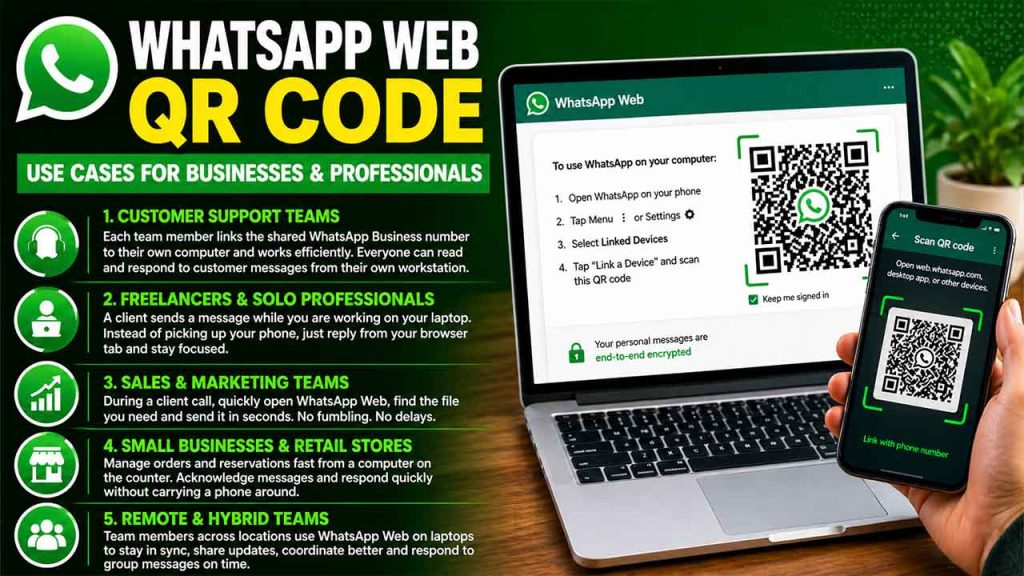
It is one thing to know what it does, but seeing how people actually use it is entirely different.
- Customer Support Teams: Each team member links the shared WhatsApp Business number to their own computer and works efficiently. There is no need to share one phone around the office. Everyone can read and respond to customer messages from their own workstation, eliminating confusion or bottlenecks.
- Freelancers and Solo Professionals: A client sends a message while you are deeply engrossed in your work on the laptop. Instead of breaking your focus to pick up your phone, you just glance at your browser tab and reply. This small thing makes a big difference over a full workday.
- Sales and Marketing Teams: When you are in mid-call with a client and need to send a brochure fast, you can open the WhatsApp web on your computer, locate the file, and send it to the concerned chat in seconds. There are no fumbling or delays.
- Small Businesses and Retail Stores: A local restaurant manages orders and reservations over WhatsApp. With WhatsApp Web open on the counter computer, you can acknowledge messages and act quickly. No one needs to carry a phone through a busy workspace.
- Remote and Hybrid Teams: Teammates who are spread across locations use WhatsApp Web on their laptops to stay in sync, share updates, coordinate better, and respond to group messages in time. It is just like any other professional communication tool, but simpler.
These cases are not special. This is just how work flows more smoothly when you remove the friction of being stuck on a small screen.
Conclusion
The WhatsApp Web QR Code is one of those features that seems small until you actually start using it, and then you cannot imagine going without it. It takes seconds to set up, costs nothing, and immediately makes managing WhatsApp on a computer feel natural and easy. Whether you are a solo professional trying to stay organized or a growing business handling dozens of customer conversations a day, this tiny QR square opens up a genuinely better way to work. Scan it once, and you will see the difference.
FAQs About WhatsApp Web QR Code
Q. Do I need to scan the WhatsApp Web QR Code every time I open my browser?
Not always. If you check the “Keep me signed in” box, your session stays active until you manually log out, or your phone goes offline for an extended period.
Q. Can two people use WhatsApp Web on the same account at the same time?
Yes, WhatsApp supports up to four linked devices simultaneously on a single account.
Q. Is it safe to use the WhatsApp Web QR Code on a shared or public computer?
It is not recommended. Always log out manually from the Linked Devices section after your session if you are on a shared device.
Q. Does WhatsApp Web work if my phone’s battery dies?
With WhatsApp’s multi-device feature, linked devices can stay connected for a short period even if your phone is offline or off.
Q. Is WhatsApp Web free to use?
Yes, completely. There are no charges or subscriptions involved in using the WhatsApp Web.