

ERR_CACHE_MISS: 7 Methods to Fix Chrome Cache Error (2026 Guide
Fix ERR_CACHE_MISS in Chrome with 7 effective methods. Fix cache errors through data clearing, browser updates, network resets, disabling cache system, etc.
Google Chrome is one of the most prominent and dependable web browsers out there in the market. However, it is not without any fault. While using Google Chrome, you will deal with a wide range of common issues. This also includes an error called “Err_Cache_Miss.” If you have seen this message, then you would know that it directs you to another page where it is asks you to submit or re-enter data. While this error can be slightly confusing and frustrating, it is also completely fixable. Well, the good news is that there are a bunch of quick and simple methods you can implement to fix this error message. In this way, you can successfully reach the site that you are trying to visit.
This blog explains the “Err_Cache_Miss” error from scratch. We will also discuss its common causes and numerous methods you can adopt to fix it.
What Is “Err_Cache_Miss”?
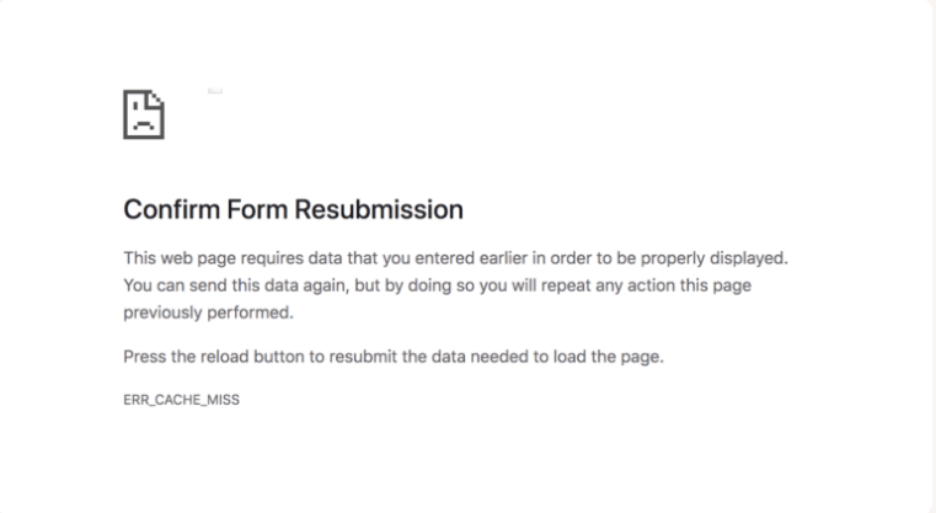
Chrome is a popular web browser operated and managed by Google. While it is quite robust and works smoothly, it does throw a few error messages every now and then. These include errors such as ERR_QUIC_Protocol_Error, ERR_SSL_Protocol_Error, ERR_SSL_OBSOLETE_VERSION, and, as users generally encounter “Err_Cache_Miss.” From the name, it is quite clear that the error is associated with “caching.” More particularly, there are a wide variety of reasons that you might be seeing this error message. This involves:
- Your browser cannot obtain cache files from the website you are looking to access.
- There are corruptions, bugs, or inefficiencies in your browser settings, browser extensions, or browser itself.
- The website you are looking to visit has PHP or incorrect coding issues.
If you are a developer, you can face this message if you are utilizing the wrong code to test a website or an application, either on iOS or Android. As a user, you can face this issue on any website, be it an extremely popular one such as Facebook. It is important to keep in mind that while the issue happens only to Chrome users, some users have also reported similar problems on Firefox.
Particularly, in Firefox 32 versions, the message shows up as “Document Expired.” However, it is worthwhile to note that most of these errors involve a message titled “Confirm Form Resubmission” or a prompt. This generally happens when a Chrome user is submitting or completing a form and then suddenly uses the back button too quickly or too often.
7 Steps to Resolve “Err_Cache_Miss” Problem in Google Chrome
Related walkthrough
How to YouTube Unblock on Google Chrome | Quick & Easy Fix 😱

Now that you have understood what “Err_Cache_Miss” really means and its causes, let us understand how you can fix it. Let us take a closer look at the top 7 methods you can utilize to rectify the “Err_Cache_Miss” error in Google Chrome:
1. Reload the Webpage:
Sometimes, the Google Chrome error “Err_Cache_Miss” can show up on your screen if you are facing constant network issues. If this is the case, then you can simply try reloading the webpage. You can look to reload the webpage by selecting the reload icon available at the top-left corner of your Google Chrome’s address bar.
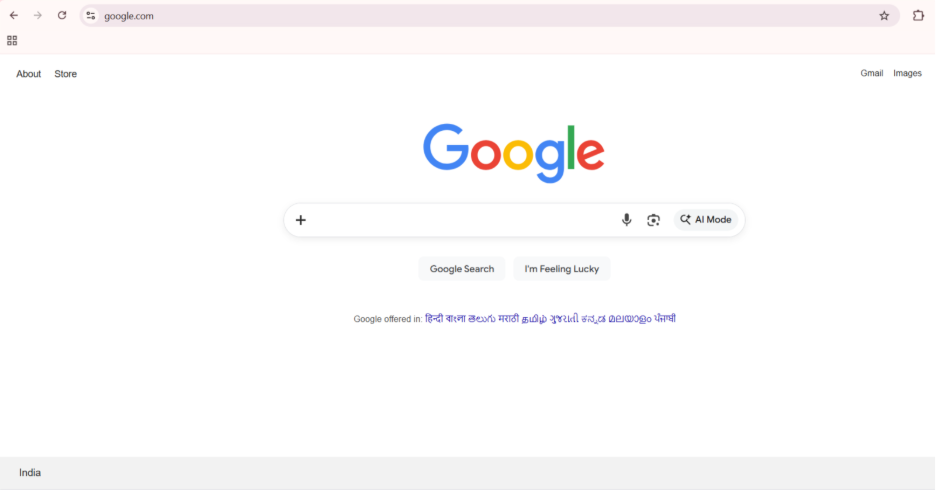
Alternatively, pressing the F5 key on your keyboard is also an effective solution. After this, if Google Chrome is still showing you the error message, then you can assume that network connectivity was not the root cause of the problem. Then, it is wise to just switch to the next method.
2. Update the Browser:
If you are utilizing an outdated or old version of Google Chrome, then it is advisable to update your browser to see if that fixes the problem. This can help in removing incompatibility problems or inefficiencies that contribute to the error message “ERR_Cache_Miss.” In order to update your browser, you can open a new window and then go to Settings and click “About Chrome.”
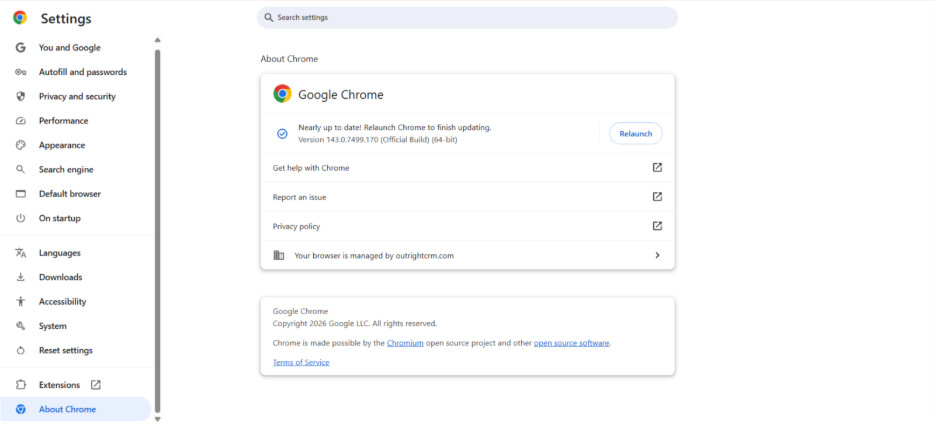
On this page, you can see whether Google Chrome is updated or not. In case it is not updated, there will be an option to update Google Chrome. You can then follow the prompts, choose to restart your browser, or access the web page once again.
2. Clear Your Chrome Data:
There might be a possibility that your Google Chrome contains some corrupted files. It might result in the error messages that you are noticing right now. In this case, the appropriate step is to clear your browsing data. You can follow the prompts, and then you can restart the browser and access the page once again.
- Access the Google Chrome settings menu.
- Select the option “Delete Browsing Data.”
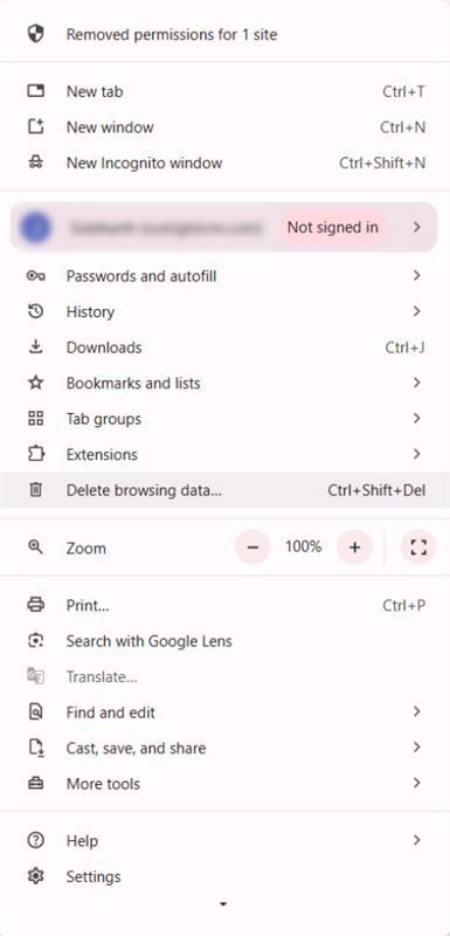
- Select all the 4 options (“Cached Images and Files,” “Download History,” “Browsing History,” and “Cookies and Other Site Data”).
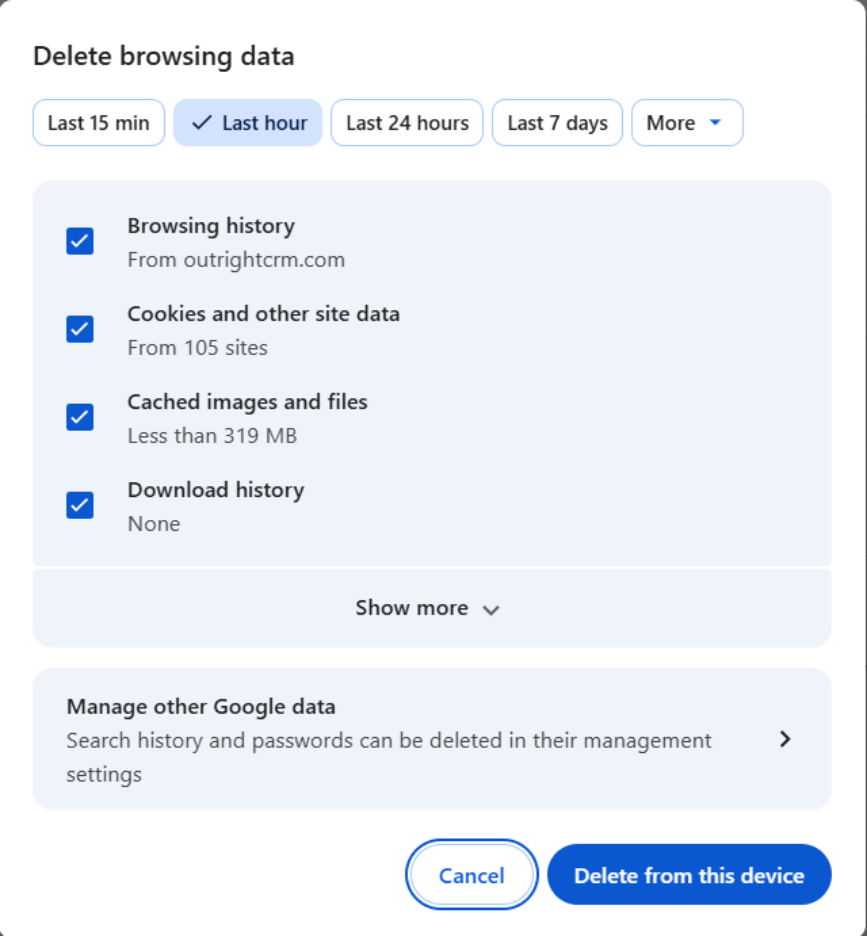
- Choose the “Delete from this Device” Button.
- Once you have cleared the data, refresh the browser.
If the problem was related to the browsing data, then this method will fix the error instantly. However, if it does not, then it is time to switch to another method. You can also go for more advanced cache clearing, including DNS cache. Refer to our blog on using chrome://net-internals/#dns.
4. Disable All Your Browser Extensions
Another possible cause of this extension might be related to the extensions that you have installed. The extensions might be corrupted or are hindering Chrome’s ability to successfully connect and load the web page. To find out whether this is the core issue, the right course of action would be to disable all of your browser extensions.
- Open your Chrome Settings.
- Then, hover over the option “Extensions.”
- Then, select “Manage Extensions.”
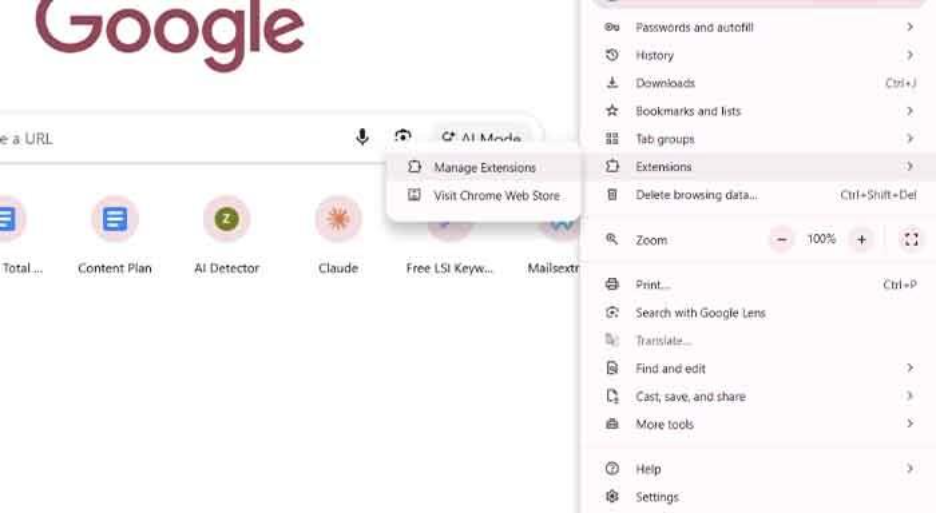
- You will arrive at the extensions page, where you can see all the extensions that you have installed.
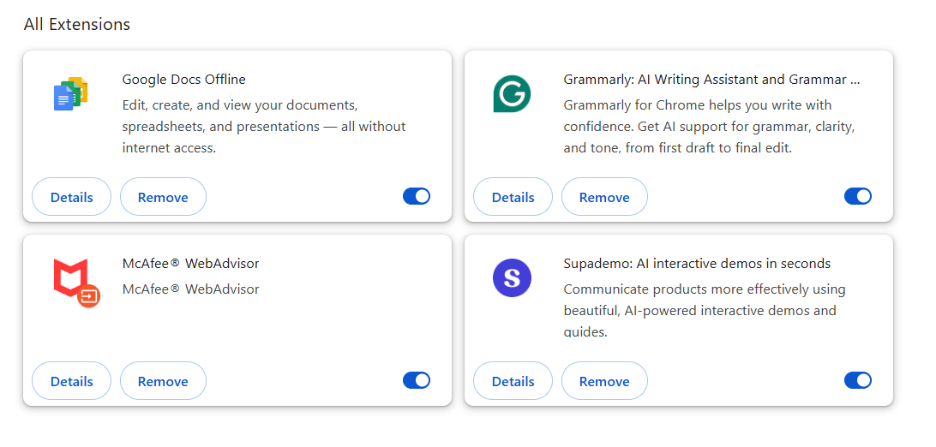
- If you want to remove any extensions, select “Remove.”
Pro Tip: If the extensions are the main source of the err_cache_miss problem, then it is advisable to disable the extensions. You can also try refreshing your browser once you disable each extension to see whether the error gets resolved.
If the problem is not solved even after disabling the extensions, then the extensions are not to blame.
5. Reset Your Network Settings
Issues with your network settings can also cause the “ERR_CACHE_MISS” message. To fix that, you can choose to reset those settings.
Windows
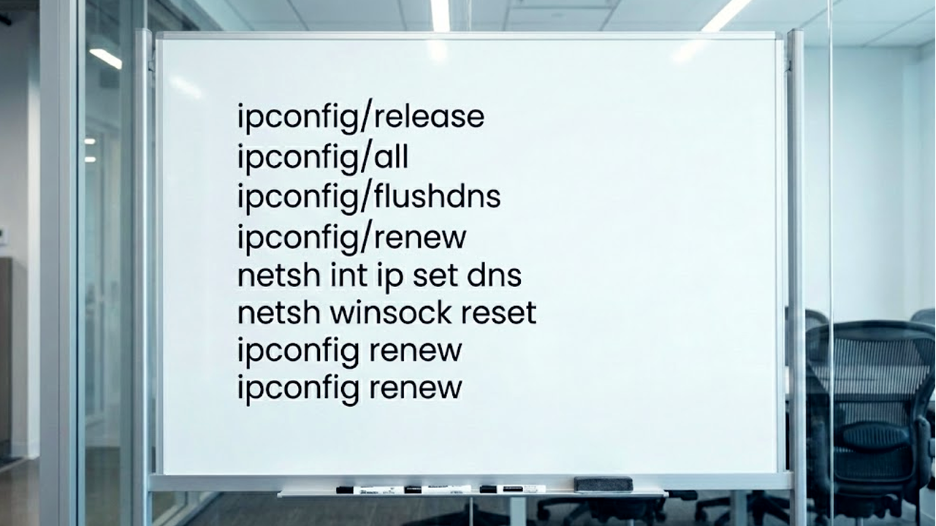
The simplest way to do that is via your command window in a Windows system.
- Select the Windows icon and then search “cmd” in the search field.
- Then, in the command prompt app, choose “Run as Administrator.”

- Once the command prompt window opens, you can type the following codes (see the below image below) and then press “Enter.”
MacOS
- In macOS, you achieve this through a terminal app.
- Go to Finder, then select “Applications”, and then “Utilities.”
- Once you have accessed the utilities folder, you can find and open the Terminal app.
- Once the terminal window opens, apply the following commands and press “Enter” after each command-
Dscacheutil -flushcache

Sudo killall -Hup mDNSResponder
Next, you need to restart your system and open a browser window. If the underlying issue was related to the network, then resetting it will fix it comprehensively, and you will not see the “ERR_Cache_Miss” error again.
Note: Other errors related to the network, such as DNS_PROBE_FINISHED_NXDOMAIN, also need network troubleshooting steps.
6. Reset Your Browser Settings
If the last method does not fix the problem, then you can rest assured that the problem does not exist with the network settings. In this case, the problem might be related to your browser settings. Thus, you can try resetting your browser settings.
- Go to your Settings, then select Advanced, and after that click on “Reset Settings.”
- A prompt window will appear on the screen. And, you have to select the “Reset” option once again.
- Alternatively, you can try accessing your reset settings page using the following command.
Chrome://settings/resetProfileSettings.Once you perform the above procedures, you need to restart your browser and access your web page again. Hopefully, this method rectifies your “net err_cache_miss WebView” or browser error. However, if you do not get your solution even after this method, it is time to switch to the seventh method.
7. Disable Your Cache System
If the above six methods are not able to fix your error, then there is one last option you can try: disabling your caching system.
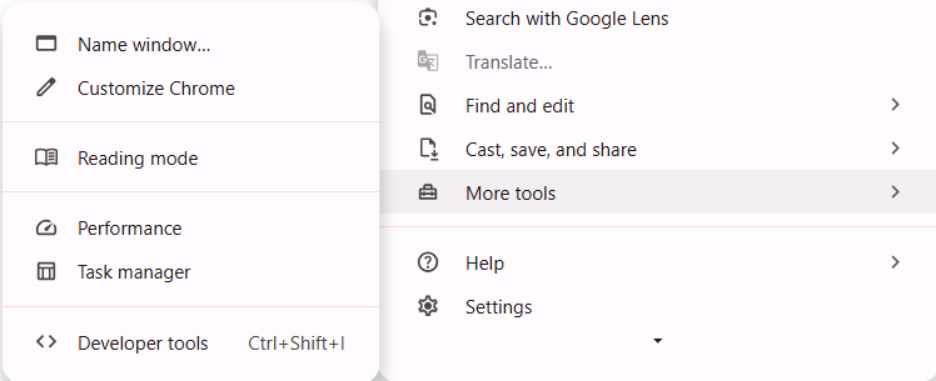
1. Go to browser settings, then “More Tools,” and then “Developer Tools.”
2. Go to the “Network” section and then check “Disable Cache.”
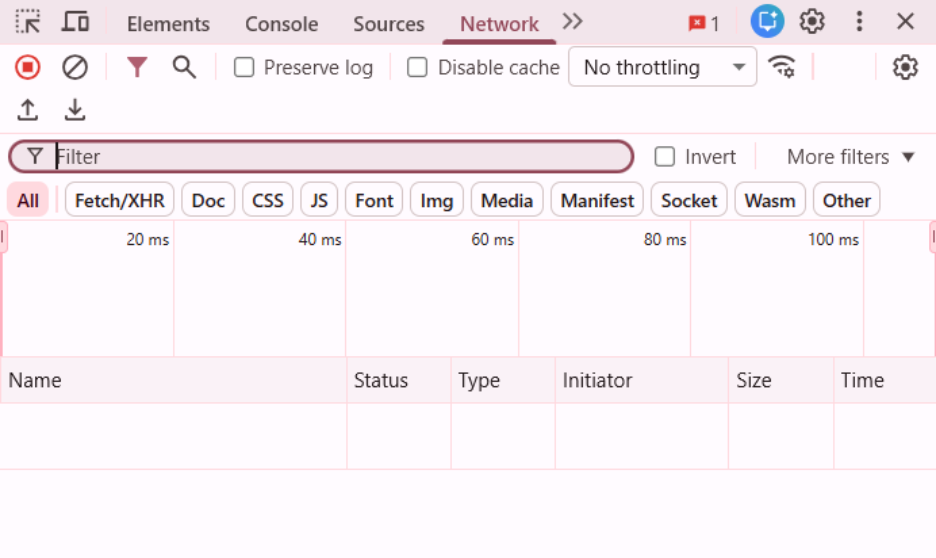
3. After checking it, you must reload the webpage.
Conclusion
The Google Chrome ERR_CACHE_MISS Android or WebView error can impact your browsing experience. However, fortunately, it is quite easy to fix. By using the seven methods mentioned above, ranging from simple webpage reload, resetting network or browser settings, to clearing browser data, you can remove this frustrating error message. Begin with simple solutions first, like updating your browser or reloading the page, before switching to more advanced resolutions such as resetting settings or disabling cache. A lot of users find success with one of these approaches, enabling them to ensure a normal browsing experience without any disruption.
FAQs About ERR_CACHE_MISS
Q1. How to fix err_cache_miss?
A- You can resolve the err_cache_miss error by updating Chrome, reloading the webpage, clearing browsing data, resetting network settings, disabling extensions, etc.
Q. What does err_cache_miss mean?
A- ERR_CACHE_MISS means that Chrome cannot get cache files from the website you are accessing, generally due to corrupted data, browser problems, or website coding issues.
Q. Why does err_cache_miss occur?
A- It occurs because Chrome cannot retrieve the cached files from the website because of corrupted browser data, network issues, faulty extensions, or website coding issues.
Q. Can err_cache_miss occur on other browsers?
A-Yes, users have reported similar issues on browsers such as Firefox, where it displays messages such as “Document Expired.” However, it must be noted that it mostly occurs in Chrome.
Q. Does err_cache_miss impact all your websites?
A-No, the error can show up on any website, including the ones that are most popular, such as Facebook. The error is usually caused when you are submitting the form and have used back button too often or too quickly.