
How to Create a Service Account in Google Cloud
Introduction A service account in Google Cloud is a special account used by applications instead of humans. It helps authenticate and authorize access to Google Cloud services securely. Service accounts are essential for automating…
Introduction
A service account in Google Cloud is a special account used by applications instead of humans. It helps authenticate and authorize access to Google Cloud services securely. Service accounts are essential for automating tasks and protecting your data
Why Use a Service Account?
Service accounts provide several benefits:
1. Secure API Access: Applications can safely connect to Google Cloud without user credentials.
2. Controlled Permissions: You can set roles to limit what the service account can do.
3. Automated Tasks: Ideal for scripts, data processing, and background jobs.
4. Easy Authentication: JSON key files allow seamless login for applications.
Steps to Create a Service Account in Google Cloud
Related walkthrough
How to Create and Download a JSON file from Google Developer Console

Step 1: Open Google Cloud Console
1. Visit Google Cloud Console.
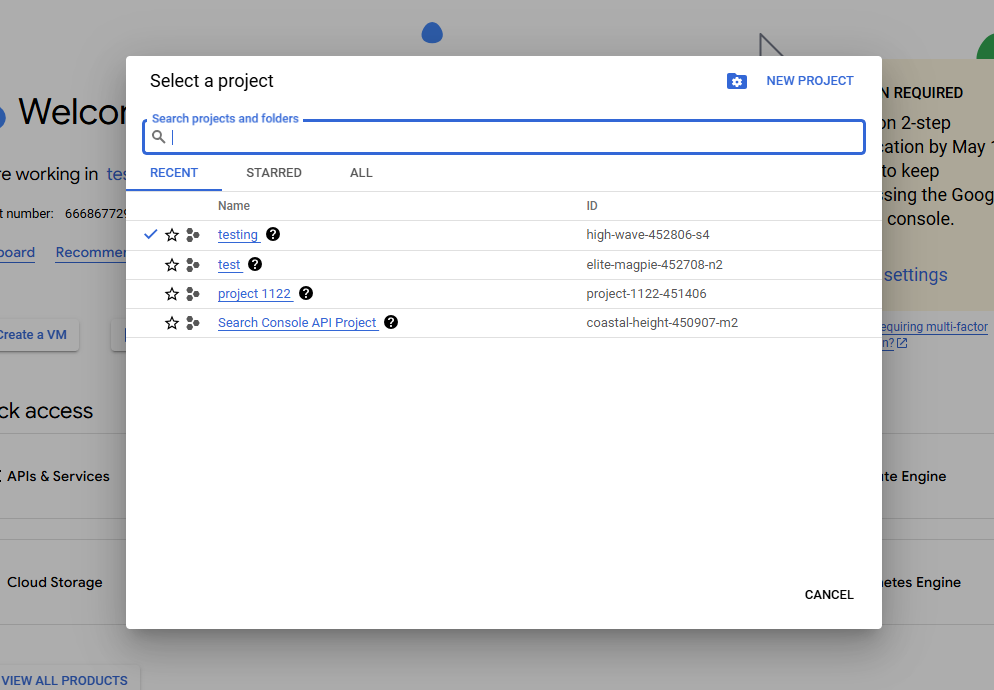
2. Choose the project where you want to create the service account.
Step 2: Go to IAM & Admin
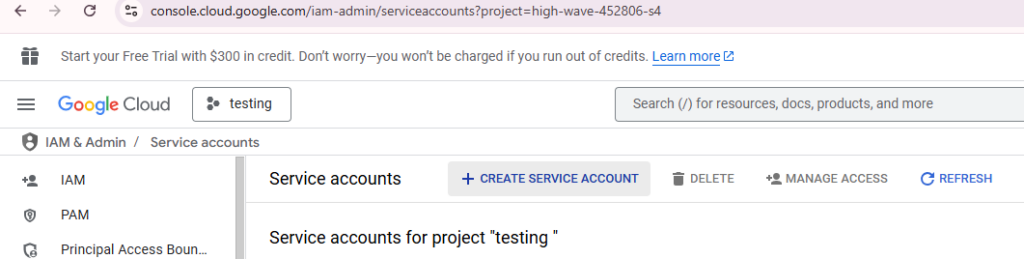
1. Click on the Menu (☰) at the top left.
2. Select IAM & Admin > Service Accounts.
Step 3: Create a Service Account
1. Click the + CREATE SERVICE ACCOUNT button.
2. Enter a name, ID, and description.
3. Click Create and Continue.
Step 4: Assign Roles
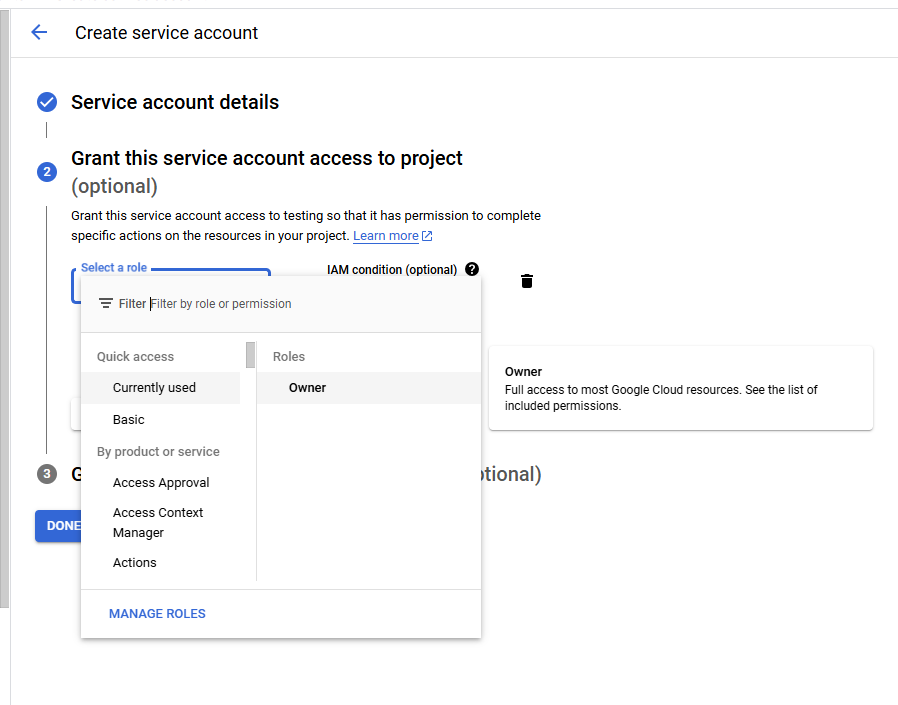
1. Choose roles based on what access you want to give. Examples:
- Owner (Full access, not recommended for security)
- Editor (Can modify but not manage access)
- Viewer (Can only view resources)
- Custom Role (For specific permissions)
2. Click Continue.
Step 5: (Optional) Grant User Access
1. If you want others to use this service account, you can add their emails.
2. Click Done.
Generating a JSON Key File
This JSON key file is needed to allow applications to authenticate with Google Cloud
Step 1: Open Service Accounts Page
1. In Google Cloud Console, go to IAM & Admin > Service Accounts.
2. Find the service account you created.
Step 2: Create a Key File
1. Click on the service account name.
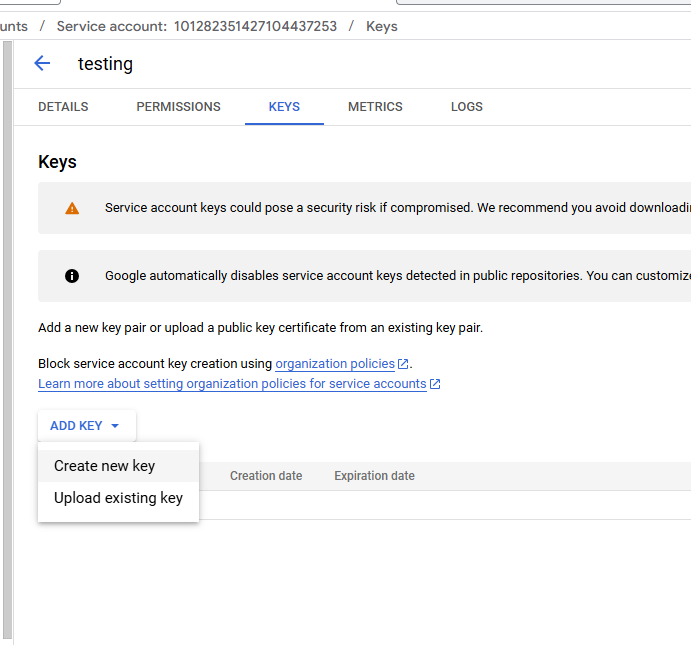
2. Go to the Keys tab.
3. Click Add Key > Create New Key.
4. Select JSON and click Create.
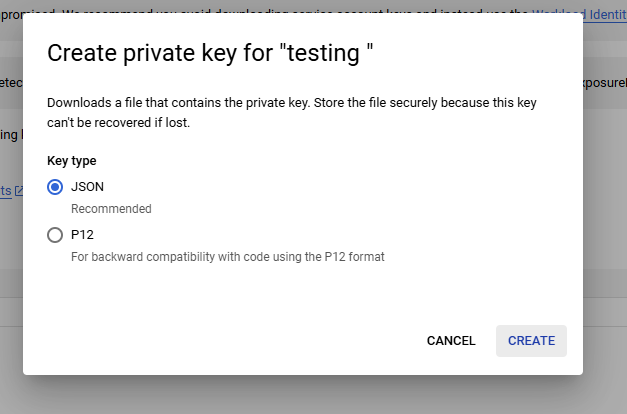
5. A JSON file will download. Store it safely
Best Practices for Service Accounts
- Limit Permissions: Assign only the necessary roles.
- Keep Keys Safe: Never share your JSON key publicly.
- Rotate Keys Regularly: Generate new keys and delete old ones.
- Use Workload Identity Federation: For better security, use Workload Identity instead of JSON keys.
Conclusion
Service accounts allow secure, automated access to Google Cloud services. This guide covered creating a service account, generating a JSON key. By following best practices, you can enhance security while automating your cloud operations.
Using service accounts properly helps businesses integrate with Google Cloud safely and efficiently.