
How to Start Using Your Upwork API Key
Learn how to configure Upwork API credentials, authorize your application, enable required permissions, and troubleshoot connection issues.
This guide shows how to connect your Upwork API key to the Outright Internal Opportunity Intelligence System, authorize access, and fix the two errors you are most likely to see on the first run.
The Upwork API helps the Outright Internal Opportunity Intelligence System to access marketplace job postings and retrieve the information that is needed to identify relevant opportunities. Before using the system, users need to configure their Upwork API credentials, authorize the application, and verify that the required API permissions are enabled.
Connecting external data sources is one way to streamline operational processes. Explore our guide to workflow automation and learn how connected applications can reduce manual work and improve efficiency.
Before you start
Before connecting Upwork API key to OutRight Internal Opportunity Intelligent System, users need to make sure that they have the required credentials, configuration details, and access to complete the authorization process.
Obtain Upwork API Credentials
Users will need their Upwork API key (Client ID) and API secret (Client Secret) to configure the application.
Verify the Redirect URL
Upwork uses a redirect URL as part of its authorization process. Before proceeding, users need to confirm that the URL they intend to use is registered with their API key in the Upwork API Center.
Confirm the Required API Permissions
The application needs appropriate permissions to access Upwork data used by the system. For the job-search functionality described in this guide, check that the API key has the required read-only scopes enabled:
- Common Entities – Read-Only Access
- Read marketplace Job Postings
Check Application Access
Users need to make sure that they can access the environment where the Outright Internal Opportunity Intelligence System is hosted and can edit its index.php file.
Understand the Verification Process
After authorization, the API Key Check page runs two tests:
Key verification: Checks whether the application can execute its API verification query.
Test job search: Checks whether the application can retrieve marketplace job-posting data.
Both tests should pass before you proceed with the next stage of the system workflow.
Set up and authorize your key
Users can follow the following steps to configure their Upwork API credentials and authorize the OutRight Internal Opportunity Intelligence System.
Configure API Credentials:
Open index.php in your code editor. Locate the API key, API secret, and redirect URL configuration values, and replace them with the corresponding values associated with the Upwork API key.
Start the Authorization Process:
Save the changes and open the index.php URL in the web browser. The application will initiate the Upwork authorization flow.
Review and Grant Permissions:
On the Upwork authorization screen, review the permissions requested by the application. If the requested access is appropriate, click Authorize access to grant permission.
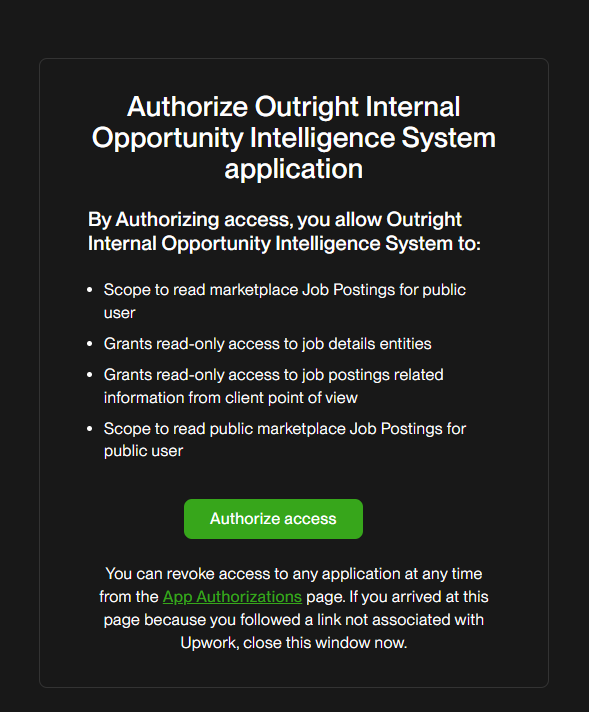
The Upwork authorization screen lists the read-only access the app requests: marketplace job postings and job details.
Fixing Common Errors
Related walkthrough
How to Generate a NameScan API Key Instantly

After completing the authorization process, users need to navigate to the Upwork API Key Check page to validate their API connection.
The page performs two checks:
API Key Verification: It validates the application’s ability to execute the verification query.
Test Job Search: It checks whether the application can retrieve marketplace job-posting data.
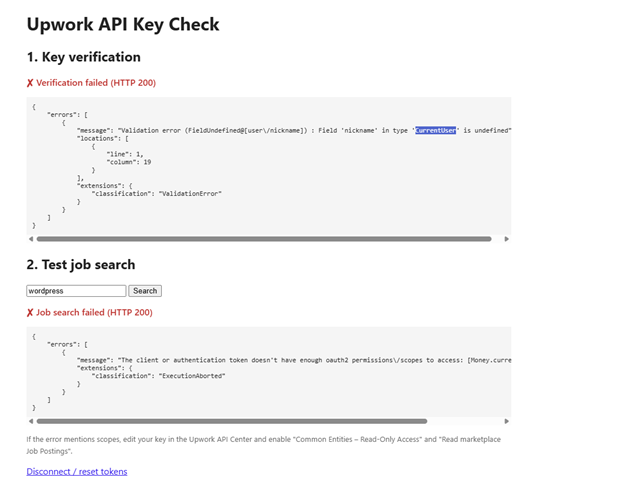
Key verification fails: field ‘nickname’ is undefined
The main cause is that the key verification query in index.php requests the ‘nickname’ field for the current user, but the API schema returned by Upwork does not recognize this field.
How to Resolve It:
- Open index.php in your code editor.
- Locate the current-user verification query.
- Remove the nickname field from the query while retaining any other required fields.
- Save the changes and rerun the API key verification.
Job Search Fails: Not Enough OAuth2 Permissions
This error indicates that the current API authorization may not include all the permissions that are required to retrieve marketplace job postings.
How to resolve it:
- Open the Upwork API Center and edit your API key’s permissions.
- Enable the following scopes required by the application’s job-search query:
- Common Entities – Read-Only Access
- Read marketplace Job Postings
- Save the updated permissions.
- Return to the Upwork API Key Check page and click Disconnect/reset tokens.
- Start the authorization process again and approve the requested permissions.
- Rerun both the API key verification and the test job search.
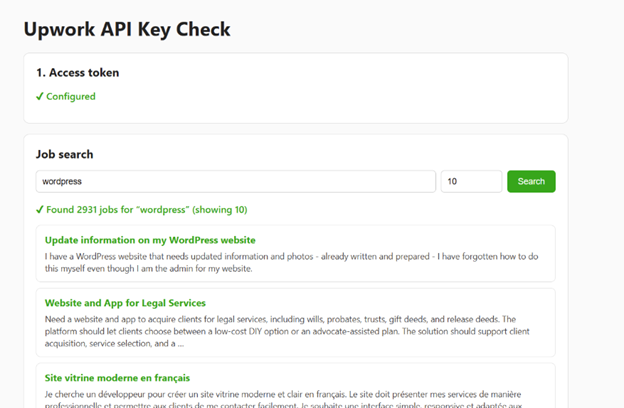
Confirm Successful Verification
Once both checks have passed, the Upwork API connection of the user is ready for the next stage of the OutRight Internal Opportunity Intelligence System workflow. Successful verification confirms that the tested API operations are working and that the application can retrieve the expected marketplace job-posting data.
Conclusion
The guide enables users to configure their Upwork API credentials, authorize the OutRight Internal Opportunity Intelligence System, and troubleshoot common setup errors. Once both API key verification and the test job search is succeeded, user connection is ready for the next stage of the opportunity discovery workflow.