
How to Fix the “This Site Can’t Be Reached” Error: A Quick Guide
Learn how to fix the "This site can't be reached" error with a few quick, most effective ways, from verifying your connection to flushing the DNS, for seamless browsing.
When operating Google Chrome, you may probably have probably addressed the “This Site Can’t Be Reached” error regardless of whether you’re browsing the web or trying to access an online tool. Frustrating, right? This error message comes with different error codes, such as ERR_CONNECTION_RESET, DNS_PROBE_FINISHED_NXDOMAIN, and more. Each of these errors occurred due to a specific reason and is fixed by carefully implementing a few quick and effective steps.
If you are wondering what to do when these error messages appear and prevent you from accessing the content, this comprehensive blog helps you know everything about this error. This “This Site Can’t Be Reached” guide covers what it actually means, why it occurs, and the most effective and reliable ways to fix it.
In most cases, this error is fixable — and you do not need to be a tech expert to resolve it.
What Is the “This Site Can’t Be Reached” Error?
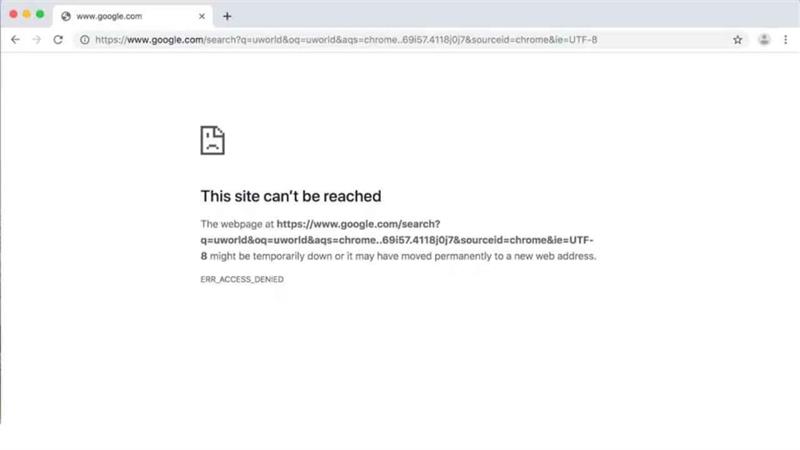
The “This Site Can’t Be Reached” error is a browser message — most commonly seen in Google Chrome — that appears when your browser is unable to establish a connection with a website. It is a broad, catch-all notification that can accompany several different error codes, each pointing to a different underlying problem.
Here are some of the frequently occurring error codes along with their messages:
- ERR_CONNECTION_CLOSED: The connection was unexpectedly lost.
- DNS_PROBE_FINISHED_NXDOMAIN: The browser cannot find the website’s DNS data.
- ERR_CONNECTION_TIMED_OUT: The server took too long to respond.
- ERR_CONNECTION_RESET: The connection was interrupted before it could be established.
- ERR_CONNECTION_REFUSED: The server refused the connection immediately.
Since Chrome leverages the “This Site Can’t Be Reached” message as a general error notification, the error code shown below is your most useful clue for finding the actual cause of the error.
What Causes the “This Site Can’t Be Reached” Error?
Related walkthrough
How to YouTube Unblock on Google Chrome | Quick & Easy Fix 😱

Before diving into the steps, understanding the potential causes of this error helps you prevent similar issues in future or troubleshoot them more seamlessly. This can be as simple as a typo in the URL, a weak or improper internet connection, or a misconfigured DNS server. Let’s figure out what triggered the This Site Can’t Be Reached error.
- A weak or interrupted internet connection
- Incorrect or misspelled website URL
- The website’s server is temporarily down
- Outdated or corrupted browser cache
- Firewall, antivirus software, or VPN is blocking the connection
- Problems with Chrome extensions or browser settings
- Misconfigured DNS server settings
- Stale DNS cache storing outdated IP address records
How to Fix the “This Site Can’t Be Reached” Error
1. Confirm Your Internet Connection
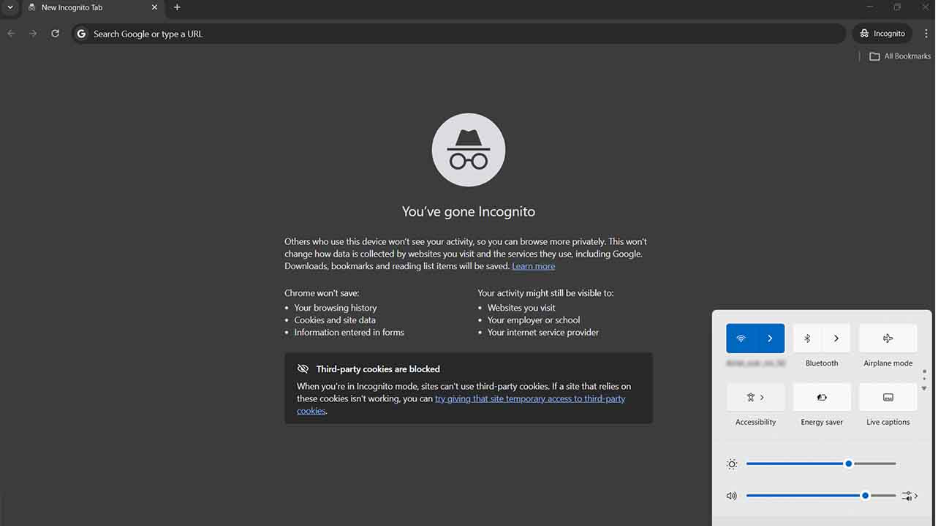
Your internet connection should be the first thing to check when this error occurs, before jumping to advanced solutions. This confirms whether your device is connected to a stable internet or not. It might sound too straightforward, but sometimes small steps can make bigger changes. Simply, access another website, restart your router, or verify your connection with a different device on the same network.
If your connection appears unstable, restart your router or modem. Disconnect the power & Network cabling, wait for approximately 60 seconds, and reconnect it. Once your router has fully rebooted, try loading the website again. In many cases, this simple step resolves the This Site Can’t Be Reached error immediately.
2. Clear Your Browser Cache
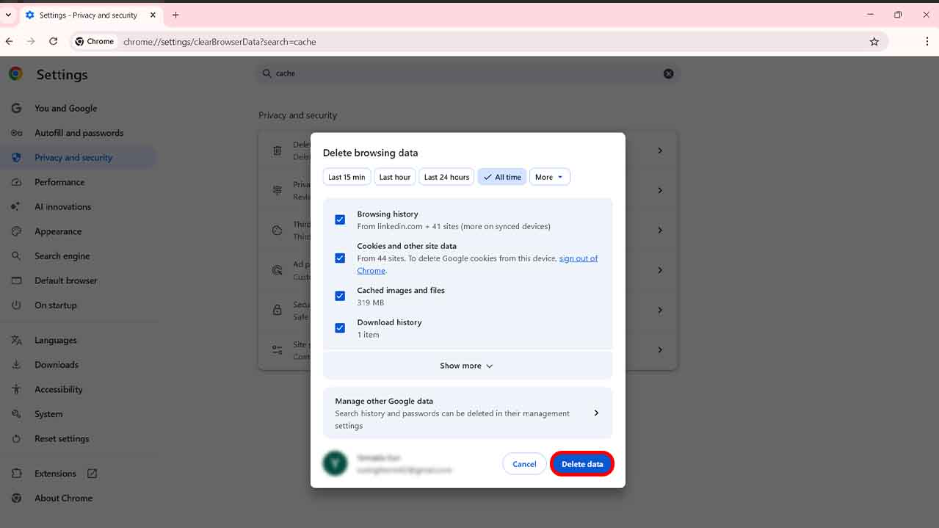
Every browser stores your data and files temporarily from the websites you have browsed previously. Over time, this cached data can become outdated or corrupted, restricting pages from loading precisely and triggering this error.
To clear your cache in Google Chrome:
- Click the three-dot menu in the top-right corner of the browser.
- Go to Settings, click Privacy and Security, then select Clear Browsing Data.
- Choose Cached Images, Files, and Cookies (optional)
- Click “Clear Data”
This is one of the effective methods to fix Chrome cache errors, which helps you declutter your site from an outdated or irrelevant cache. After clearing it, reload the website, access the website again, and check if the error is resolved.
3. Flush Your DNS Cache
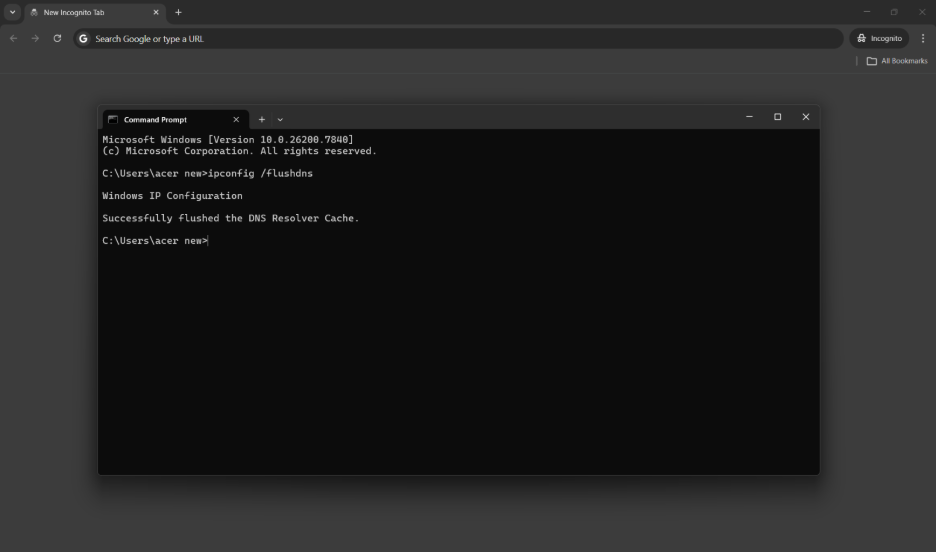
Your operating system maintains a DNS cache — a record of IP addresses for websites you have visited. If this cache holds legacy or incorrect data, your browser may fail to connect to a site, resulting in the This Site Can’t Be Reached error. Flushing the DNS cache enables your system to integrate fresh DNS records.
On Windows:
- Go to Command Prompt as Administrator.
- Write the following command and press Enter: ipconfig /flushdns
On macOS:
- Open Terminal.
- Type sudo dscacheutil -flushcache; sudo killall -HUP mDNSResponder and Enter.
- This command removes your outdated DNS cache from the system. Restart your browser and try accessing the website again—check whether the error persists.
4. Change Your DNS Server

If flushing the DNS cache does not resolve the error, your current DNS server may be the problem. Switching to a reliable public DNS server, such as Google’s Public DNS, is a proven fix.
On Windows:
- Navigate to Control Panel
- Go to Network & Internet
- Click Network and Sharing Center
- Select your active connection, then choose Properties
- Then, select Internet Protocol Version 4 (TCP/IPv4) and click Properties
- Type the Google DNS addresses and click OK.
Once the DNS setting update is completed, restart your browser and check the connection.
5. Disable Firewall, Antivirus, or VPN Temporarily

Security software and VPN clients can sometimes block access to certain websites, triggering the This Site Can’t Be Reached error. Temporarily disabling your firewall or antivirus software — and disconnecting from any active VPN — can help determine whether these tools are the source of the problem.
If the website loads after disabling one of these tools, you will need to adjust the settings of that specific software to allow access to the site. Remember to re-enable your firewall and antivirus after testing.
6. Disable or Reset Chrome Extensions

Some Chrome extensions — particularly ad blockers, privacy tools, and VPN-related extensions — can interfere with your browser’s ability to load certain websites. To check whether an extension is causing this error:
- Open Chrome and go to chrome://extensions/ in the address bar.
- Disable extensions one by one.
- Reload the problematic website after disabling each one.
If the error disappears after disabling a specific extension, that extension is likely the culprit. You can remove it or check for an updated version.
Alternatively, you can reset Chrome to its default settings by going to Settings, then going to Reset Settings, and navigating to Restore settings to their original defaults. Keep in mind that this will remove custom configurations and disable all extensions.
7. Update Google Chrome
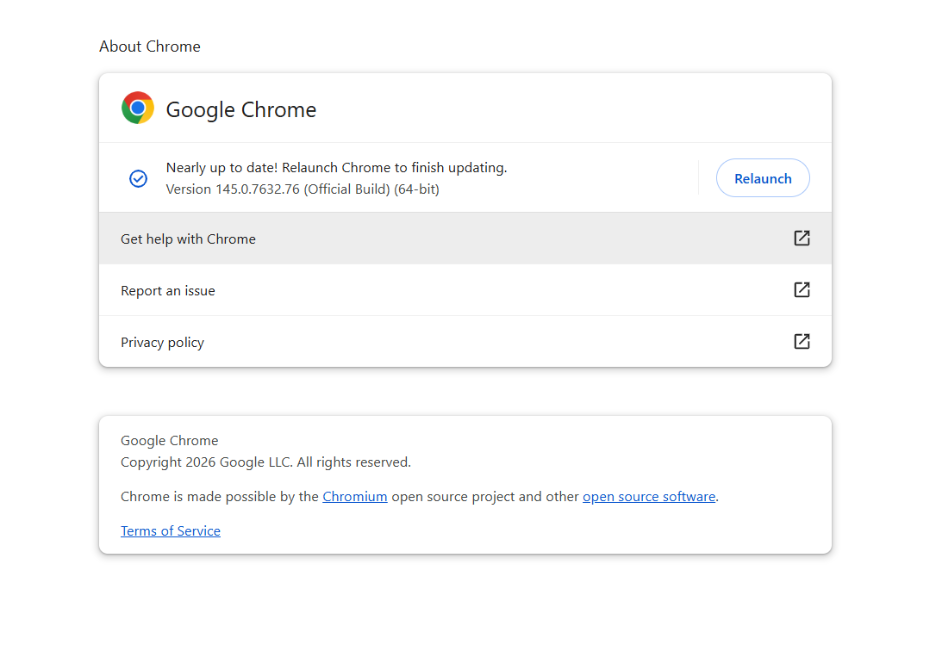
Running an outdated version of Chrome can lead to compatibility issues and browser errors, including the This Site Can’t Be Reached error. To update Chrome:
- Click the three-dot menu and go to Help > About Google Chrome.
- Chrome will automatically check for and install any available updates.
- Restart the browser once the update is complete.
Conclusion
For Chrome users, “This Site Can’t Be Reached” is one of the common errors they encounter daily, but not permanently. Using a few logical sequences of steps, like simple network checks, DNS troubleshooting, or browser resets, this error can be resolved easily.
After implementing all the methods given above, if the error persists, consider testing the website in a different browser, such as Firefox or Microsoft Edge. This can help distinguish whether the issue is specific to Chrome or related to a broader network problem. If the website appears to be down entirely, the issue may be on the server side, and waiting for the site owner to resolve it may be the only option.
Therefore, this comprehensive guide covering effective solutions will hopefully help you diagnose and resolve the “This Site Can’t Be Reached” error efficiently and make your browsing hassle-free.
Related blog; 400 Bad Request Error: What It Means and How to Fix It