
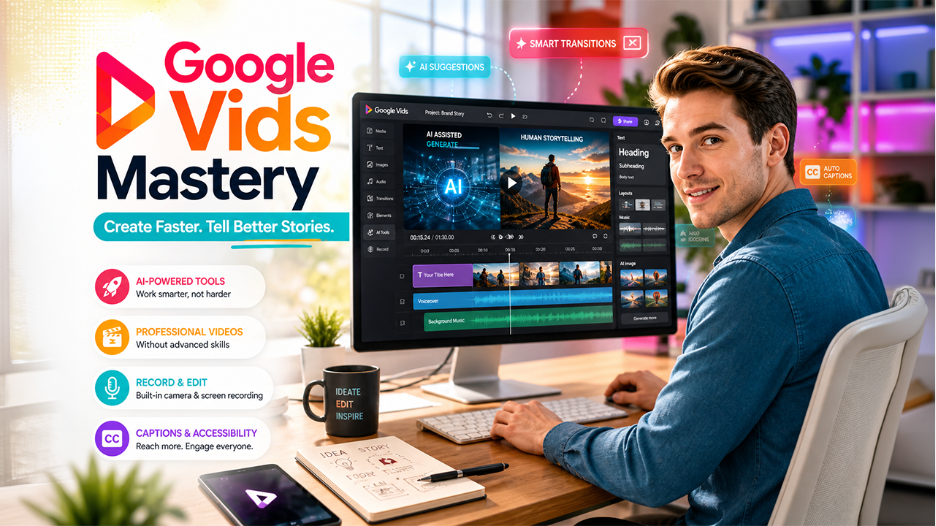
Master Google Vids: The Complete Beginner’s Guide to Creating Professional Videos
Create professional videos with Google Vids while understanding the real difference between human creativity and AI assistance. Learn how to combine storytelling, emotion, and smart tools to produce impactful, high-quality videos with clarity and purpose.
Humans are created from lived experiences. AI creates patterns. That is the real difference. One side feels, reacts, remembers, and decides through intuition. The other side predicts, organizes, and generates data. Humans carry emotion, intent, and meaning into every choice. AI carries speed, structure, and probability into every response. Google Vids sits in that space between the two.
It gives you a digital tool that can help you move faster, but the voice, the message, and the point of view still come from you. That is what makes it useful. AI can assist with the process. It cannot replace the lived experience behind the idea.
This guide shows how to create professional videos in Google Vids while keeping the human side of storytelling alive.
Section 1: Getting Started with the Google Vids Interface
Accessing and Initializing Your Project
Open Google Vids in your browser and begin with a blank project or a template.
The process is simple, but the choice matters. A template can save time. A blank canvas gives you room to think. And that difference reflects a larger truth.
Humans build with intent. AI suggests patterns.
When you start from scratch, you are not just arranging elements. You are making decisions. What should the viewer feel first? What should the story reveal next? What deserves attention?
That is human work.
Click to begin, and the workspace appears immediately. No heavy setup. No technical barrier. Just a clean starting point.
Navigating the Core Workspace Layout
The interface is easy to understand.
The canvas is where the story lives. The timeline controls the rhythm. The right panel gives you access to text, images, stock video, and other assets. The top bar keeps editing tools within reach.
Think of it like this:
- The canvas is the mind.
- The timeline is the heartbeat.
- The asset panel is the memory bank.
- You are still the one giving it meaning.
AI can organize options. It cannot decide what matters most.
Section 2: Building Your First Scene with Clarity
Adding and Styling Opening Text Elements
Start with a strong opening line.
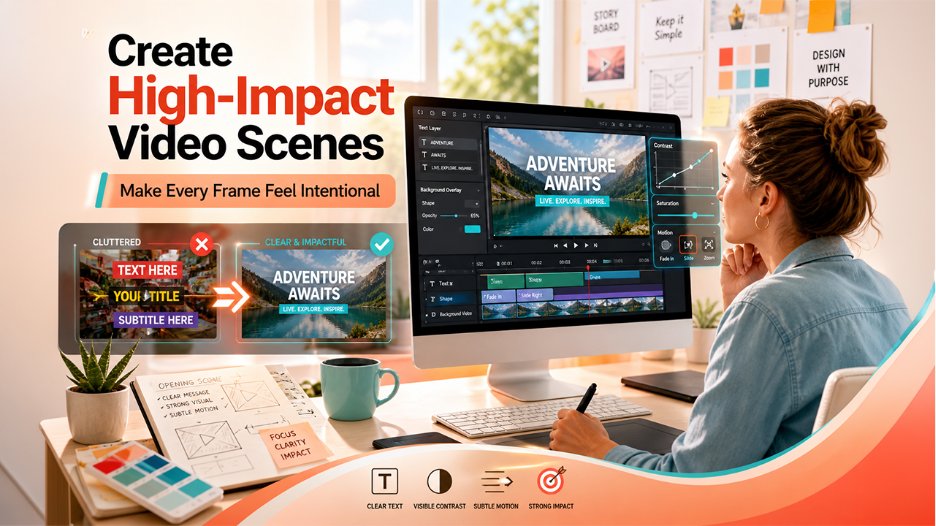
Add text to the canvas, making it clear, readable, and intentional. Use one strong font. Keep the size balanced. Center the message if it suits the layout.
Human viewers do not connect with clutter. They connect with clarity.
That is why clean design works. Not because it is flashy, but because it respects attention. A good opening frame does not try to do everything. It simply makes the point feel alive.
AI can help generate the layout. You decide on the tone.
Integrating Backgrounds and Improving Visibility
Now add a background.
A moving visual can create energy, but it can also overpower the message. If the background is too busy, place a shape behind the text and soften it by reducing its opacity.
This is where the contrast becomes useful.
AI may see background as data. Humans see it as an atmosphere.
One remembers pixels. The other remembers feelings.
A strong scene supports the message without stealing it. That balance gives the video a more human rhythm.
Applying Basic Motion
Add motion only where it helps.
A fade-in can feel elegant. A slide can create directions. Too much movement feels mechanical. Subtle motion feels deliberate.
That is another difference between humans and machines.
AI often optimizes output. Humans choose for effect.
A small animation can make a scene feel thoughtful rather than automated. Use motion like punctuation, not decoration.
Section 3: Creating Flow and Using Smart Tools
Related walkthrough
Google Vids Explained, Full Beginner Guide to Video Creation
Mastering Scene Transitions
Now connect your scenes.
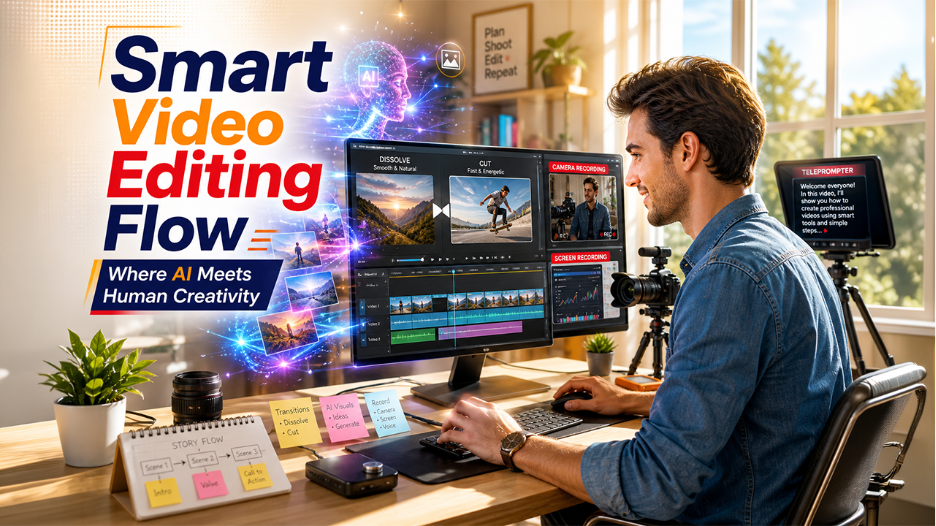
A clean transition helps the video feel like one thought instead of separate pieces. Dissolve works well when you want the story to breathe. A sharper cut works better when you want energy.
Humans sense continuity. AI sees the sequence.
The best videos understand both. They keep the structure clean while still feeling alive.
Using AI for Visual Generation
Google Vids also supports AI-assisted creation.
That can be helpful when you need a quick image, a visual filler, or a starting point. AI can generate based on prompts and patterns, which saves time. But the result still needs a human eye.
AI can remix possibilities. It cannot know your real intention.
That is why the final choice matters more than the first draft. Use AI to explore. Use your judgment to refine.
Recording Directly for Tutorials
When the story needs a real voice, record it yourself.
Camera recording and screen recording give your video a human presence that AI cannot fake. A real face, a real voice, and a real explanation create trust in a way that generated content alone cannot.
Humans act. AI assists.
That single difference matters more than most editing tricks.
If you are creating tutorials, use the teleprompter to stay clear and steady. It helps you speak with confidence while keeping the delivery natural.
Also Read: Stop Asking “What is the Best AI?” – Use the Right Tool for the Job
Section 4: Audio and Accessibility
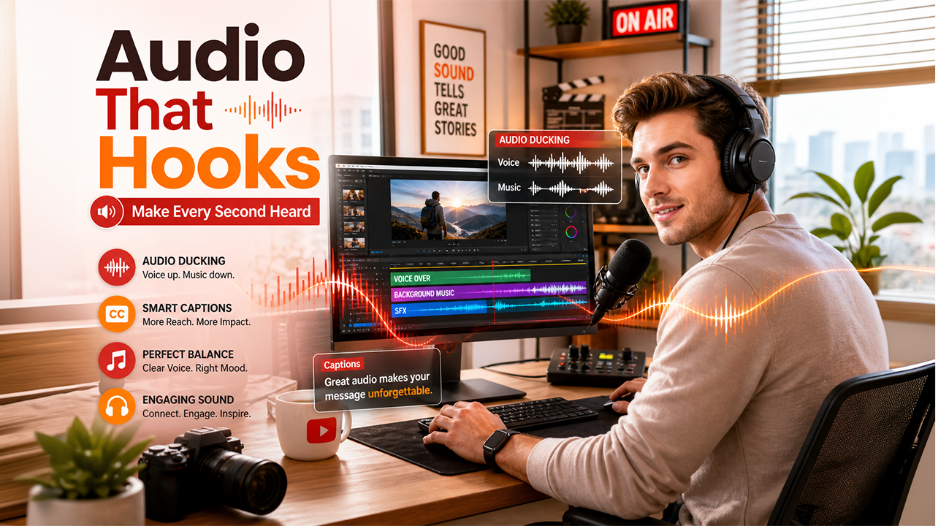
Adding Background Music and Balancing Sound
The sound changes everything.
Music can make a video feel thoughtful, bold, calm, or urgent. But it should never cover the message. Keep the voice clear and let the music support the mood.
AI can suggest tracks. Humans decide their emotions.
That is the real creative layer. Not just what sounds available, but what feels right for the story.
Using Audio Ducking
Audio ducking makes the sound mix cleaner.
When the voice starts, the music steps back. When the voice stops, the music returns. It is a small feature, but it makes the video feel more polished.
That kind of balance matters because viewers do not want to fight the audio. They want to absorb the message.
A good video feels effortless. That effortlessness is usually the result of careful human choices.
Adding Captions for Better Reach
Captions improve accessibility and help people follow along even with the sound off.
AI can generate them quickly. That is useful. But captions should still be checked by a human because precision matters.
Humans remember how things feel. AI remembers what things were.
A caption may look small, but it carries meaning, tone, and timing. That is why it should be reviewed carefully.
Section 5: Final Review and Export
Reviewing the Full Video
Before exporting, watch the entire video from start to finish.
Check the pacing. Check the audio. Check out the transitions. Check whether the message feels clear.
This is where human judgment matters most.
AI can help build the draft. Only a person can tell whether the story lands.
Look at the final version with fresh eyes. Ask one simple question: Does this feel intentional?
Exporting and Sharing
Once the video is ready, export it to the format you need.
You can download it, save it to Drive, or share it more widely depending on your workflow.
At this stage, the tool has done its job.
The message is now yours.
Conclusion: Human Voice, AI Support
Google Vids is powerful because it speeds up the process without removing the creator from it.
AI can help with structure, speed, and generation. Humans bring perspective, intuition, emotion, and originality.
That is the real divide.
Humans read between the lines. AI reads the lines.
Humans remember how things feel. AI remembers what things were.
Humans act. AI assists.
Humans evolve. AI updates.
Use the tool. Keep the voice of humans.
That is how strong videos are made.
Article rating
Was this article useful?
0.0 out of 5 from 0 ratings