

How to Use chrome://net-internals/#dns for Troubleshooting and Optimization?
Discover what chrome://net-internals/#dns is and how to use it to flush Chrome’s DNS cache. Improve website speed, resolve DNS errors, and boost browsing performance.
When browsing problems surface, the problem generally exists within the DNS cache of the browser. chrome://net-internals/#dns ensures an effective diagnostic tool that aids users in recognizing and efficiently fixing connectivity issues. This built-in feature of Chrome enables direct accessibility to information related to DNS, allowing users to clear cached DNS records, track DNS queries, and resolve network problems without depending on external software.
Being familiar with chrome://net-internals/#dns can greatly enhance your browsing experience as it helps you fix prevalent errors such as DNS_PROBE_FINISHED_NXDOMAIN, slow loading of pages, cache-related problems like ERR_CACHE_MISS, and other accessibility issues on the browser.
What is chrome://net-internals/#dns?
chrome://net-internals/#dns is an internal diagnostics page offered within Google Chrome that provides in-depth information related to DNS (Domain Name System) processes occurring inside the browser. It is an important feature that enables users to view DNS cache entries, track active DNS lookups, and clear cached DNS data directly from the web browser—steps that are often recommended when learning how to fix ERR_SSL_PROTOCOL_ERROR.
The tool does not depend on the DNS cache of your operating system. This implies that it maintains its own DNS records. This distinction is quite significant because clearing the DNS cache of the system does not clear the internal DNS cache of your Chrome automatically. The chrome://net-internals/#dns interface shows the following:
- Present DNS cache entries along with TTL, i.e., time-to-live values.
- Expired and active records.
- Response times and query timestamps.
- Host resolution data.
- Details on network errors that give insights on DNS failures.
You can access this feature by going to chrome://net-internals/#dns in the address of your internet browser, where you can view and implement diverse operations associated with DNS without administrative privileges.
Why Utilize chrome //net-internals/#dns?

It is a tool that helps both IT professionals and casual users troubleshoot network connectivity problems easily.
Main Advantages:
- Resolves Problems Related to Website Loading: When websites display DNS errors or fail to load, clearing the DNS cache via chrome://net-internals/#dns generally restores connectivity almost instantly.
- Removes Outdated Records: DNS records often become outdated when websites modify their hosting providers or update their IP addresses. This cached Chrome data can avoid access to updated websites as well.
- Enhances Browsing Speed: Excessive or corrupted DNS cache entries can reduce the loading times of the downloaded page. Consistent maintenance through this platform streamlines performance.
- the network. Diagnostic Functionalities: The interface ensures visibility into the failures of DNS queries, enabling users to recognize whether problems come from DNS resolutions or other layers of the network.
Common Scenarios Needing DNS Cache Clearing:
- Facing errors such as DNS_PROBE_FINISHED_NXDOMAIN
- Redirecting websites to incorrect pages.
- Websites that have migrated recently and are currently inaccessible.
- Intermittent connectivity to particular domains.
- DNS poisoning suspicion or cache corruption.
The chrome://net-internals/#dns tool ensures instant solutions without needing third-party utilities or system-level permissions, making it accessible for all types of users irrespective of technical expertise.
How Is chrome://net-internals/#dns Effective in Real-World Troubleshooting?
Related walkthrough
IP Address Info Pro Chrome Extension – Instantly Reveal IP & Geolocation Like a Pro!

If you often face DNS errors, slow websites, or sudden failures in connection, chrome //net-internals/#dns can work as a reliable diagnostic assistant in real-time. Contrary to basic browser platforms, this page monitors DNS behavior at an in-depth level, enabling you to recognize why a domain is failing and what steps are required to resolve it. Let us understand in detail how it adds value in practical scenarios:
1. Recognizes DNS Problems Caused by VPN, ISP, or Network Changes
Numerous browsing issues emerge not from Chrome, but actually from your VPN or ISP, changing your DNS routing in the backend. By leveraging chrome //net-internals/#dns, you can track DNS lookups and confirm whether it is pulling outdated or incorrect IP addresses. If you ever see mismatched entries appear, immediately clearing the host cache resets domain resolution.
2. Improves Website Speeds After DNS Record Updates or Server Migrations
When a website modifies its hosting or changes its IP address, Chrome may still be loading old DNS data. This often results in:
- Errors with the title “site can’t be reached”.
- Websites are getting redirected to old servers.
- Find broken pages even when the website is fully functional for others.
Flushing internal DNS of Chrome eliminates obsolete records and pushes the browser to collect fresh data from authoritative nameserver.
3. Detects Poisoned or Corrupted DNS Entries
Cache manipulation or DNS poisoning ca create unsafe redirects. Chrome://Net-Internals/#DNS enables you to:
- Check the DNS entry that Chrome depends on.
- Check TTLs and timestamps.
- Confirm whether the resolution aligns with the legitimate server IPs.
This makes it greatly valuable for detecting suspicious behavior after browser hijacking or malware activity.
4 .Enhances Performance by Minimizing DNS Lookup Delays
When Chrome stores way too many DNS entries or if the cache is inconsistent, your browser can take longer to align hostnames with IP addresses. Clearing this DNS cache eliminates the conflicting or bloated entries, resulting in:
- Quicker domain lookups
- Effective page load times
- Seamless browsing through heavy usage or multitasking.
5. Aids IT Teams and Developers with Domain-level Debugging
For professionals handling SaaS apps, websites, or cloud platforms, the tool ensures insights such as:
- The domains that are taking longer than usual to resolve.
- Insights on DNS failures with accurate error codes.
- Failed lookups timestamps.
- Browser-level vs system-level cache inconsistencies.
This high level of visibility ensures that chrome //net-internals/#dns is one of the most dependable tools for mitigating client-side DNS problems.
Detailed Process to Access and Leverage chrome //net-internals/#dns
Utilizing and accessing chrome //net-internals/#dns requires numerous simple steps that any Chrome user can perform irrespective of technical expertise.
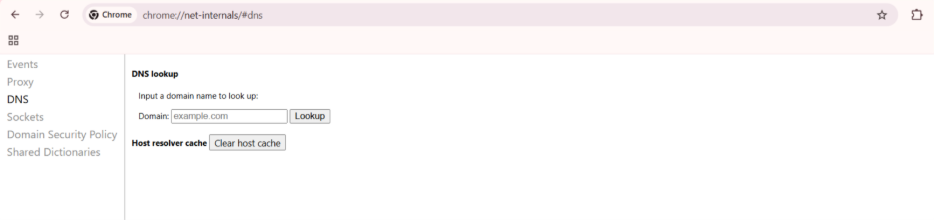
Detailed Access Procedure:
- Open Google Chrome: Launch your Chrome browser on the macOS, Windows, or Linux platform.
- Go to DNS Internals: Access the address bar and type chrome://net-internals/#dns in the address bar, and then hit Enter.
- See the Present DNS Cache: The interface showcases all the DNS entries currently cached along with their resolved IP addresses and expiration times.
- Clear Host Cache: Find the “Clear host cache” button displayed on the page and click on it to flush all DNS records from Chrome’s memory.
- Check Clearance: Once you have clicked on it, you will see the DNS cache list becoming empty. This will confirm successful clearance.
Learn: How to Configure a Firewall to host a Minecraft Server on Linux
Additional Features of Diagnostic:
The chrome://net-internals/#dns page can also connect with other network diagnostic tools through sidebar navigation. These involve settings of domain security policy, active socket connections, and in-depth network event logs for complete troubleshooting.
Right Practices:
- Clear your DNS cache when you are experiencing consistent loading problems before escalating troubleshooting at the system level.
- Integrate DNS-based cache clearing with browser-based cache clearing for complete outcomes.
- Document all your DNS errors from the events tab when you are reporting problems to network administrators.
- Prevent unnecessarily clearing the DNS cache, as it enhances page load times temporarily while new records get created.
The chrome://net-internals/#dns interface needs no configuration and immediately works after navigation, making it an accessible tool for first-line diagnostics for fixing browsing problems quickly and effectively.
Sophisticated Troubleshooting with chrome //net-internals/#dns
Apart from basic clearing cache, chrome://net-internals/#dns provides sophisticated capabilities of diagnostics for fixing complex problems related to the network.
Assessing Failures of DNS Query:
The event viewer existing within the net internals of Chrome ensures in-depth logs of DNS resolution attempts. Access chrome://net-internals/#events to check failed DNS queries with specific error codes, measurements of response time, and server addresses contacted at the time of resolution.
Comparing System DNS with Chrome DNS:
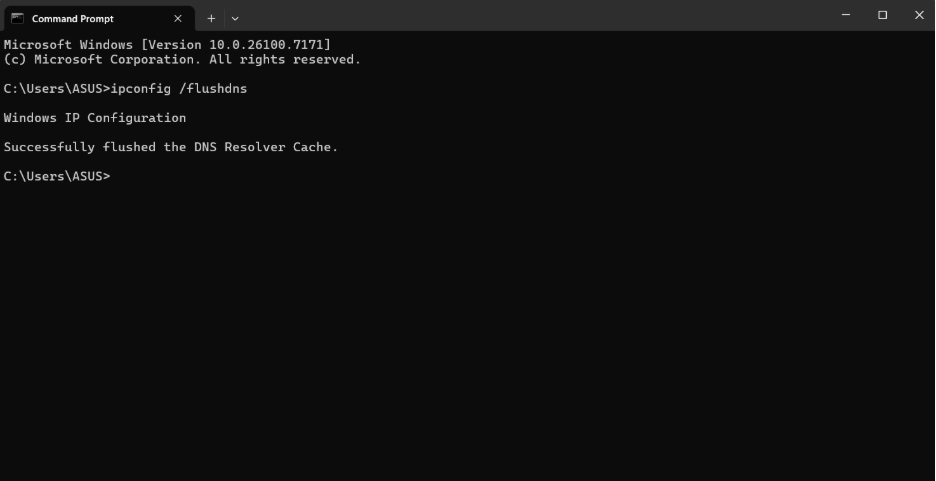
Chrome creates a separate DNS cache from your operating system. To completely fix DNS problems, it is important to clear both caches. For Chrome //net-internals/#dns, leverage the in-built clear function. For system-level DNS:
Windows Users:
- Open your Command Prompt with administrator access.
- Implement ipconfig /flushdns to clear the DNS cache for Windows.
macOS Users:
- Open your Terminal.
- Run sudo dscacheutil -flushcache; sudo killall -HUP mDNSResponder
Linux Users:
- Utilize service-driven commands as per your DNS resolver.
- Once you have cleared the system DNS, it is important to clear chrome://net-internals/#dns separately for comprehensive resolution.
Tips for Performance Optimization:
- Track the size of DNS cache consistently viachrome://net-internals/#dns to recognize unusual accumulation.
- Setup custom DNS servers such as Cloudflare (1.1.1.1) or Google DNS (8.8.8.8) for enhanced speed of resolution.
- Allow DNS prefetching in Chrome settings to boost page load times.
Important Security Considerations:
The chrome://net-internals/#dns cache is also capable of storing data about the visited domains. Consistent clearing ensures minimized exposure of browsing history, mitigation against poisoning attacks of DNS cache, and subsequent cleanup after malware attacks of suspicious redirects.
Comprehending such sophisticated features changes chrome://net-internals/#dns from a straightforward tool of troubleshooting into a complete platform for network diagnostics that provides you comprehensive control over browser security and performance.
Conclusion
chrome://net-internals/#dns is an important resource for ensuring optimal performance of browsers and efficiently fixing connectivity problems. By ensuring direct accessibility to the internal DNS cache of Chrome, this feature allows users to diagnose and resolve common browsing issues without needing comprehensive technical knowledge or external software.
Irrespective of whether you are enhancing page load speeds, addressing DNS problems, or improving privacy through consistent cache maintenance, chrome://net-internals/#dns provides complete solutions visible to all Chrome users. Integrating this tool into consistent browser maintenance routines ascertains seamless browsing experience and quicker solutions to challenges associated with the network. Understanding Chrome://Net-internals/#DNS ensures much better control over the browsing environment and minimizes downtime that is caused by DNS-related problems.