
How to Fix ERR_CONNECTION_TIMED_OUT Error (Step-by-Step Guide)
Learn how to fix ERR_CONNECTION_TIMED_OUT error in Chrome, Edge, Firefox, and WordPress with proven steps.
Encountering the ERR_CONNECTION_TIMED_OUT error can be one of the most disorienting experiences for website owners and everyday users alike. One moment you’re navigating the web without issue; the next, your browser returns an unhelpful message with no clear direction on what went wrong or what to do further. There’s no context, just a failed connection.
For those who manage WordPress websites, this error is not entirely uncommon. It tends to surface at the most inconvenient times, and without a clear understanding of what caused this, troubleshooting can feel like guesswork. However, this error is almost always resolvable. Once you understand the mechanics behind it, you can address it quickly and prevent it from recurring. This guide walks you through exactly that.
What is the ERR_CONNECTION_TIMED_OUT Error?
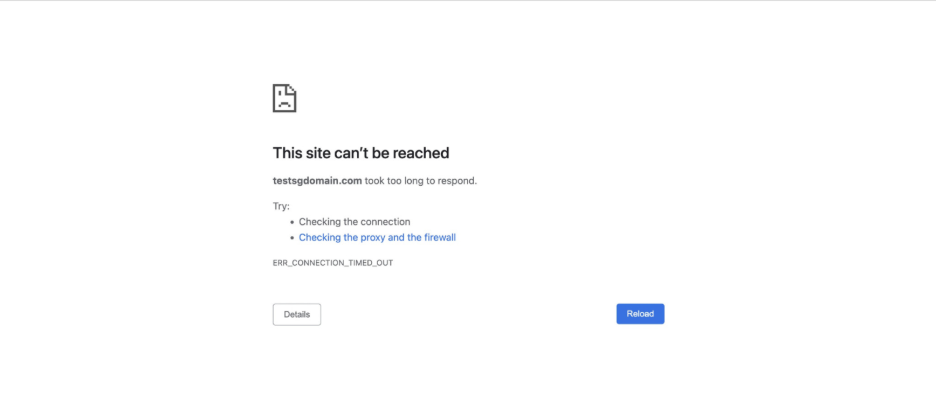
At its core, the ERR_CONNECTION_TIMED_OUT error indicates that your local network connection is not working properly. Your browser sent a request to a website and never got a response back in time. After roughly 30 seconds of waiting, the browser displays this error.
However, this problem does not always appear in one place. It can live on your network, your browser, your security software, or it can originate from the server hosting the website. On WordPress sites specifically, this error surfaces when the server is being pushed beyond what it can handle. This situation is especially common on shared hosting plans where memory and processing limits are restricted.
How ERR_CONNECTION_TIMED_OUT Appears in Different Browsers
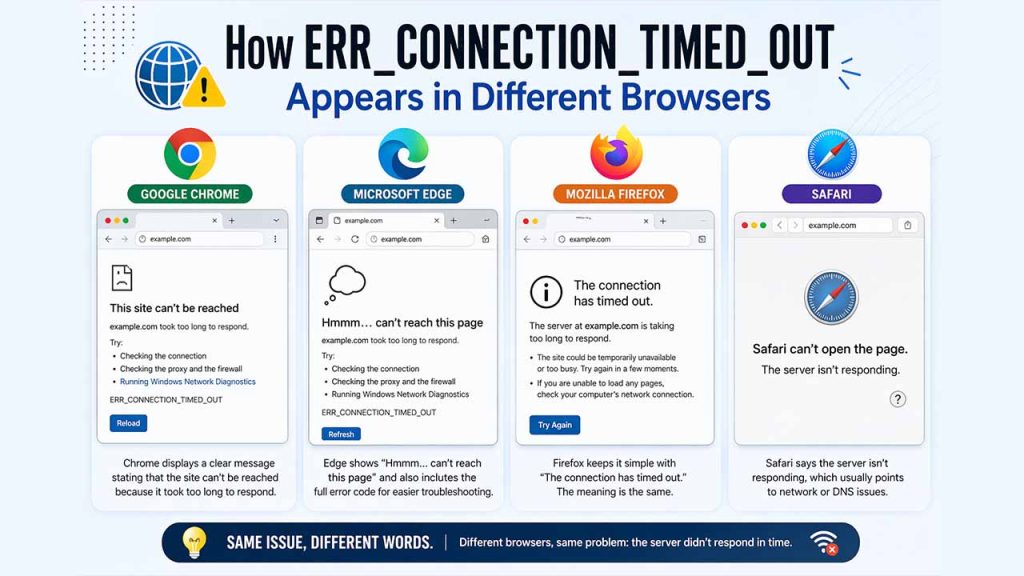
The error looks different depending on the browser you’re using:
Google Chrome
It displays it as “This site can’t be reached. Domain.com took too long to respond.” Chrome is the most widely used browser, so this is the version most people encounter first. The fix is often simpler than the screen makes it appear.
Microsoft Edge
In Microsoft Edge, it says, “hmmm…can’t reach this page. Domain.com took too long to respond.” Edge also displays the full ERR_CONNECTION_TIMED_OUT code beneath the message, giving you a clearer starting point for troubleshooting.
Mozilla Firefox
The error appears as “The connection has timed out.” Firefox communicates this more plainly than other browsers, but the cause is identical, which is that the server did not respond within the time Firefox was willing to wait.
Safari
It reads this error as “Safari can’t open this page. The server isn’t responding.” Safari users encounter this most often when network conditions are unstable or DNS settings are misconfigured.
The phrasing is different, but it is the same underlying issue. Several errors have different phrasing, but they usually have the same or similar meanings, such as “ERR_NETWORK_CHANGED” and “ERR_CONNECTION_REFUSED”. Both errors are closely related and can be solved using the same troubleshooting steps. “DNS_PROBE_FINISHED_NXDOMAIN” is another commonly known error, which displays “This site can’t be reached.” It essentially means that the domain you requested does not exist.
How to Fix ERR_CONNECTION_TIMED_OUT Error (Step-by-Step Solutions)
Related walkthrough
Top 10 Must-Have WordPress Plugins for Beginners

There is no single perfect solution to it. You will have to walk through a sequence of checks, eliminating what doesn’t work one by one. Start from the simplest possibilities and move towards the more technical ones. Let’s see how:
1. Check your Internet Connection
First, start with the most fundamental check before pursuing anything more complex. A weak or interrupted internet connection is one of the most frequent triggers for this error, and browsers themselves recommend this as a first step.
Try these quick checks:
- Power cycle your router: Unplug it completely, wait about 30 seconds, then plug it back in. This clears more issues than most people expect.
- Check your Wi-Fi signal: Crowded public hotspots at airports, cafés, or hotels frequently drop connections. If you’re on one, try switching to mobile data or a more stable network.
- Test another website: If other sites load fine, the issue is likely with that specific site or server, not your connection.
2. Temporarily Disable Your Firewall and Antivirus Software
Security software is helpful until it starts blocking legitimate websites and labeling them as potential threats. Firewalls and antivirus programs can occasionally flag safe websites as suspicious, which prevents your browser from connecting at all. To test whether this is the cause, temporarily disable your firewall or antivirus, then try loading the website again. Only do this if you’re confident the site you’re trying to visit is safe.
Important: turn your security software back on immediately after testing. Leaving it disabled even briefly opens the door to genuine threats. If you are concerned about your site’s overall exposure, it is worth reviewing your WordPress security practices as a whole.
If your software keeps interfering with a site you know is harmless, most major tools offer a “false positive” reporting feature. You can flag the site, so the developer can whitelist it in a future update.
3. Check and Disable Proxy Settings
A misconfigured proxy can quietly cause the ERR_CONNECTION_TIMED_OUT error without you realizing it. Sometimes a proxy gets set up in the background by software or a system configuration, and you might not even know it’s there.
To check in Google Chrome, go to Settings → Advanced → System → Open proxy settings.
- On Windows: click LAN Settings and make sure the “Use a proxy server for your LAN” box is unchecked.
- On Mac: uncheck all selectable proxy protocols in the Network preferences panel.
If you are running a VPN, disconnecting it is also advisable at this stage. VPN services reroute your traffic in ways that can occasionally cause timeouts, even when the service itself is functioning normally.
4. Change DNS Server Settings
Your DNS server is responsible for translating a domain name into an IP address. If your ISP’s DNS servers are slow, overloaded, or returning incorrect data, connections to websites can fail.
Try switching to a public DNS server like Google’s (8.8.8.8 and 8.8.4.4) or Cloudflare’s (1.1.1.1 and 1.0.0.1). These are generally faster and more reliable than what most ISPs provide.
On Windows
Go to Control Panel → Network and Sharing Center → Change Adapter Settings → right-click your connection → Properties → Internet Protocol Version 4 → Properties. Enter your preferred DNS addresses and click OK.
On Mac
System Preferences → Network → Advanced → DNS tab. Add Cloudflare’s or Google’s DNS addresses there.
One useful tip: if you’re already using a third-party DNS and still seeing this error, try reverting to your ISP’s default is sometimes the more effective course of action.
5. Flush DNS Cache
Even if your DNS settings are correct, your computer may be holding onto old or outdated DNS records that point to the wrong place. This is especially relevant if you’ve recently moved your website to a new host. Clearing the DNS cache forces your system to look up the correct, current IP address for a domain.
On Windows: Open Command Prompt and type:
ipconfig /flushdns- You’ll see a message confirming that the cache was cleared.
On Mac: Open Terminal and type:
dscacheutil -flushcache- It is normal if no confirmation message appears on Mac.
- After flushing, restart your browser and try again.
6. Check Your Hosts File
Every computer has a local hosts file. It is a small text file that manually maps domain names to IP addresses. It’s usually edited when developers want to preview a site before updating DNS records. But if a domain gets entered incorrectly, it can redirect your browser to the wrong place entirely, which triggers a timeout.
On Windows: Open your text editor as an administrator, then navigate to:
C:\Windows\System32\drivers\etc\- Open the hosts file and check whether the site you’re trying to reach is listed. If it is and it shouldn’t be, delete that entry and save the file.
On Mac: Open Terminal and run:
sudo nano /private/etc/hosts- Look for any entries related to the website in question and remove them if they don’t belong there.
7. Verify Domain DNS Settings
If you recently migrated your WordPress site to a new host or made any changes to your domain settings, the DNS might not be pointing where it should. DNS propagation may take from a few minutes to 24 hours, depending on your provider and TTL settings.
Log in to your domain registrar and confirm that the nameservers or A records are pointing to your current host. If the settings appear correct, but the site remains inaccessible, be patient and wait as propagation takes time.
8. Clear Browser Cache
Your browser stores cached versions of websites to speed up future visits. This includes your saved login details, browsing history, and cookies. However, when that cached data becomes stale or corrupted, it can prevent pages from loading correctly.
Before clearing, test whether the cache is actually the issue. Open the site in your browser’s incognito or private mode. If it loads fine there, your regular cache is the problem.
To clear the cache in Chrome:
- go to More Tools → Clear Browsing Data,
- select all file categories,
- Click Clear Data.
- You can also paste chrome://settings/clearBrowserData directly into your address bar to get there faster.
Other browsers have similar options in their settings menus. Once cleared, restart the browser and check the site again. If the ERR_CACHE_MISS error is something you encounter often, clearing your browser cache is the first step you should take there as well.
9. Increase PHP Execution Time
This step moves beyond browser-level fixes and into the configuration of your server. It is an area that may require the involvement of your hosting provider if you do not have direct access to server files.
PHP scripts on most servers are allowed to run for a maximum of 30 seconds before the server cuts them off. On a WordPress site with heavy plugins, complex queries, or high traffic, 30 seconds isn’t always enough. When scripts exceed that limit, a connection timeout is the result.
- If you have access to your php.ini file, find the max_execution_time parameter and increase it:
max_execution_time = 300- If you can’t access php.ini directly, you can try adding this to the top of your .htaccess file:
php_value max_execution_time 300 If neither option is available to you, contact your hosting provider and ask them to increase the limit.
10. Temporarily Disable Your WordPress Plugins
If none of the above-mentioned steps have resolved the ERR_CONNECTION_TIMED_OUT error, a problematic or conflicting plugin might be the underlying cause. A single poorly coded or incompatible plugin can place enough strain on your server to produce a persistent timeout error.
The error may prevent you from accessing your WordPress dashboard entirely, which is why you need an SFTP file to resolve this.
- Connect to your website using an SFTP client (FileZilla is a solid, free option).
- Navigate to your WordPress root folder,
- Open wp-content. Inside, you’ll find a folder called plugins.
- Rename that folder to something like plugins. deactivated.
WordPress won’t find the plugins folder and will automatically deactivate everything. Now try loading your site. If the error clears, you know a plugin was causing it.
Rename the folder back to plugins, then go into wp-content/plugins and rename individual plugin folders one at a time, checking the site after each change until the error reappears. When the error reappears, you have identified the source. At that point, the plugin in question can be removed or replaced with a more reliable alternative.
Final Thoughts: Fixing ERR_CONNECTION_TIMED_OUT Effectively
The ERR_CONNECTION_TIMED_OUT error is frustrating, but it can be resolved easily with a structured and methodical approach. In most cases, the solution lies somewhere in the first few steps: a network issue, a stale cache, or a DNS configuration. For WordPress site owners, however, server-side factors such as execution time limits and plugin conflicts deserve equal attention.
Addressing the error once is valuable. Understanding what caused it is more valuable. With that knowledge in hand, you are far better equipped to maintain a stable, reliable web presence going forward. With the right approach, you can make sure it doesn’t happen again.
FAQs About ERR_CONNECTION_TIMED_OUT
Q1. What does ERR_CONNECTION_TIMED_OUT mean?
It means your browser attempted to connect to a website but did not receive a response within the allotted time limit.
Q2. Is ERR_CONNECTION_TIMED_OUT a server-side or client-side error?
It can be either; the cause may lie in your local network or browser settings, or it may originate from the website server itself.
Q3. How do I fix ERR_CONNECTION_TIMED_OUT quickly?
Start by restarting your router, clearing your browser cache, and flushing your DNS cache. These three steps resolve the majority of cases.
Q4. Can a WordPress plugin cause this error?
Yes, a poorly coded or conflicting plugin can overload the server and trigger a connection timeout on your WordPress site.
Q5. Will increasing PHP execution time fix the error?
Yes. If the timeout is caused by PHP scripts exceeding the server’s default time limit, increasing the max_execution_time value often resolves it.